
Overview
Daymark’s Shopify connector lets you bring your Shopify store data into Daymark for analysis, dashboards, and cross-source reporting. This guide walks through:- Creating an app in Shopify Dev Dashboard
- Configuring required API scopes
- Entering your Shopify credentials in Daymark
- Completing OAuth and importing data
Prerequisite: Create a Shopify app in Dev Dashboard
Before starting the integration in Daymark, create and configure your app in the Shopify Dev Dashboard.Step 1: Create the app
- Open the Shopify Dev Dashboard.
- In the left navigation, select Apps.
- Click Create app.
- Select Start from Dev Dashboard.
- Name your app (for example, Daymark) and click Create.
Step 2: Configure access and required scopes
- Open the app’s Versions tab.
- In Access > Scopes, add the required scopes below.
- If Shopify shows that some scopes require permission, click Request access from the same screen.
- In API access requests, open Protected customer data access and click Request access.
- In Select your data use and reasons, choose App functionality.
- In Protected customer fields, select Name, Email, Phone, and Address, and set the reason to App functionality for each field.
- Save your access request details.
Step 3: Set app URLs and release the version
- Return to the app Versions tab.
- Set App URL to:
- Add Redirect URL as:
- Select the Webhooks API version (typically the newest version).
- Click Release.
Step 4: Get credentials
- Open the app’s Settings in Dev Dashboard.
- Copy Client ID and Client secret.
Keep your Client ID and Client secret private and store them securely.
Connect Shopify in Daymark
Open the Explore Page
From your Daymark workspace, go to Explore to start the connection.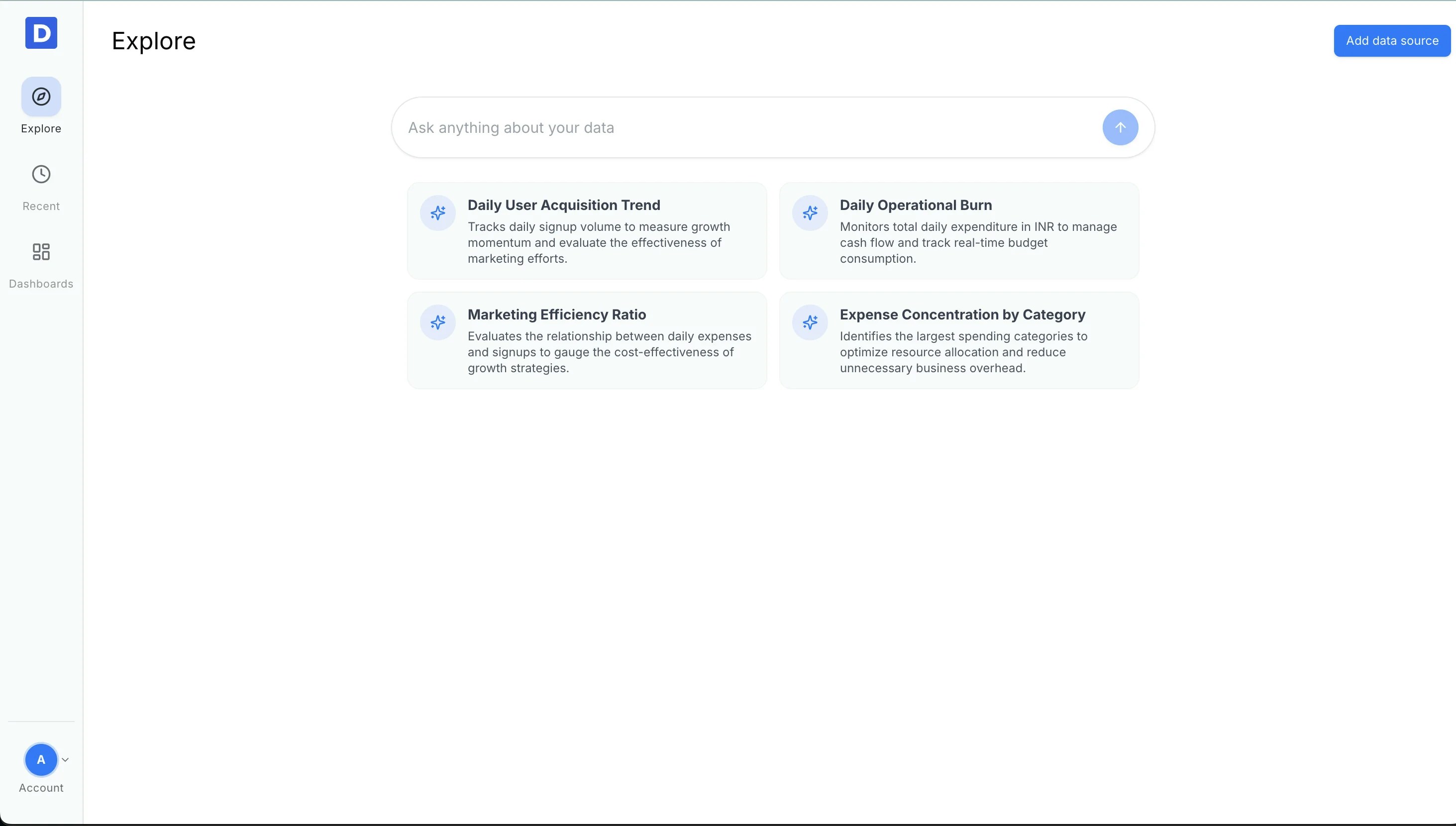
Choose Shopify
Click Add data source and select Shopify from the connector list.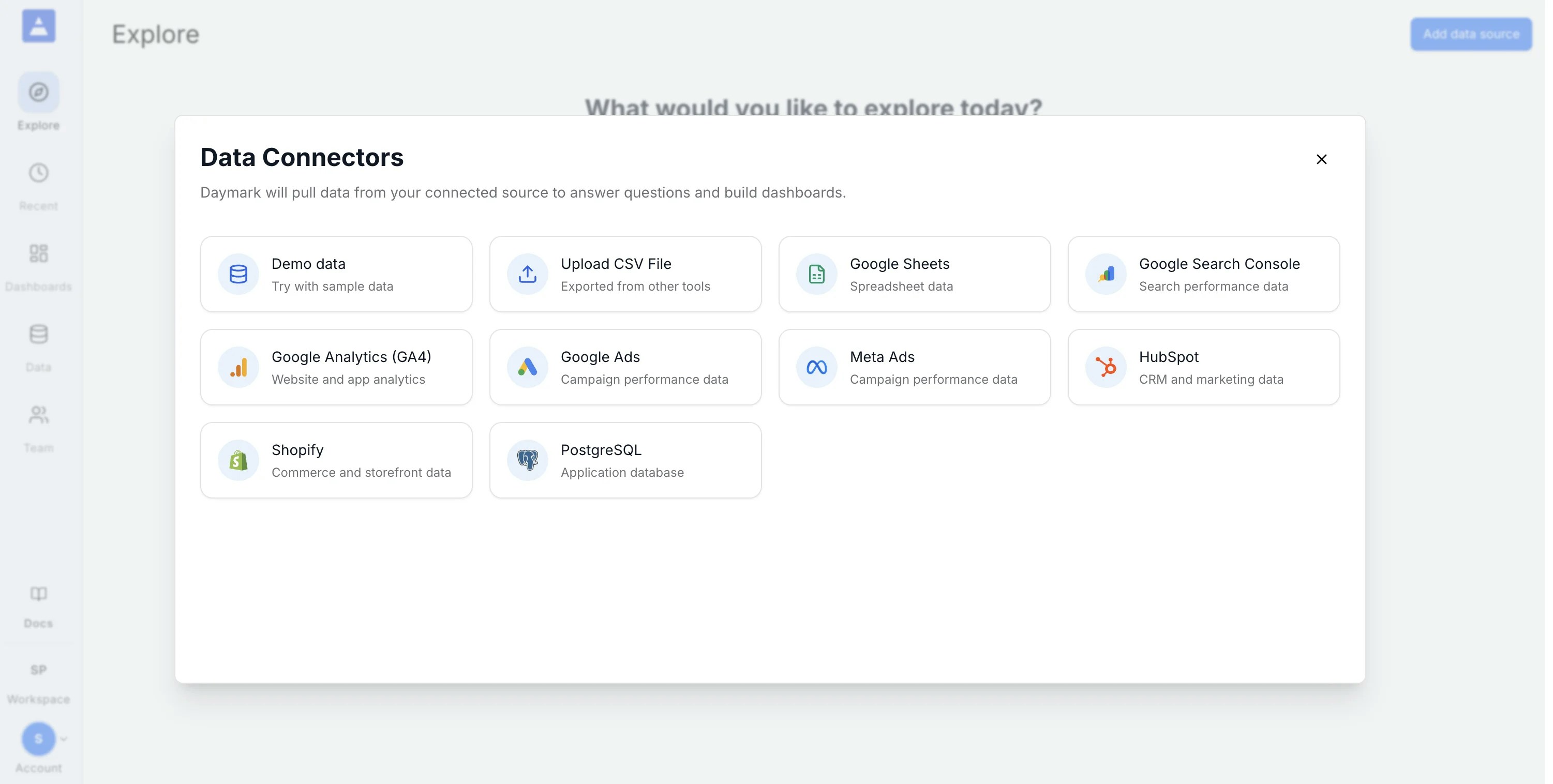
Setup
In the Shopify connector screen in Daymark, you will provide:- Shopify store: your store subdomain (for example,
your-store) or full URL (for example,https://your-store.myshopify.com) - Client ID: from your Shopify custom app API credentials
- Secret Key: from the same Shopify custom app API credentials page
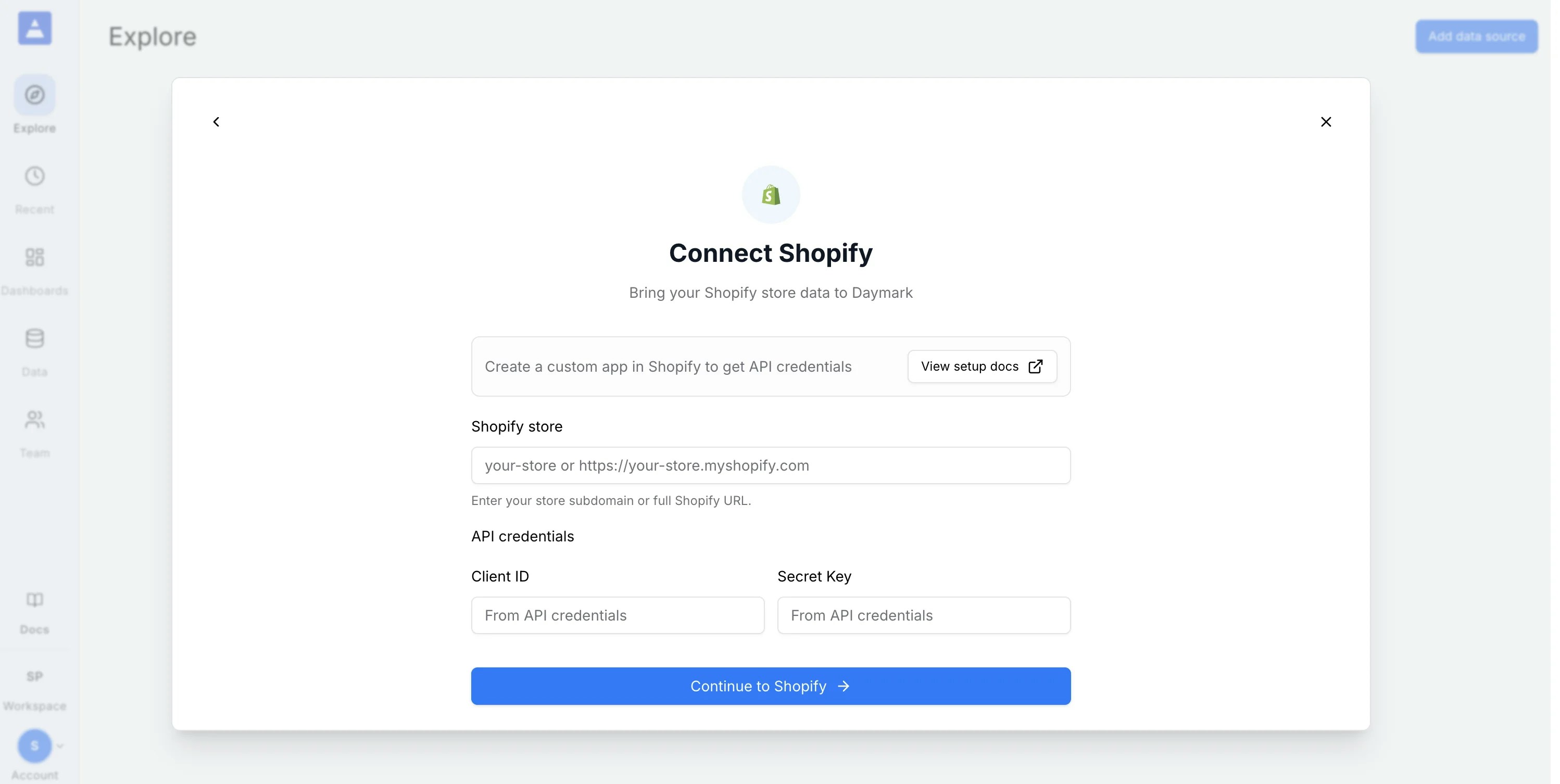
Connect and authorize in Daymark
- Return to Daymark’s Shopify connector form.
- Enter Shopify store, Client ID, and Secret Key.
- Click Continue to Shopify.
- Complete Shopify authorization and return to Daymark.
Import Data
Daymark validates the connection and starts importing your Shopify data. Once the import is complete successfully, you can start analyzing the data in Daymark.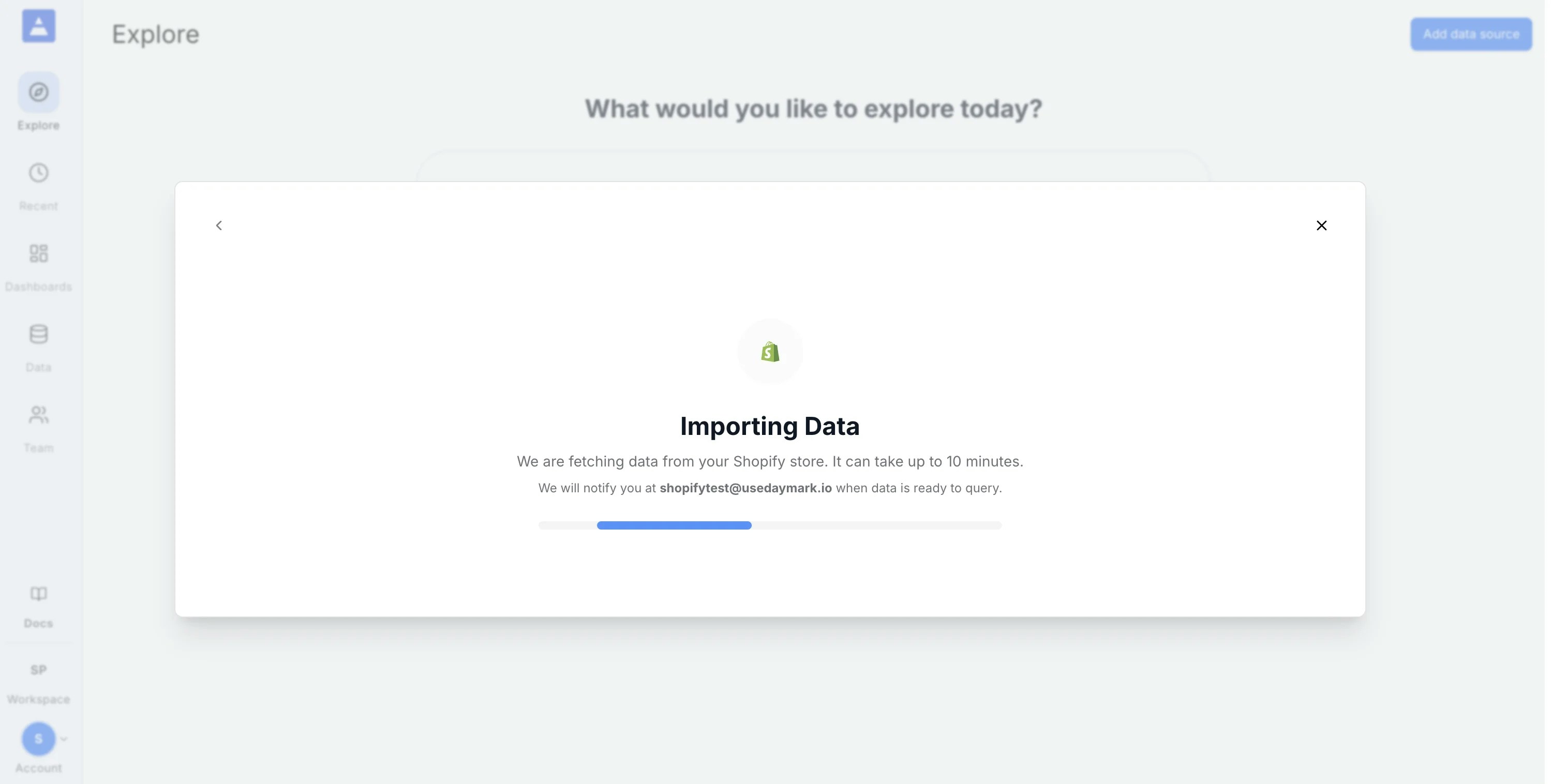
Connection Complete
Once the import completes successfully, ask your questions on the Explore page to see trends, patterns, and insights from your Shopify data in Daymark.Use the app
After connecting Shopify, you can ask questions such as:- “What are my top products by revenue this quarter?”
- “Show daily orders and average order value for the last 90 days”
- “Which customers placed repeat orders this month?”