
Overview
Daymark’s HubSpot connector brings your HubSpot CRM data into Daymark so you can analyze it alongside other sources—like your product database (PostgreSQL), Google Sheets, and CSVs. This empowers your team to answer cross-source questions, such as connecting product usage to acquisition sources, revenue to acquisition sources, or support outcomes to customer cohorts. Ask questions in plain English and Daymark automatically returns the right output (charts, tables, and summaries). Save answers into dashboards that can be updated and shared as a single source of truth across marketing, sales, success, and product teams. Daymark respects HubSpot permissions—users only see data they’re authorized to access. The connector is read-only for HubSpot and operates within HubSpot API usage limits and guidelines. Daymark uses synced HubSpot data to power analytics, dashboards, and cross-source questions when you connect additional sources like PostgreSQL, Google Sheets, or CSVs. Daymark does not write data back to HubSpot.Install the app
Open the Explore Page
From your Daymark workspace, go to Explore to start the connection.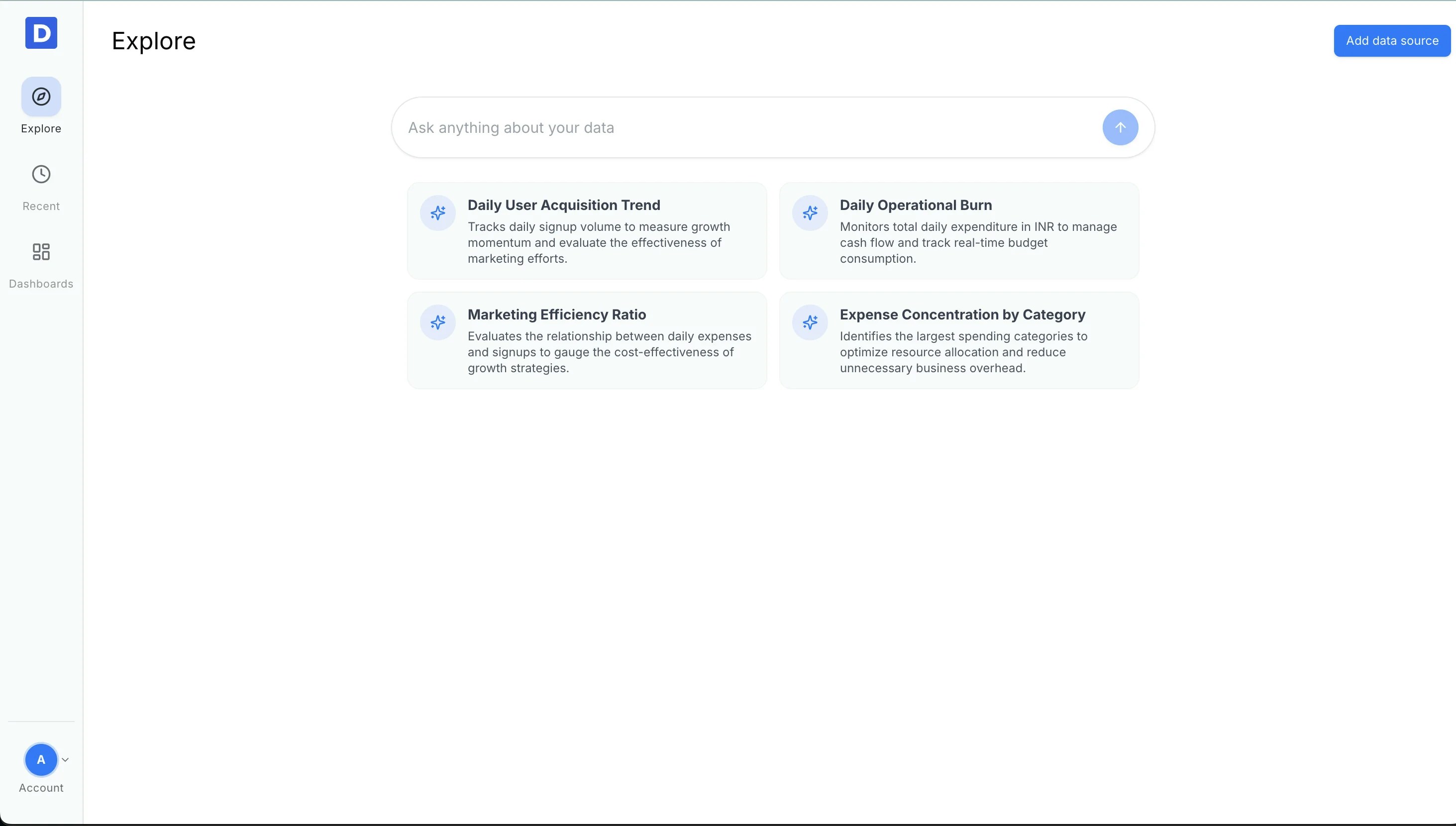
Choose HubSpot
Click Add data source and select HubSpot from the connector list.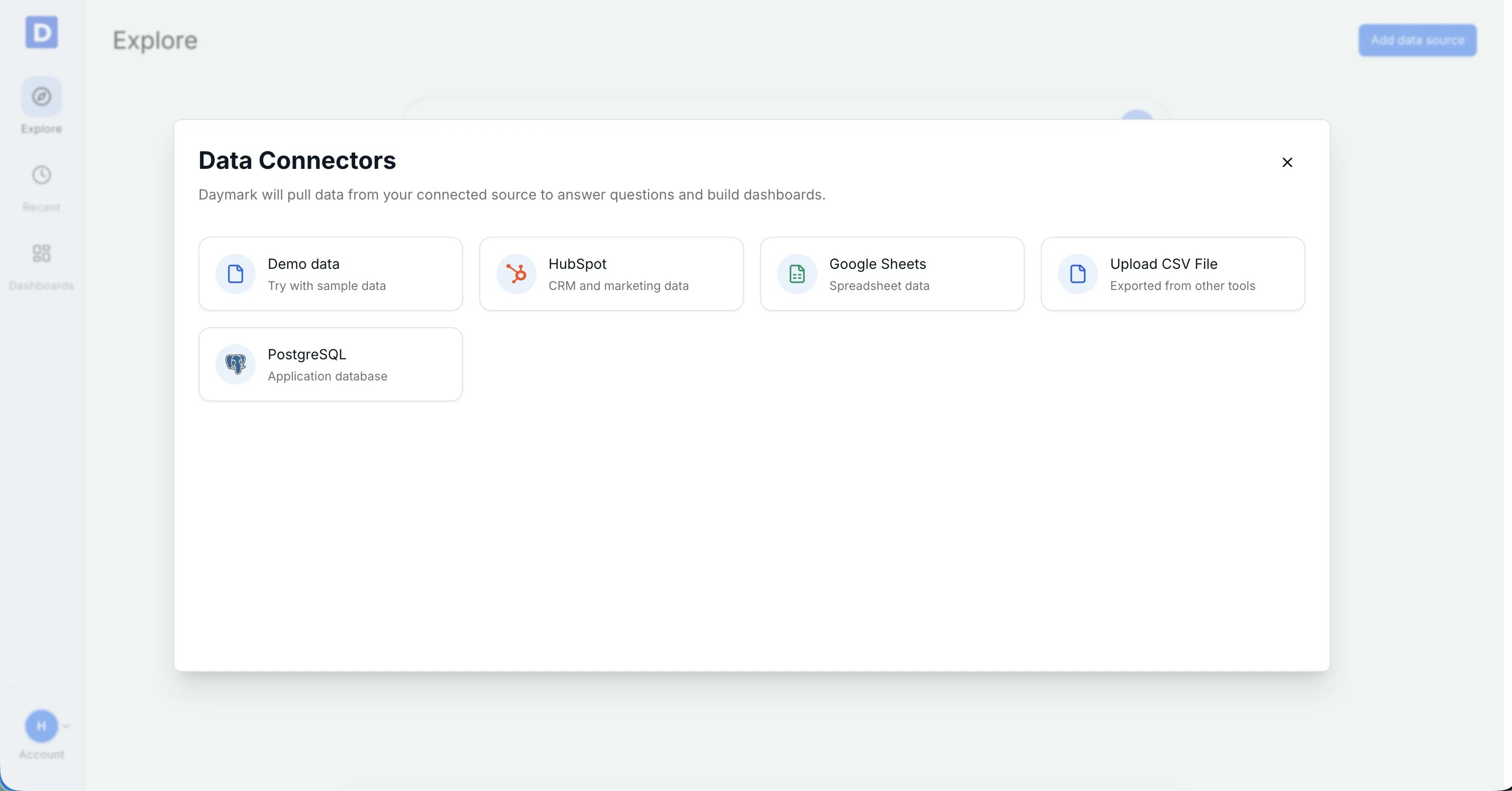
Connect HubSpot account
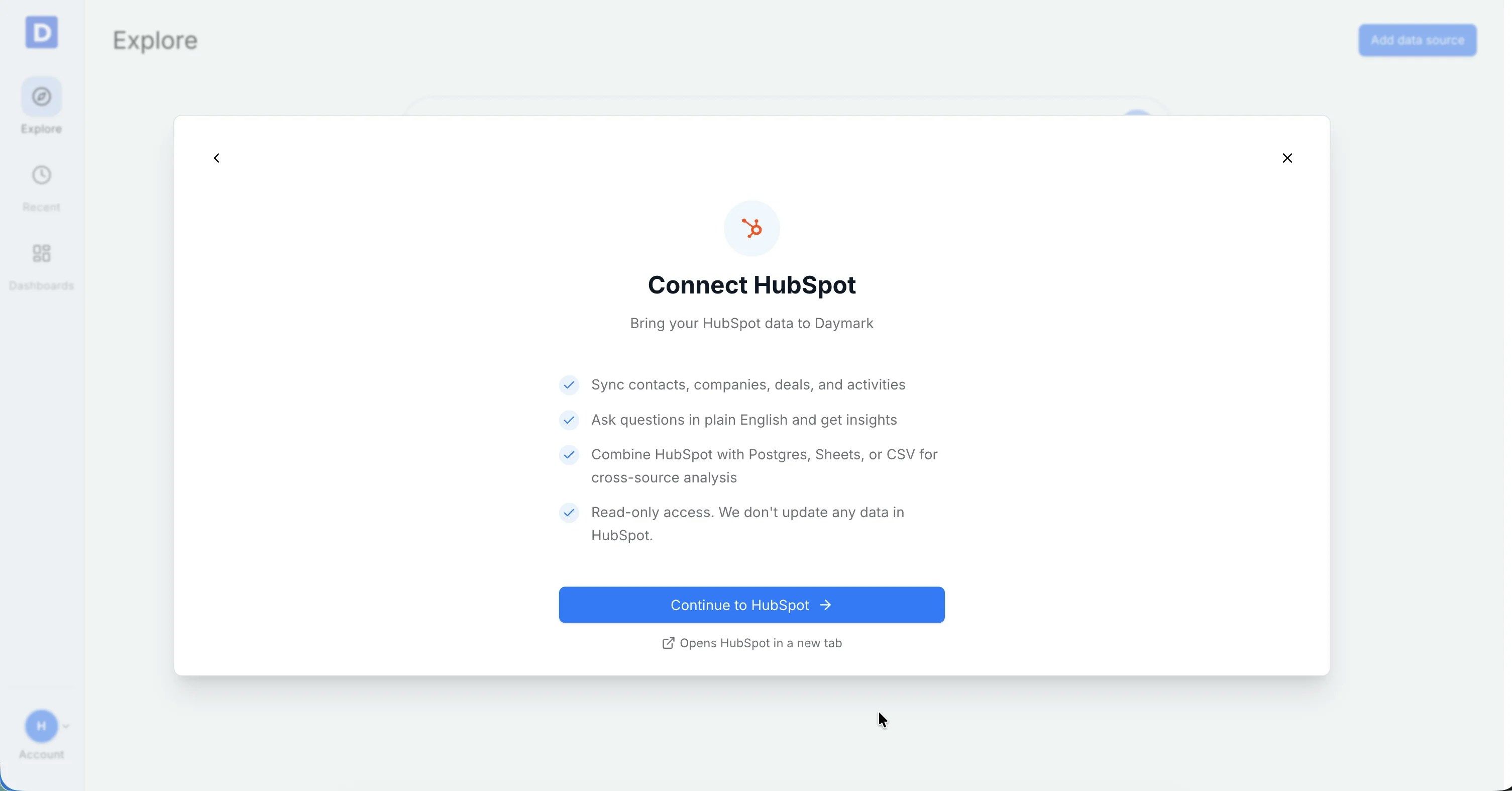
Once you select HubSpot, a connection modal will appear. Follow these steps to authorize Daymark to access your HubSpot data:- Click Continue to HubSpot. This will open the HubSpot login and authorization page in a new tab.
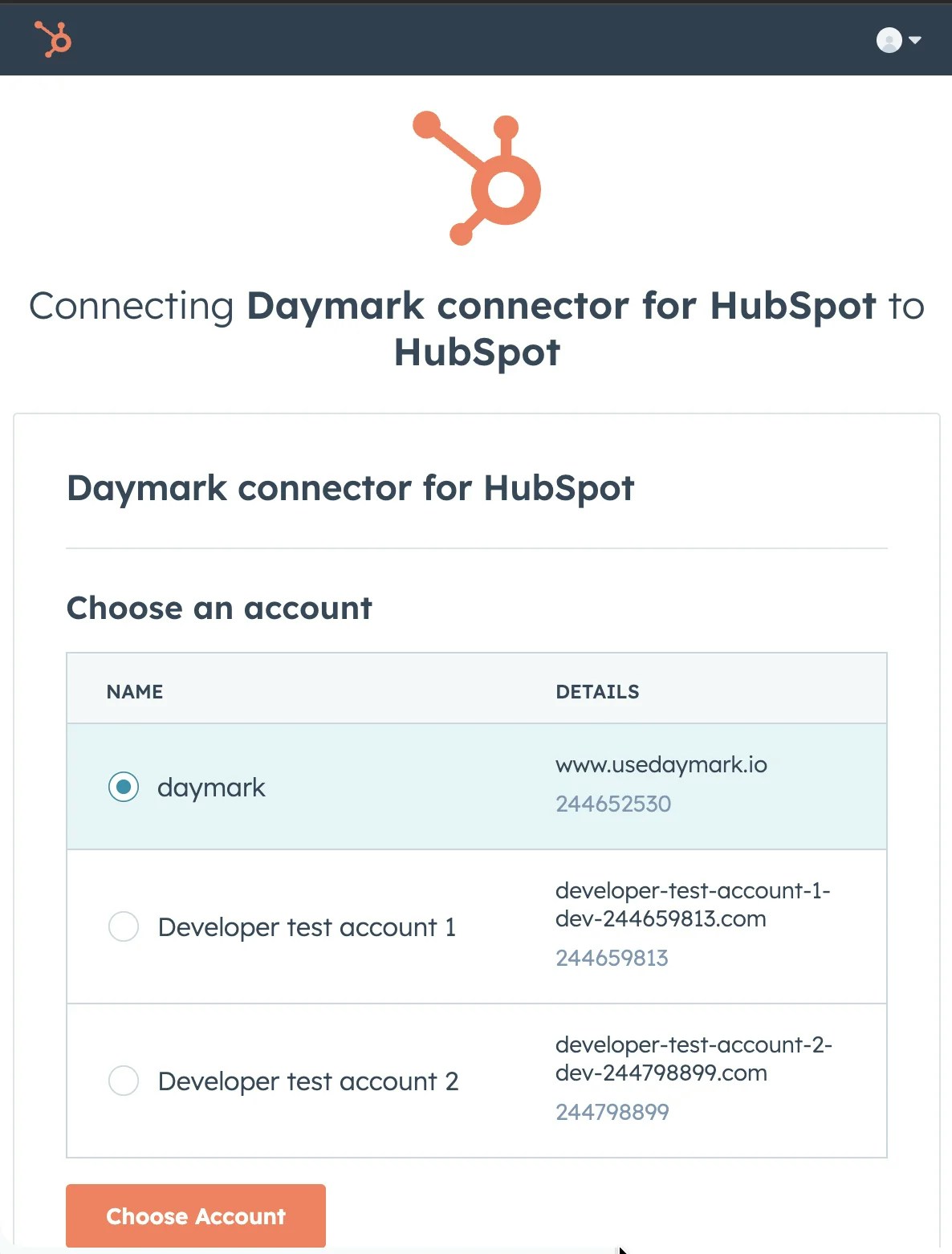
- Select the HubSpot account you want to connect.
- Review the requested scopes on this screen. Daymark requests access to read contacts, companies, deals, and tickets.
- Click Connect app.
Select Tables and Fields
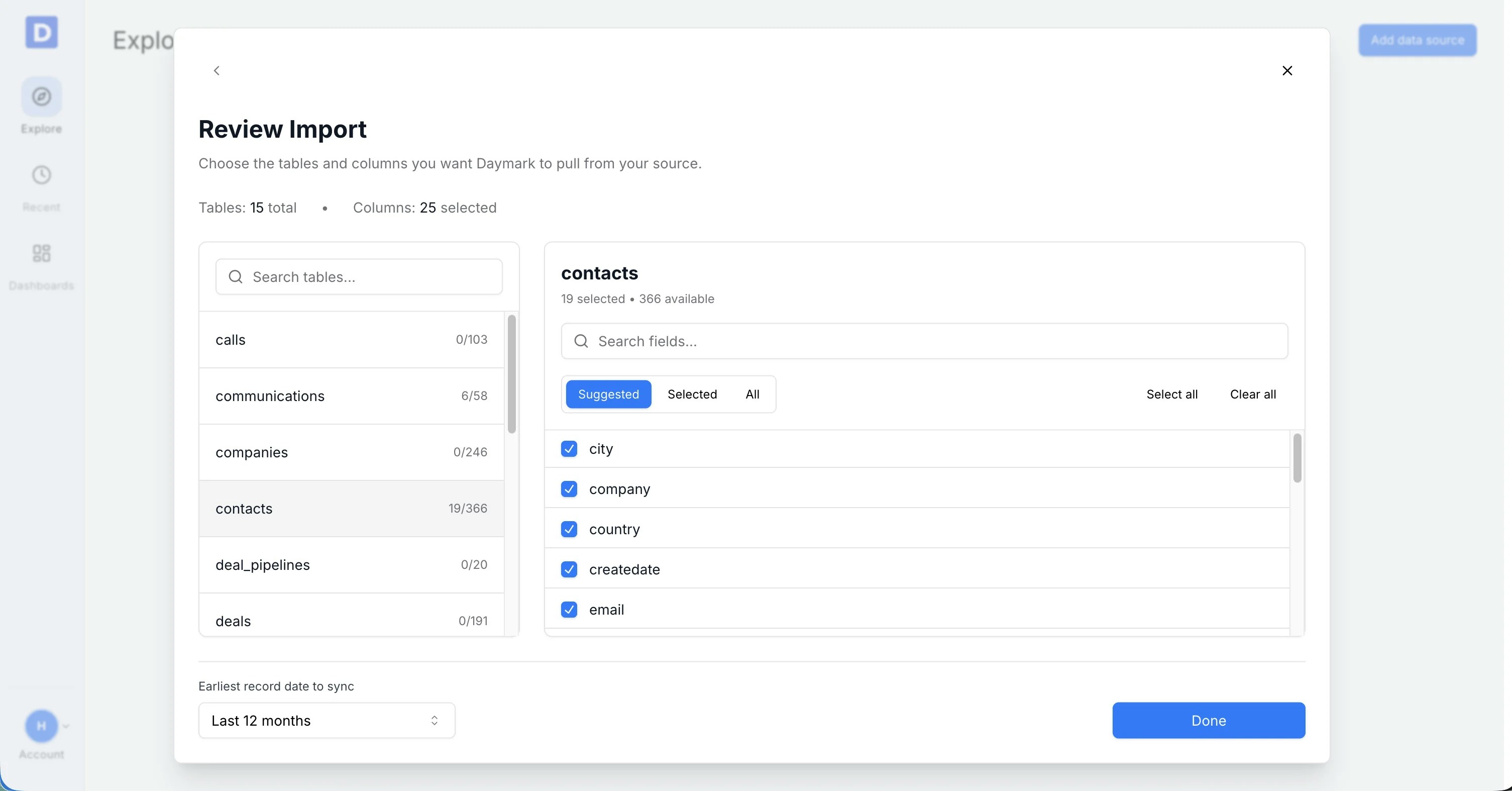
Choose the tables (e.g., Contacts, Companies, Deals, Tickets) and columns you want to include:- Use Select all to include every field
- Or choose only the fields relevant to your analysis
Import Data
Daymark validates the connection and starts importing your CRM data. Once the import is complete successfully, you can start analyzing the data in Daymark.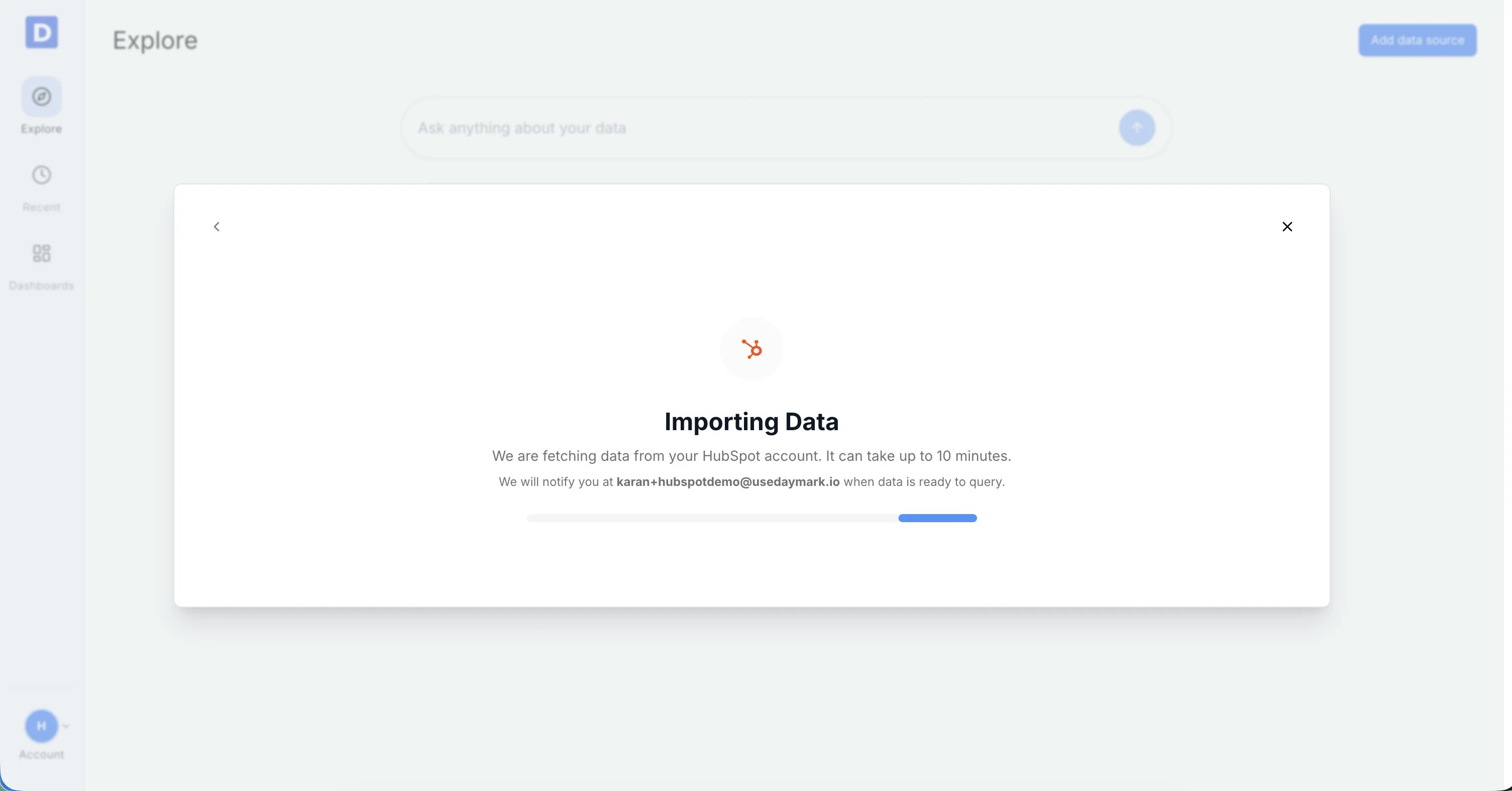
Connection Complete
Once the import completes successfully, ask your questions on the Explore page to see trends, patterns, and insights from your HubSpot data in Daymark.Use the app
Once connected, you can immediately start asking questions about your HubSpot data in plain English. Daymark will analyze your contacts, companies, deals, and tickets to provide charts, tables, and summaries. For example, ask questions like:- “Show me all deals closed this quarter by sales rep”
- “What’s the conversion rate from contact to customer by source?”
- “List all open support tickets by priority”
- “Show me product usage by customer segment” (combining HubSpot + PostgreSQL)
- “What’s the revenue by marketing campaign?” (combining HubSpot + Google Sheets)