
Overview
Connect Google Ads to Daymark to analyze your campaign performance, understand spend trends, track conversions, and measure ROI across channels. This connection enables you to:- View clicks, impressions, cost, and conversion metrics over time
- Break down performance by campaign, ad group, keyword, country, and device
- Ask natural language questions about your Google Ads data in Explore
Connect Google Ads in Daymark
Open the Explore page
From your Daymark workspace, open Explore to begin the connection flow.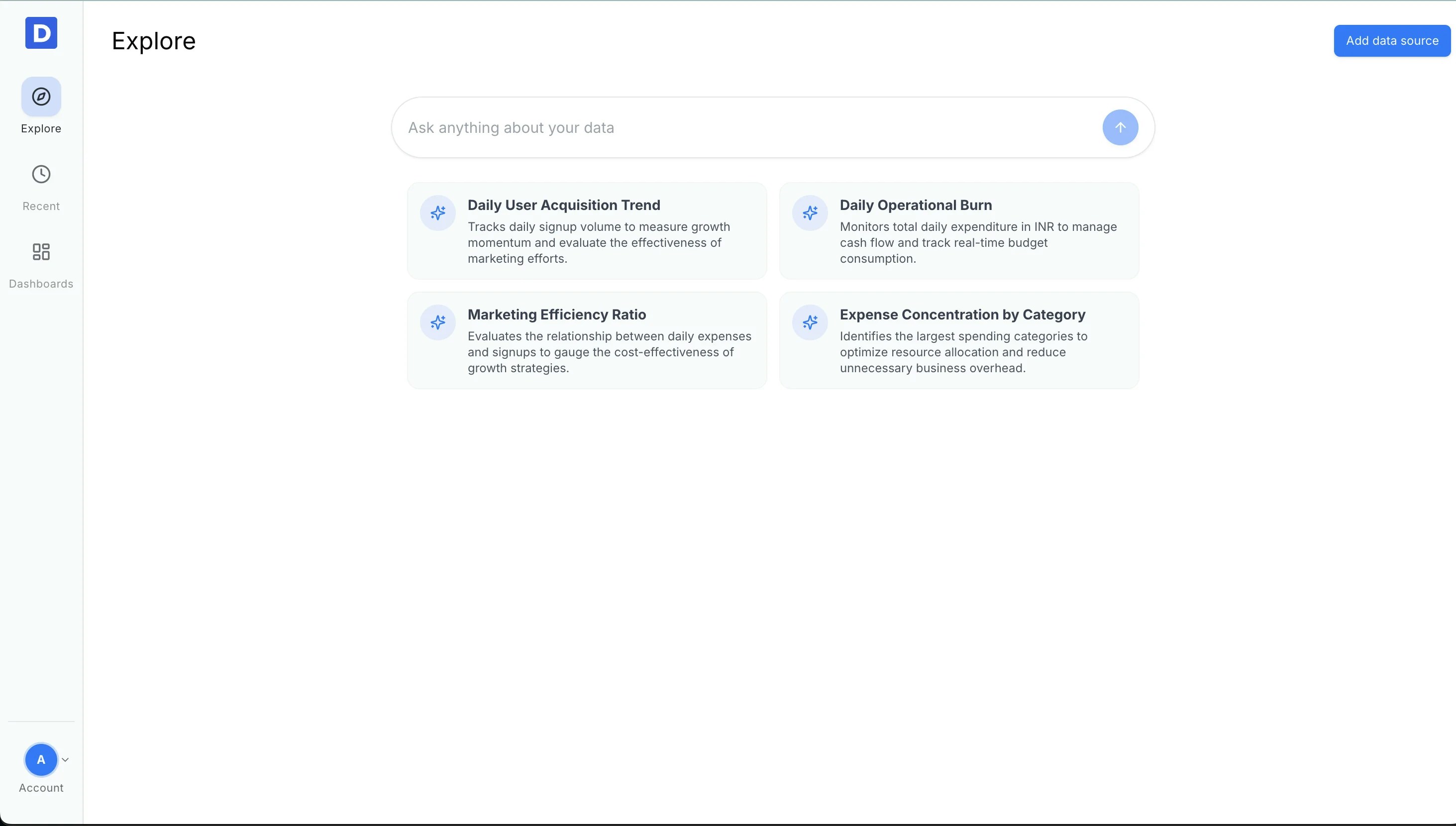
Open Data Connectors
Click Add data source to open the connector list, then choose Google Ads from the options.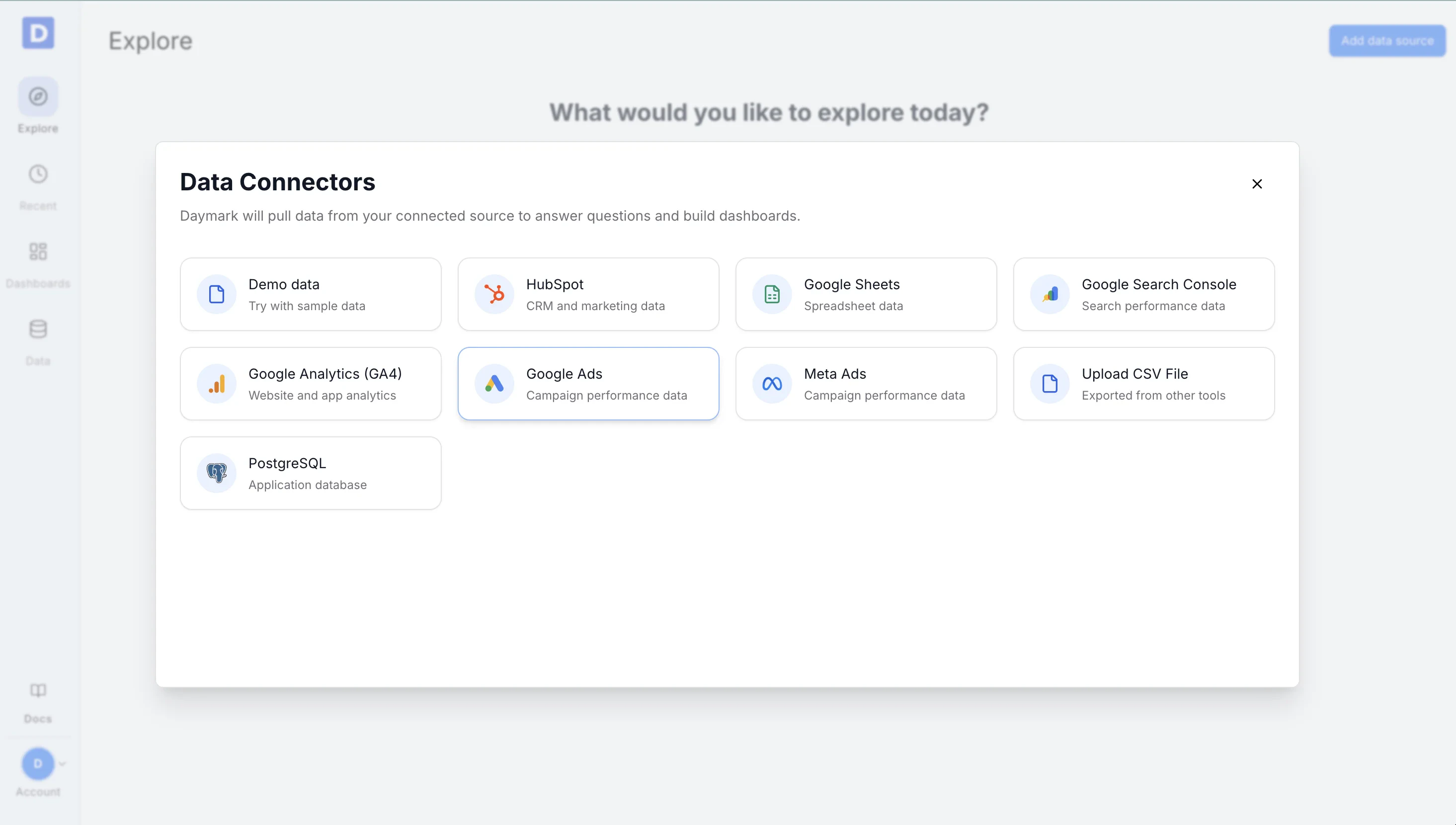
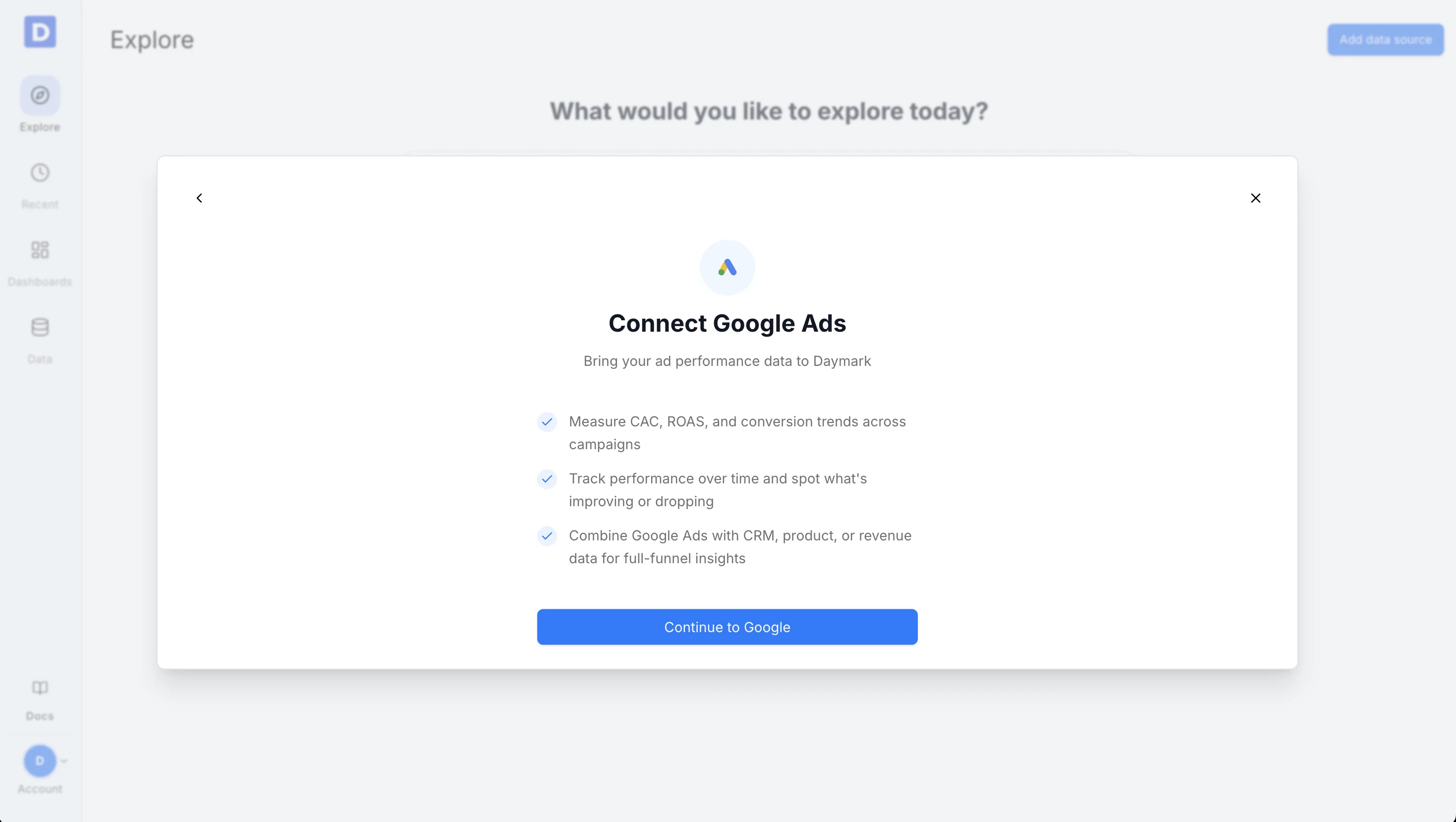
Connect your Google account
Select Continue to Google and complete the Google sign-in flow.Daymark only reads data that the user has permission to access in Google Ads and does not modify, create, or manage ads in the account.
Choose your Account & Settings
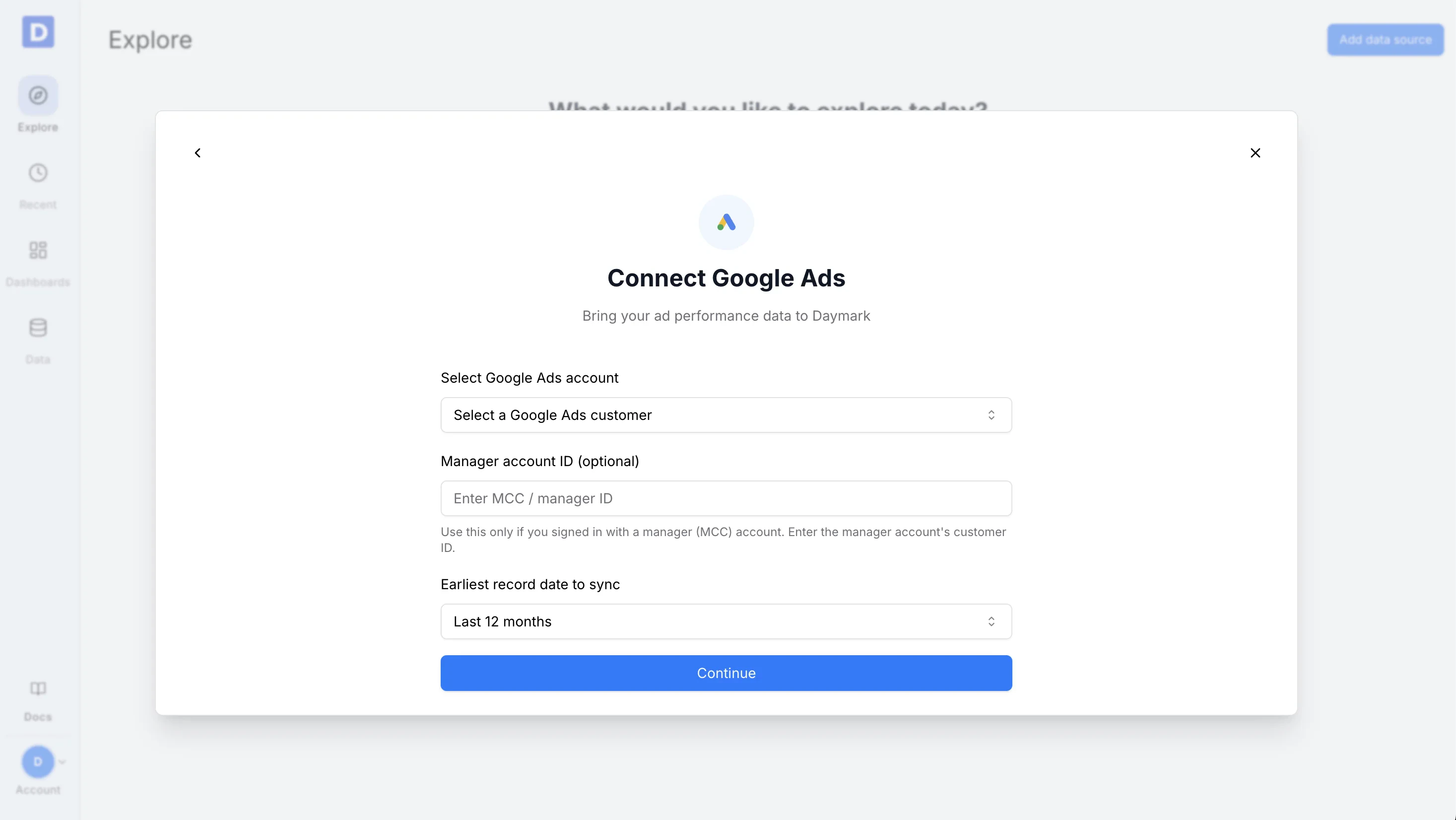
Use the connector form to finish the setup:- Select the Google Ads account that has access to your Google Ads
Select the account ID shown next to your Google Ads account name (as highlighted below).\
- Manager Account ID (optional) Use this only if you signed in with a manager (MCC) account. Enter the manager account’s customer ID
- Set your date range — common choices are last 30 days, last 90 days, last 12 months, or all time
Import Data
Daymark will begin syncing your Google Ads data and prepare it for querying. When the sync completes, you can start asking questions.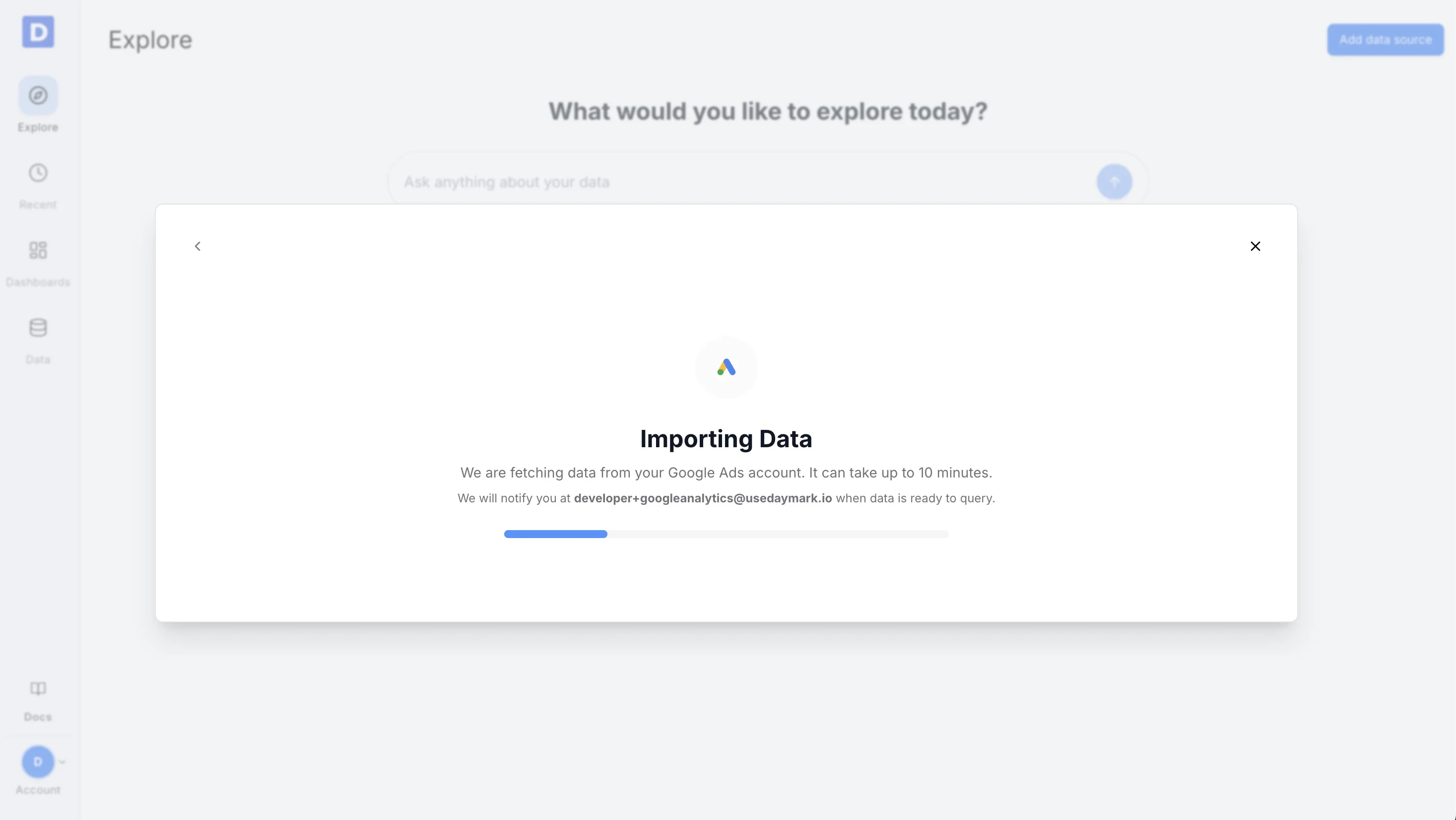
Connection Complete
Once the sync completes successfully, ask your questions on the Explore page to see trends, patterns, and insights. For example:- “Which campaigns drove the most conversions last quarter?”
- “Show cost per conversion for all campaigns this month”
- “Compare mobile vs desktop click-through rates”