
Overview
Connect Google Analytics to Daymark to analyze website traffic, user behavior, and conversion performance. This connection lets you:- Track users, sessions, and page views over time
- Analyze traffic sources, landing pages, and user locations
- Ask natural language questions about your analytics data
Connect Google Analytics in Daymark
Open the Explore page
From your Daymark workspace, go to Explore to start connecting a new data source.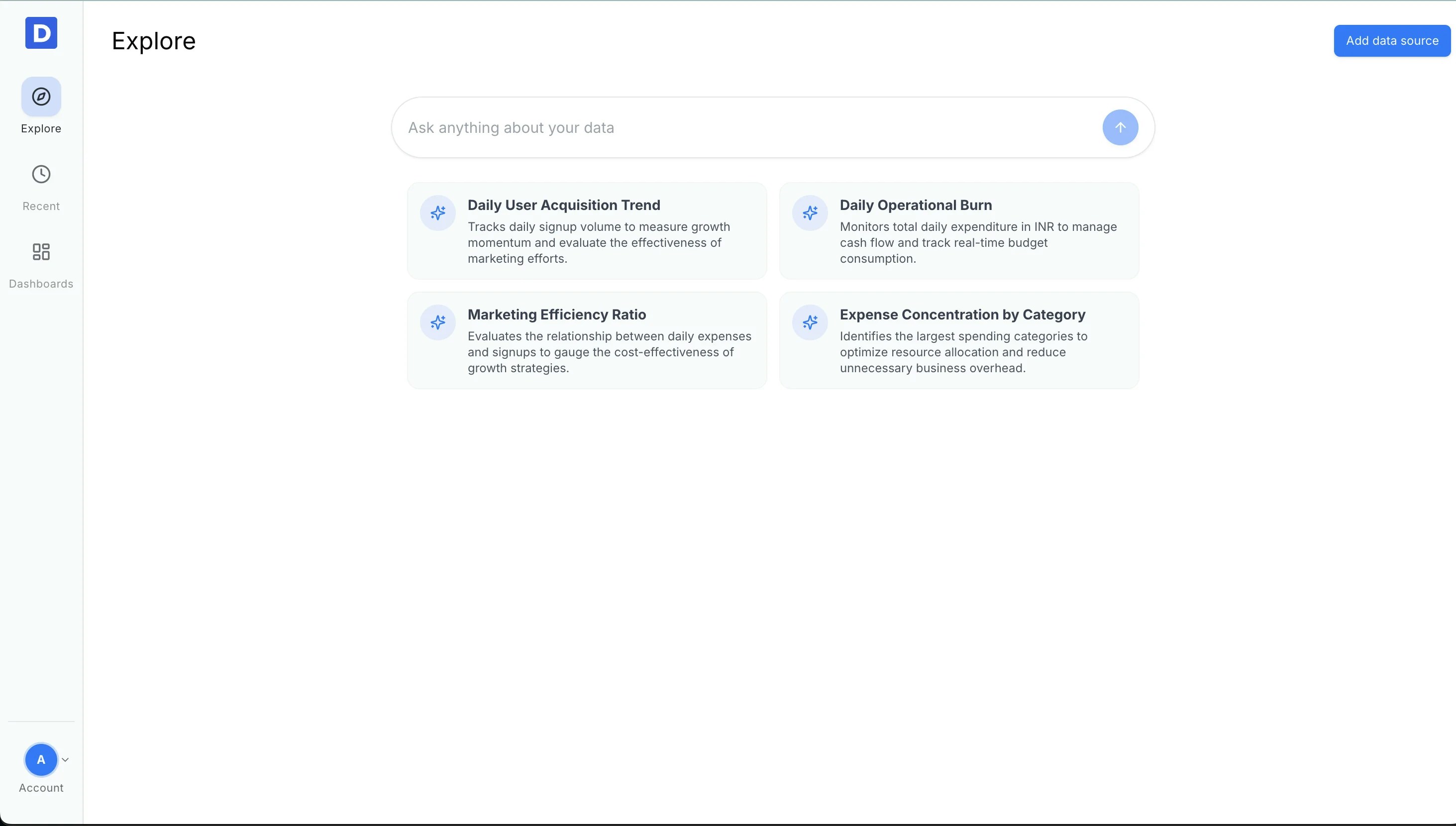
Open Data Connectors
Click Add data source to open the list of available connectors. Select Google Analytics from the list.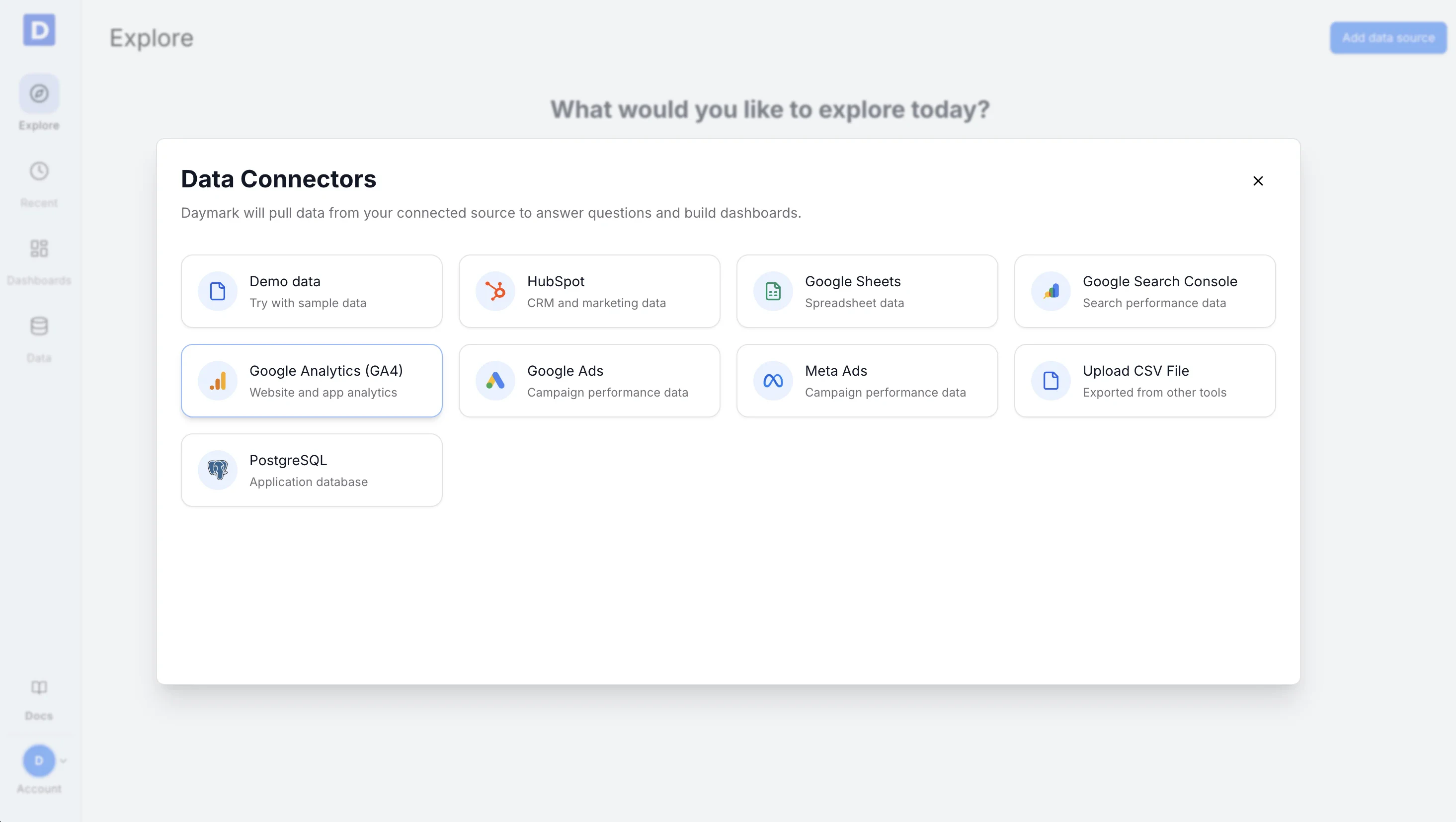
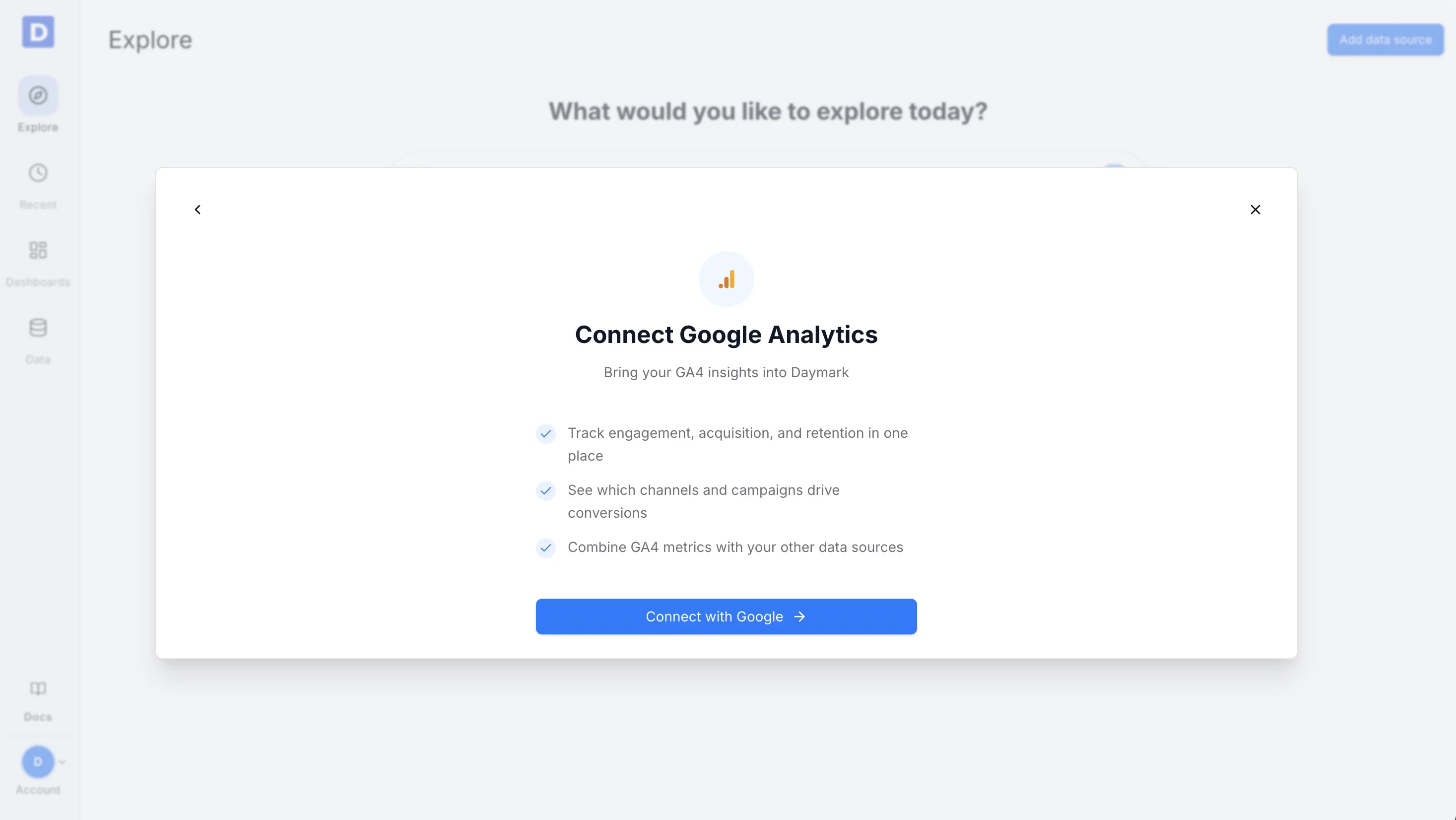
Sign in with Google
Click Connect with Google and complete the Google sign-in flow.Daymark uses read-only access to retrieve Google Analytics data that the user is authorized to view and does not create, edit, or delete any Analytics resources.
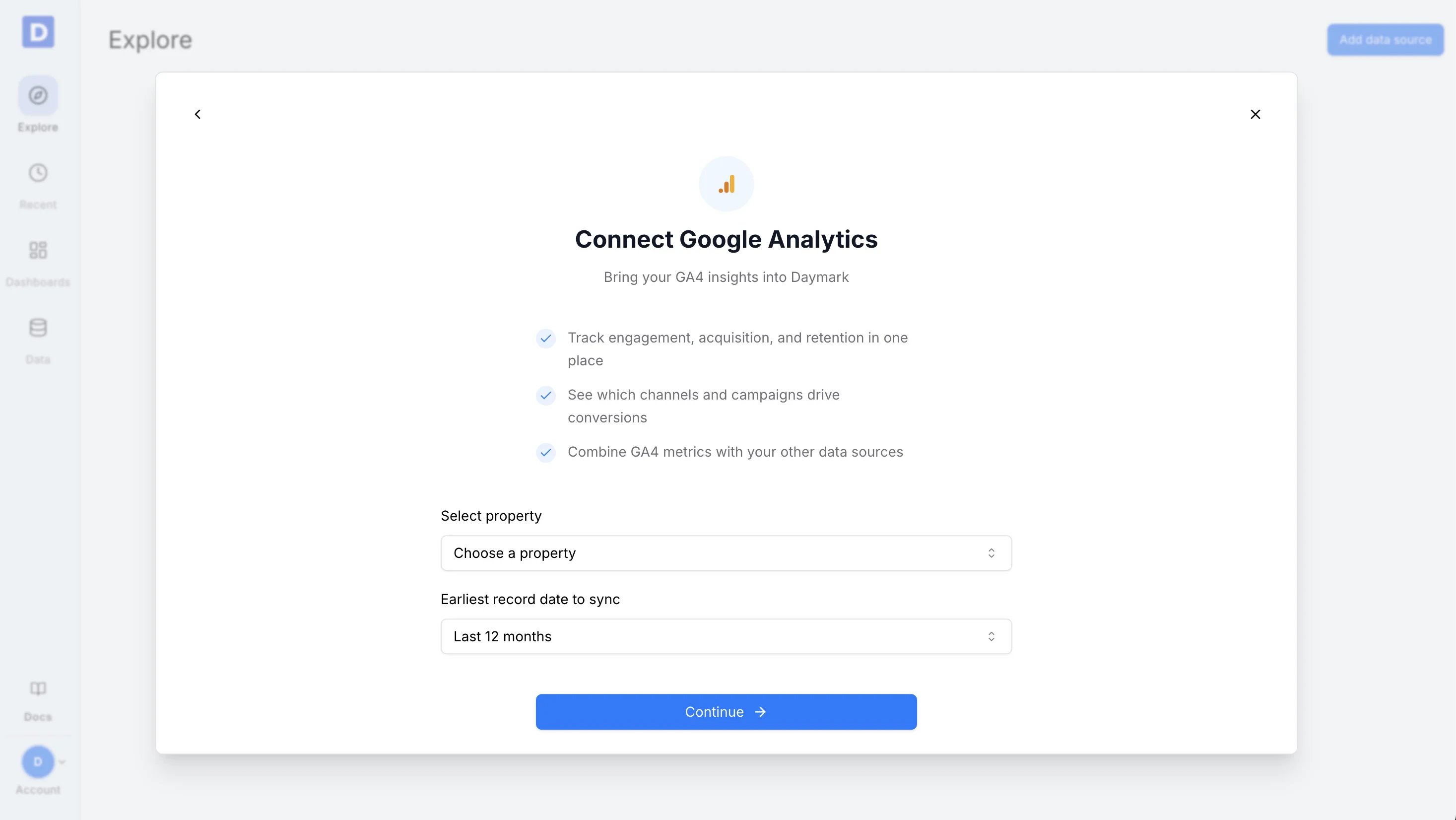
Select Account, Property, and Settings
Complete the connector form:- Select Google account that owns or has access to Analytics
- Choose an Analytics property you want to connect
- Select the date range for data sync Examples: last 30 days, last 90 days, last 12 months, or all available data
Import Data
Daymark will start syncing data from Google Analytics. Once complete, your data will be ready for analysis in Explore.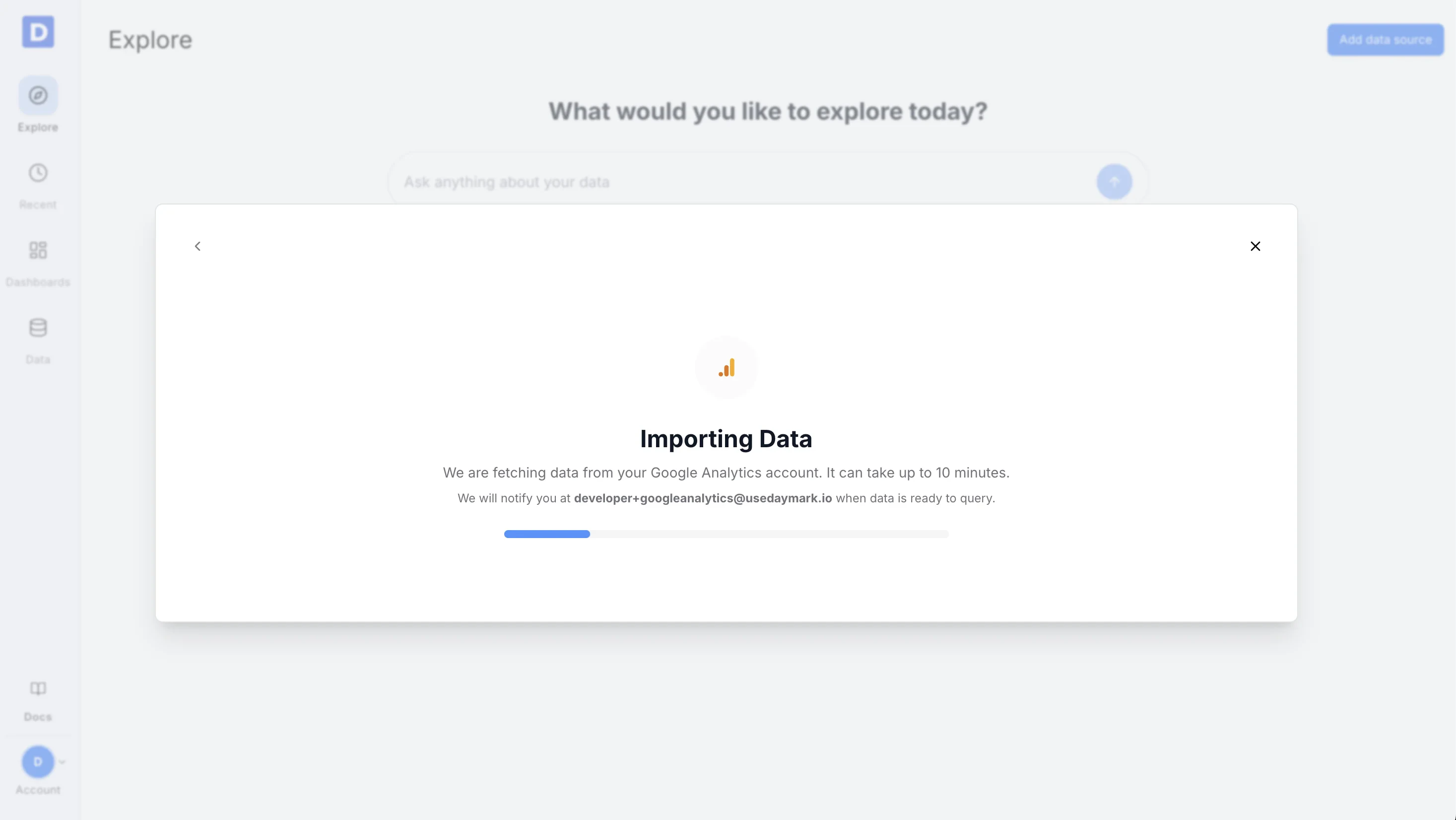
Connection Complete
After the sync finishes, ask your questions on the Explore page in plain English and turn answers into tables, charts, or dashboards. For example:- “How many users visited the site last month?”
- “Which pages have the highest bounce rate?”
- “Compare organic vs paid traffic over time”