Overview
This guide expands the PostgreSQL connection flow with visuals. Use it when connecting a new database for the first time.Connect a PostgreSQL to Daymark
Open the Explore Page
From your Daymark workspace, go to Explore to start the connection.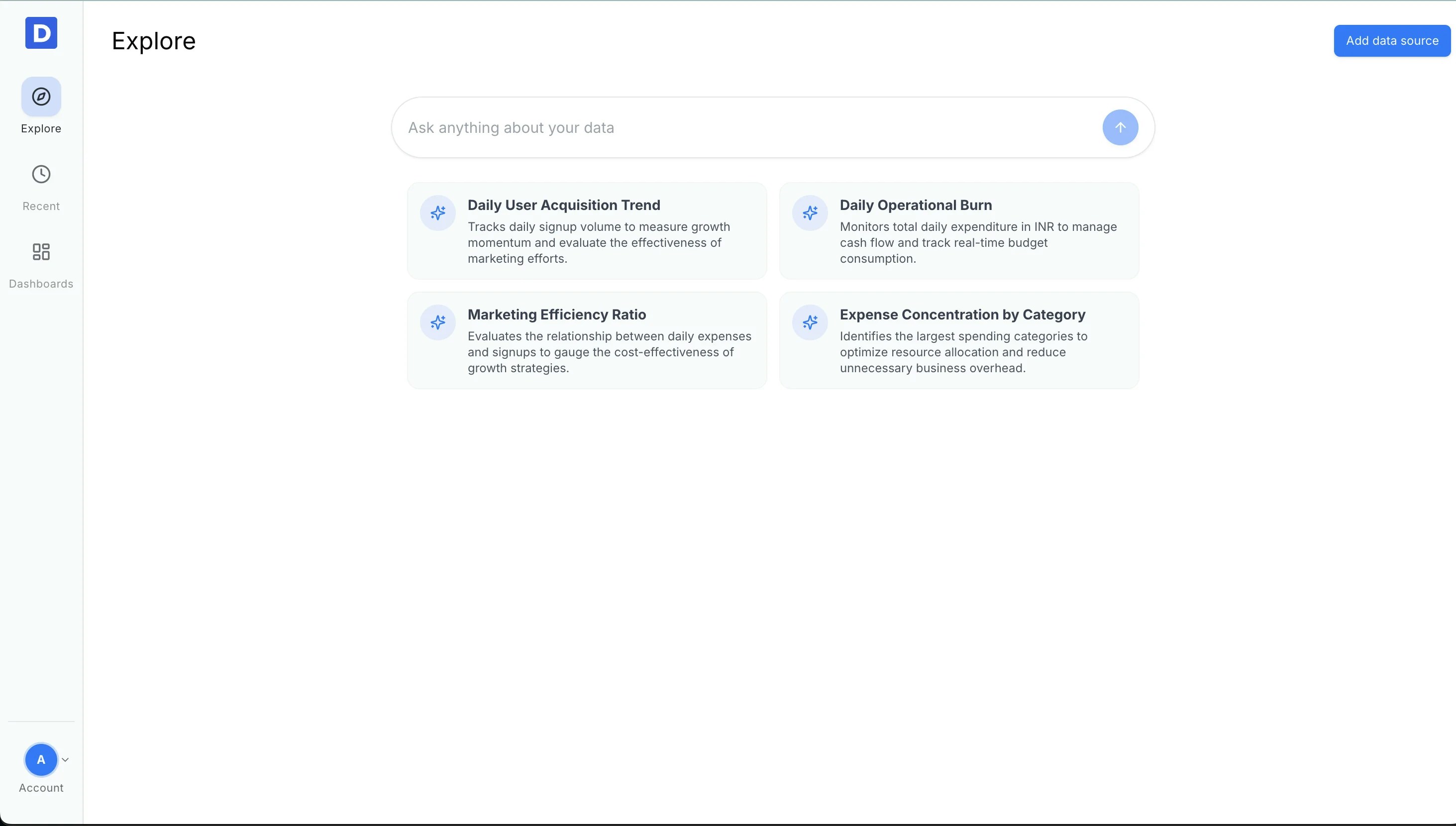
Choose PostgreSQL
Click Add data source and select PostgreSQL from the connector list.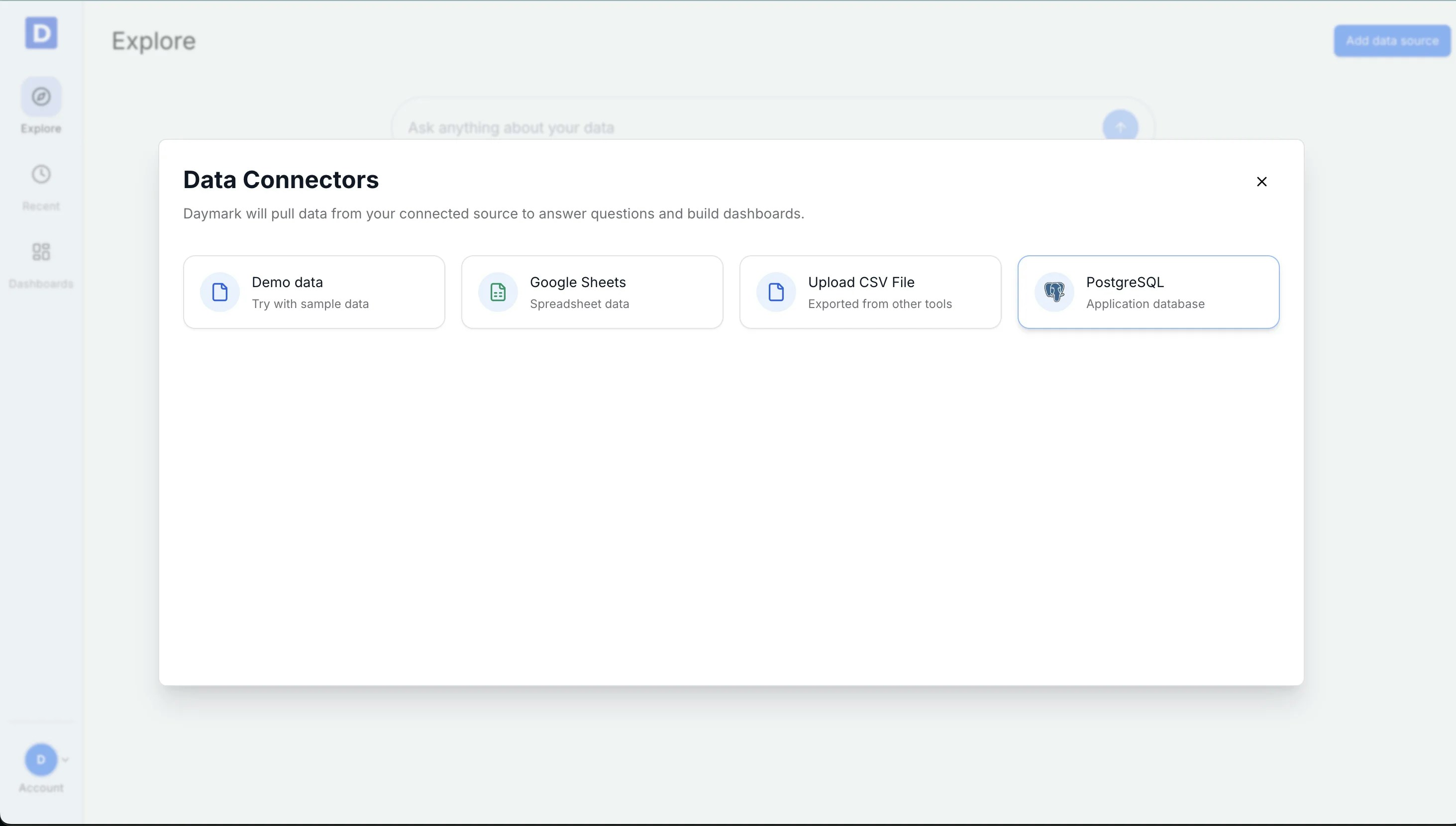
Enter Connection Details
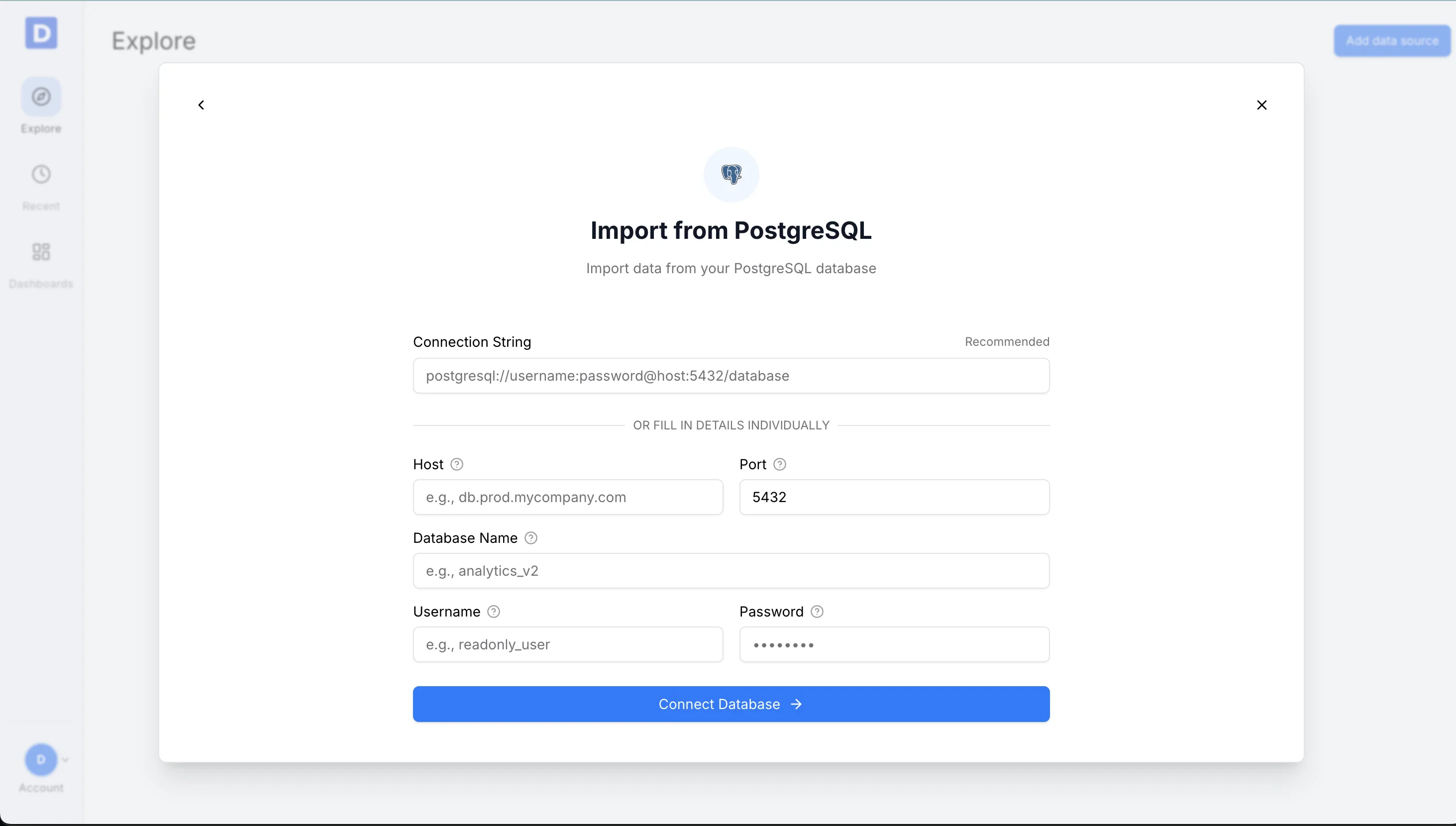
You can use either a connection string or manual fields.Option 1: Connection string
Paste your PostgreSQL connection string into the Connection String field.Option 2: Manual fields
Fill in the form with your database details:- Host
- Port (default
5432) - Database name
- Username
- Password
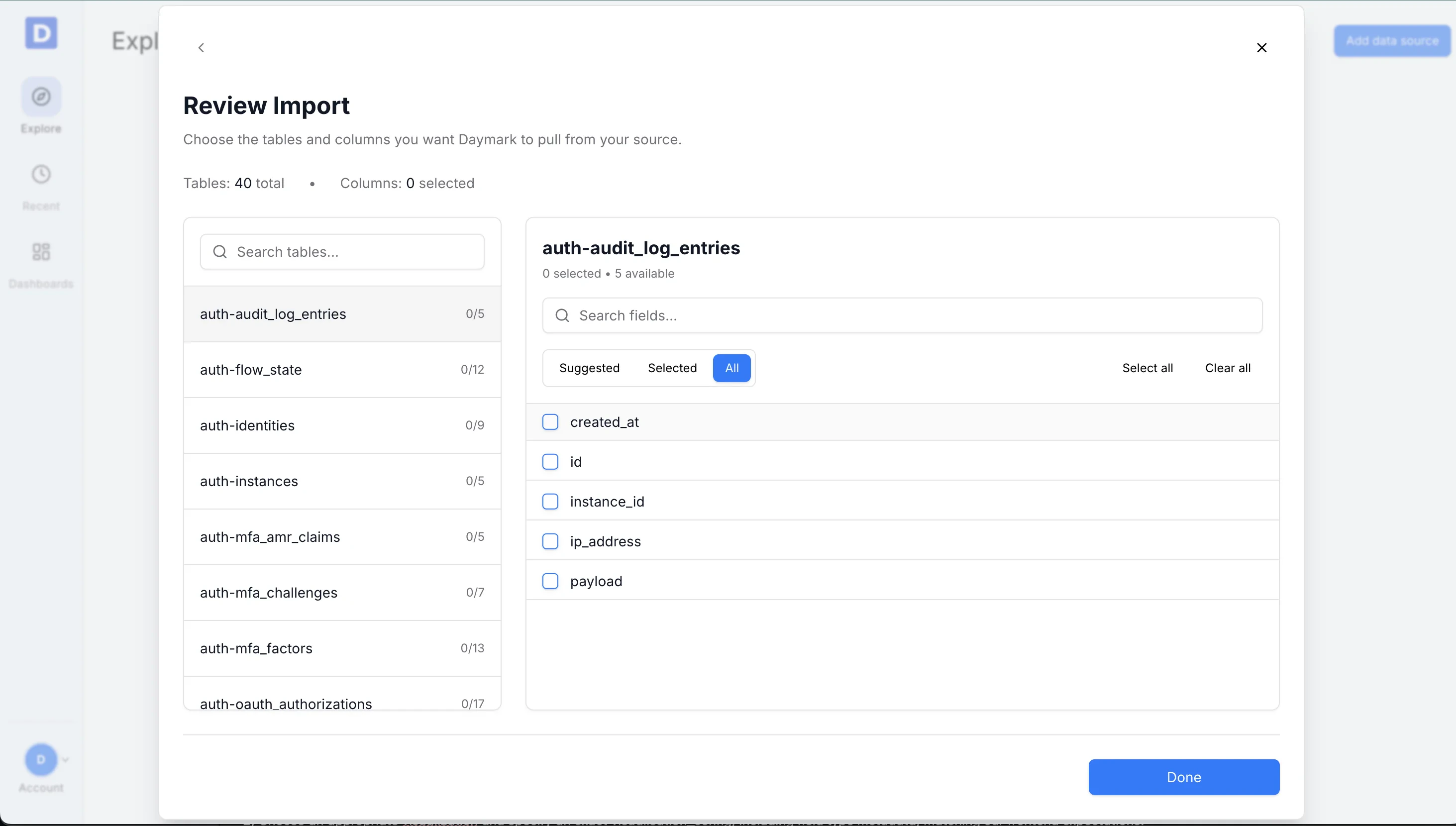
Select Tables and Fields
Choose the tables and columns you want to include:- Use Select all to include every field
- Or choose only the fields relevant to your analysis
Connect and Import
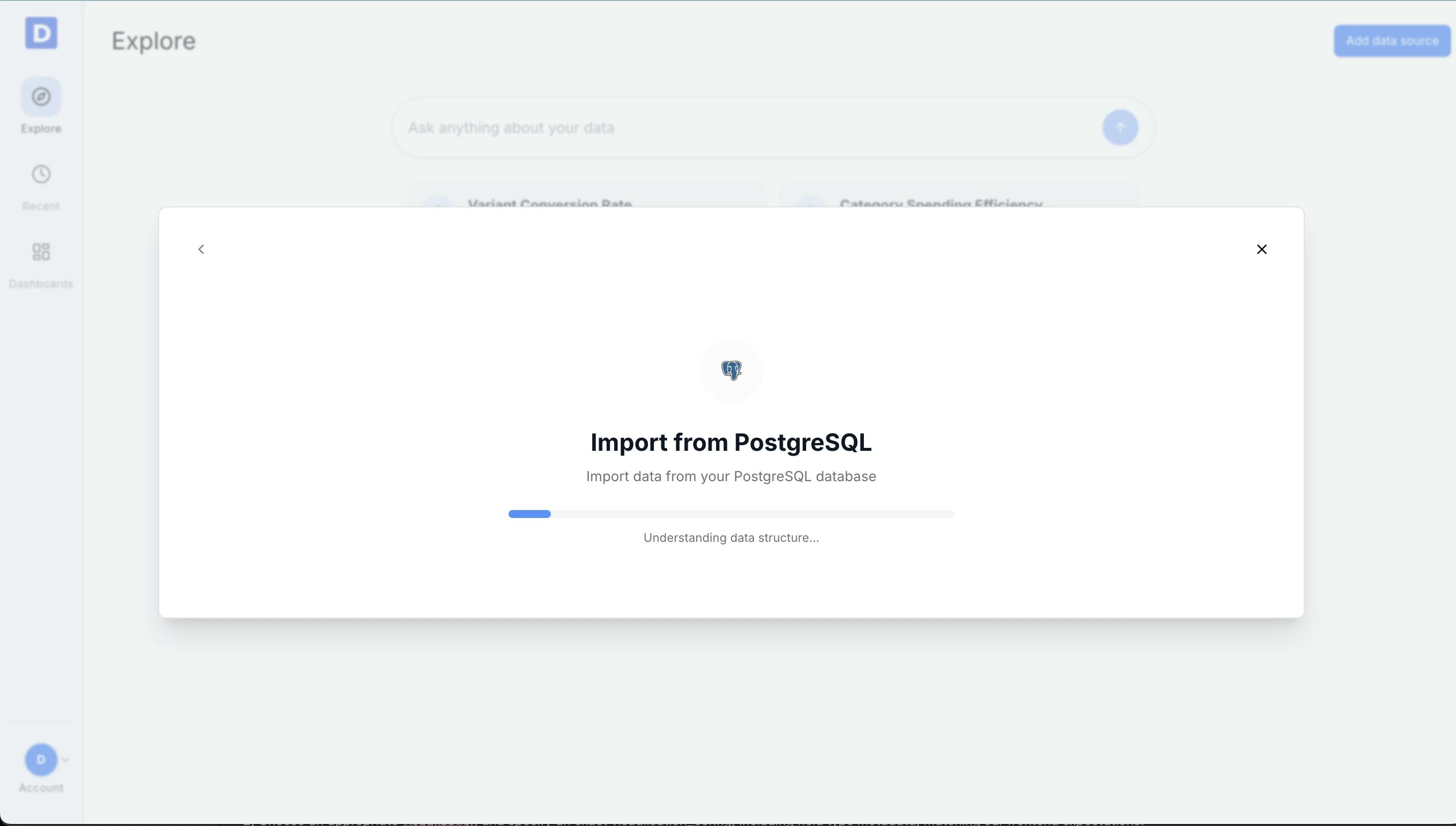
Daymark validates the credentials and starts importing. Once the import is complete successfully, you can start analyzing the data in Daymark.