Overview
Daymark connects to Supabase through its PostgreSQL connection string. This guide shows how to retrieve the Supabase connection string and use it in Daymark.Get the Supabase Connection String
1
Open your Supabase project
In Supabase, open the project you want to connect.
2
Open the Connect panel
Click Connect in the top bar to open the connection options.
3
Select Transaction pooler
In the Connection string tab, set Method to Transaction pooler.
4
Copy the connection string
Copy the connection string shown in the panel.
The connection string includes the database password you set when you created the Supabase project.
Connect Supabase in Daymark
Open the Explore Page
After login, open the Explore page and click Add Data Source.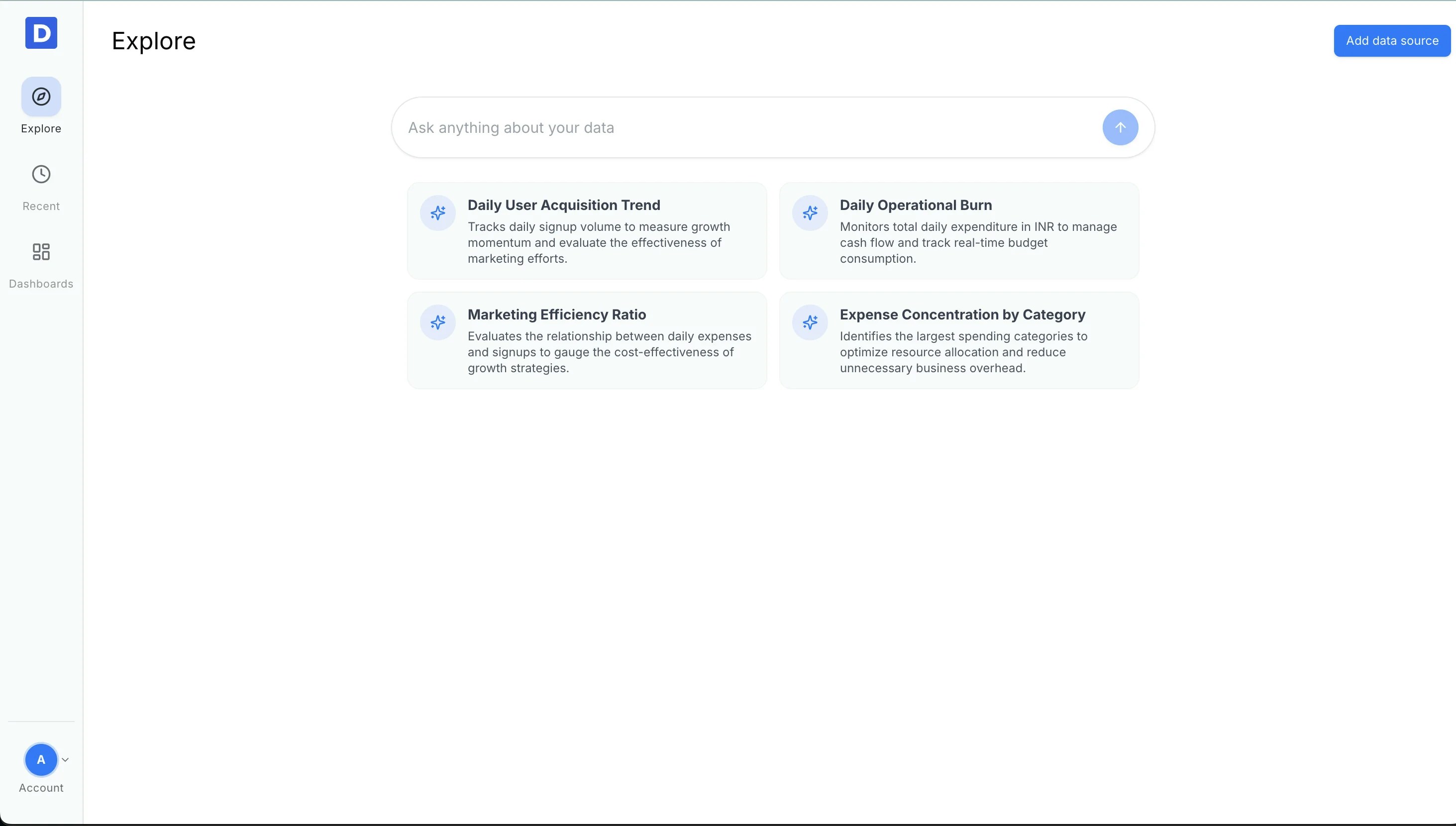
Choose PostgreSQL
Choose PostgreSQL as the data source.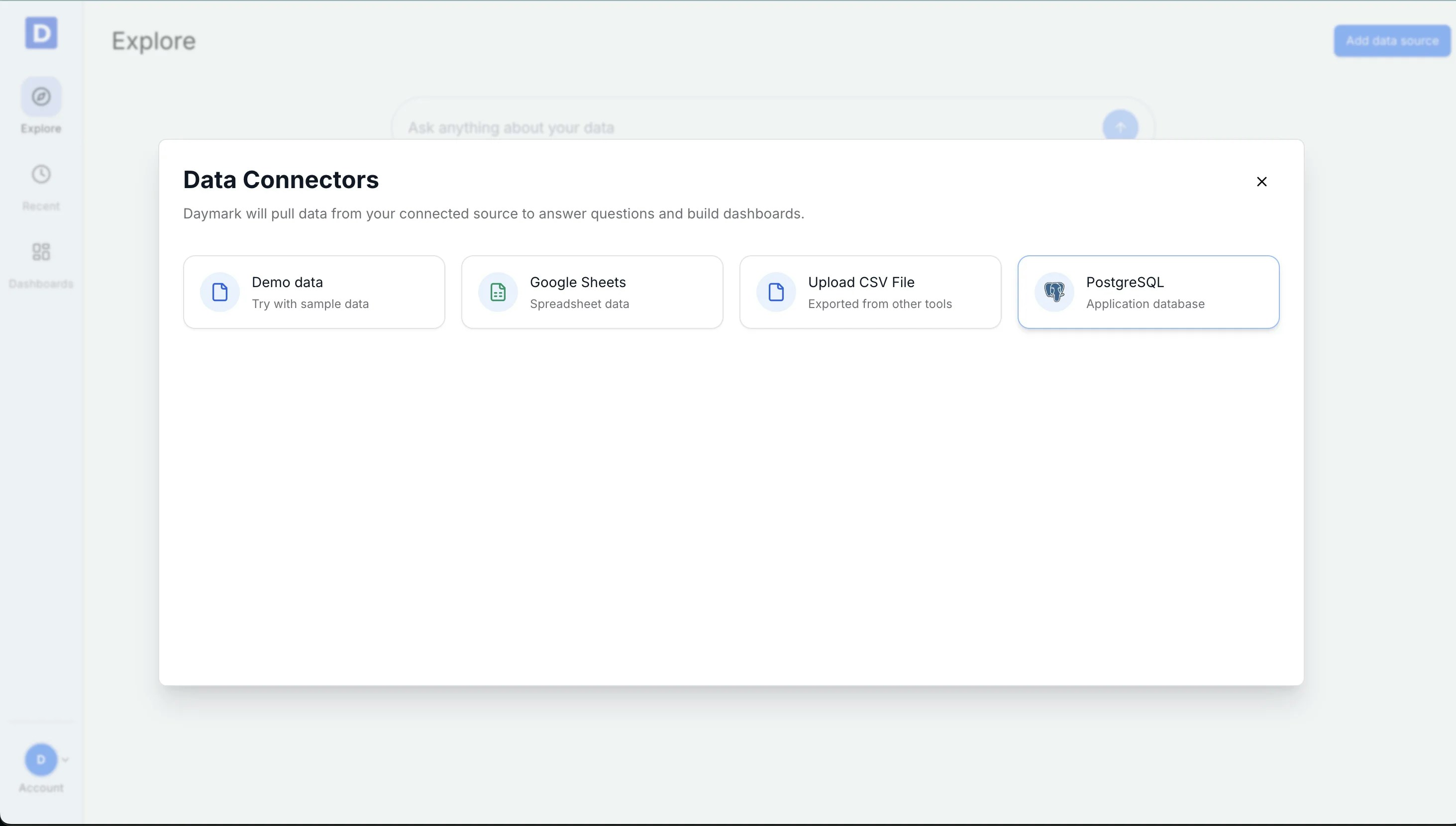
Enter Connection Details
Paste the Supabase connection string into the Connection string field.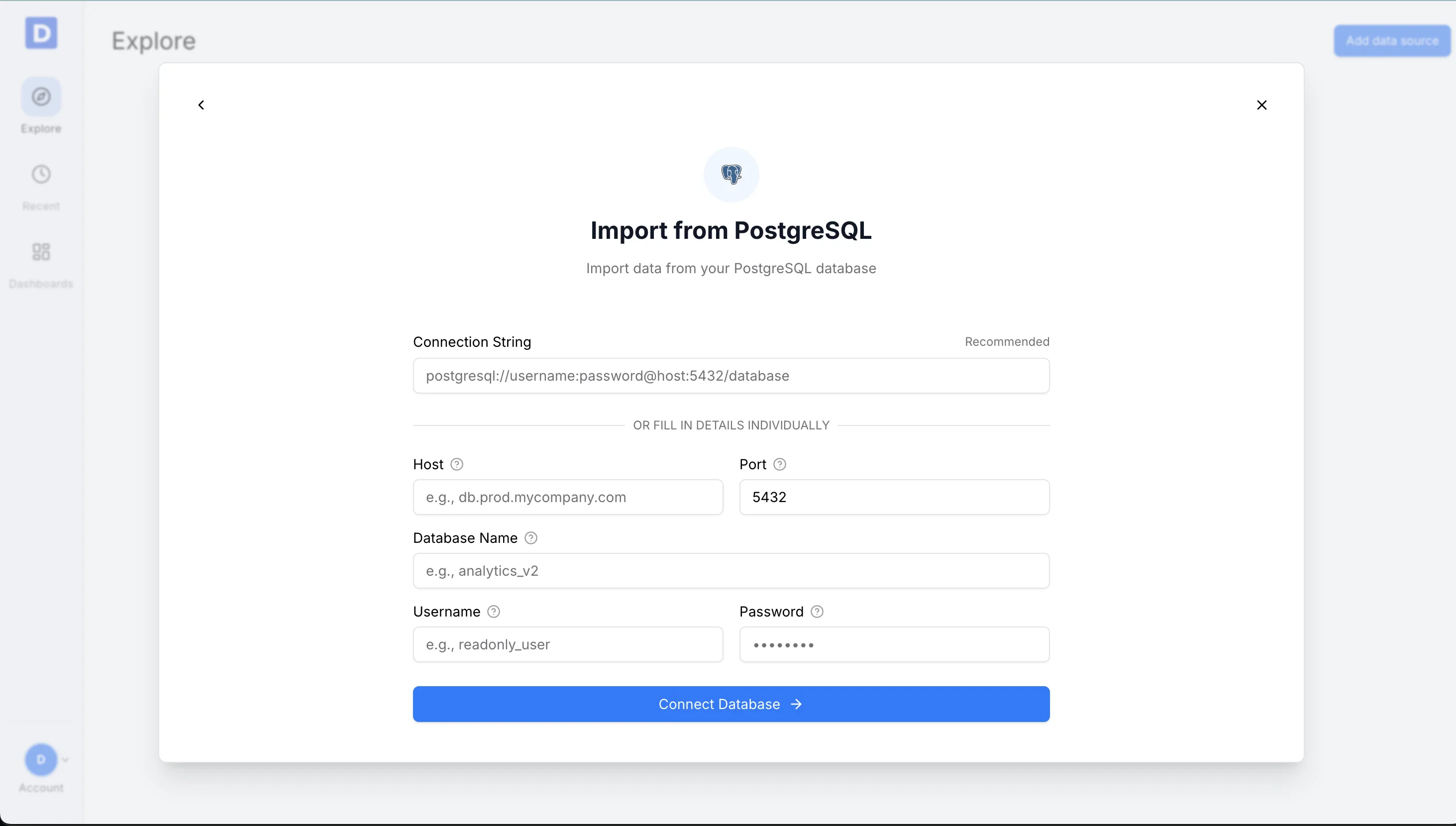
Select Tables and Fields
Choose the tables and columns you want to include.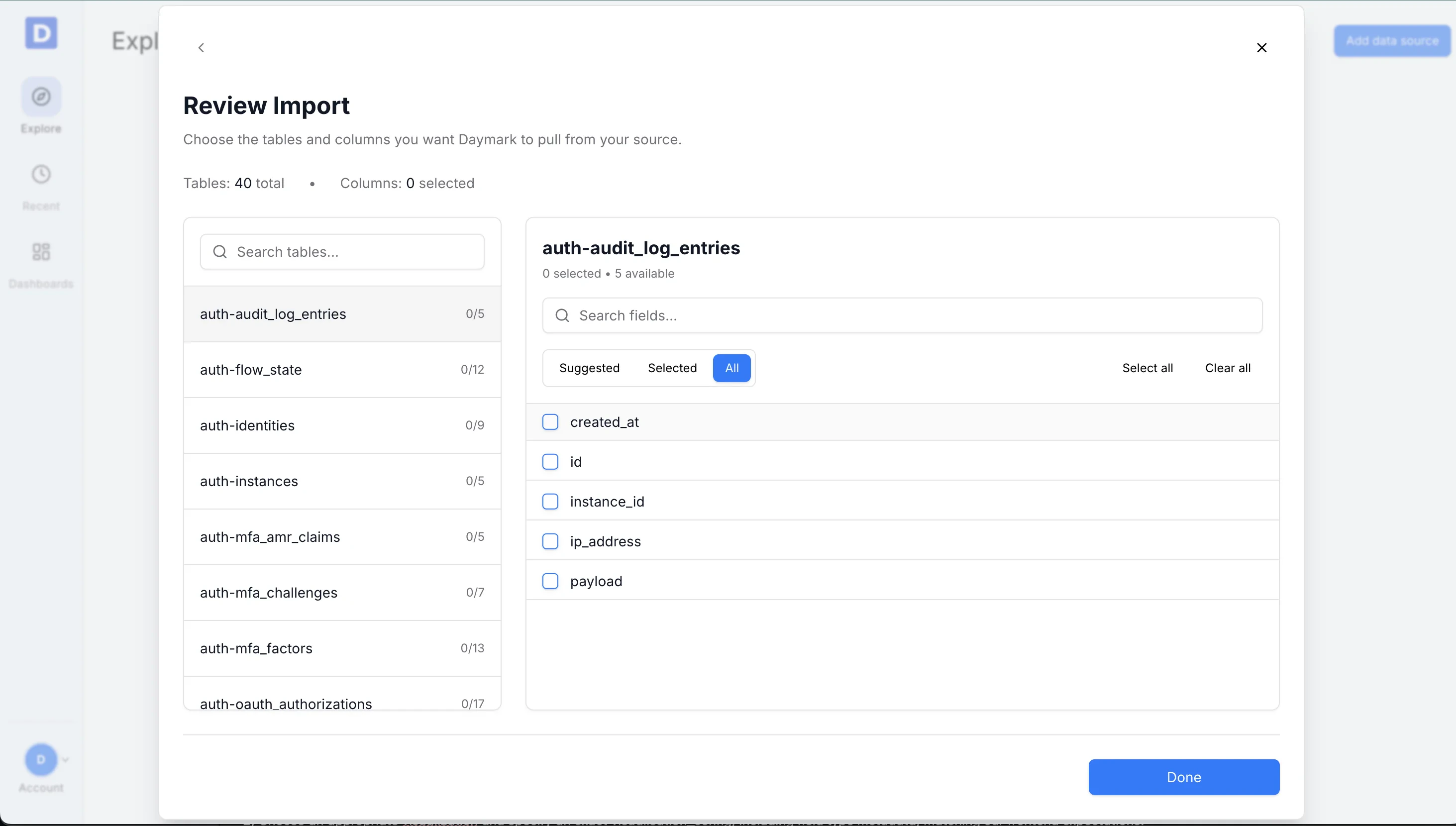
Connect and Import
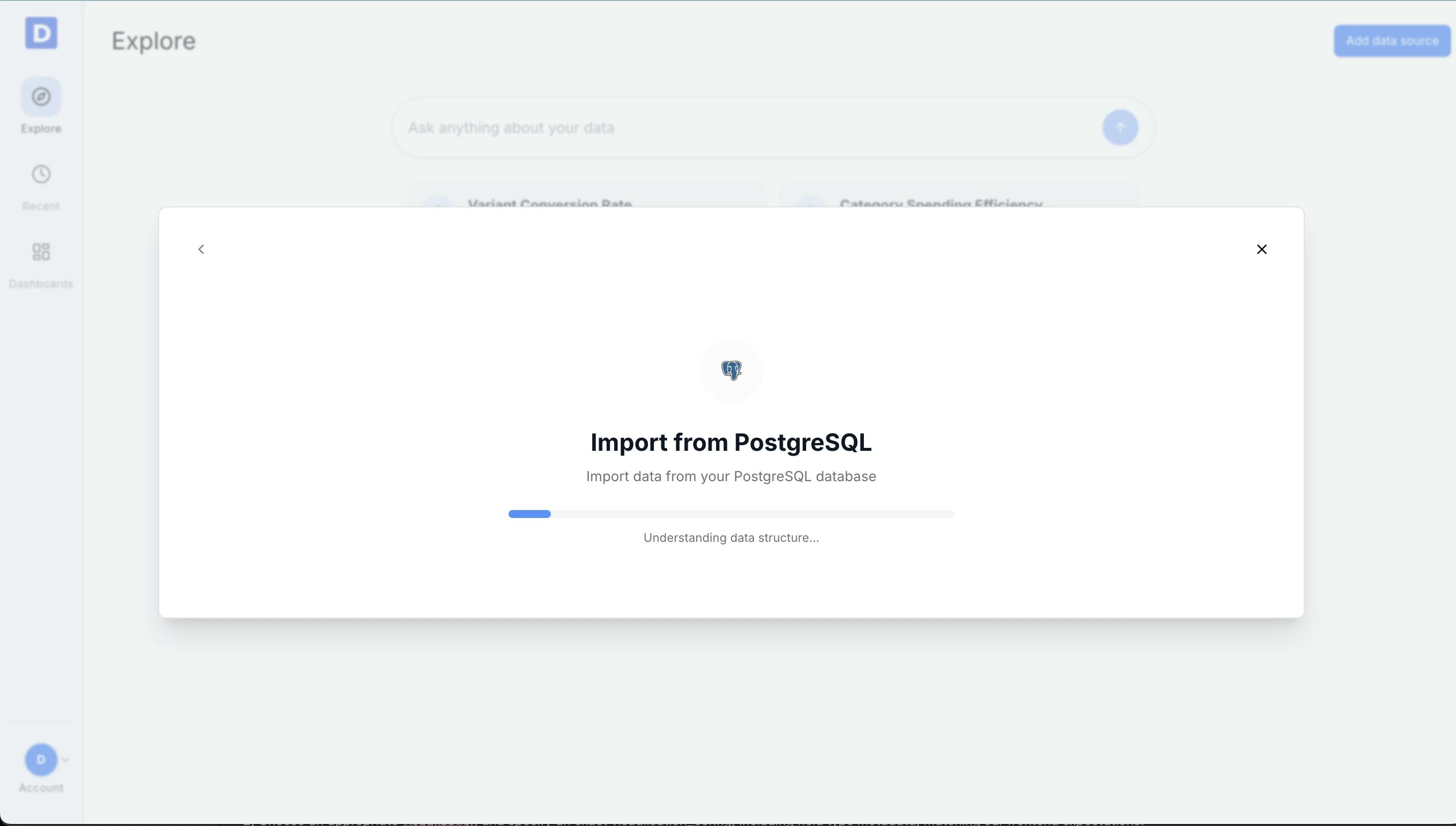
Daymark shows the import progress as it pulls in your data. Once the import is complete successfully, you can start analyzing the data in Daymark.