> ## Documentation Index
> Fetch the complete documentation index at: https://docs.usedaymark.io/llms.txt
> Use this file to discover all available pages before exploring further.
# Slack Integration
> Connect Slack to Daymark and ask questions from Slack threads
## Overview
Connect **Slack** to Daymark so your team can ask questions directly from Slack and receive a Daymark report overview in the same thread.
This integration lets you:
* Mention `@Daymark` in Slack channels to ask questions
* Get responses directly in the thread where the question was asked
* Daymark sends the link of the report so anyone on your team can view detailed insights
* Use the app in both public and private channels after inviting it
***
## Prerequisites
Before installing Daymark in Slack, make sure you have:
* An active **Daymark account**
* Access to the target **Slack workspace**.
* At least one **data connector** already connected in Daymark so the Slack app can access data
### Access Control
All threads created through the Daymark Slack integration are visible to your team in Slack.
***
## Connect Slack in Daymark
### Step 1: Open the Slack integrations page
After logging in to Daymark:
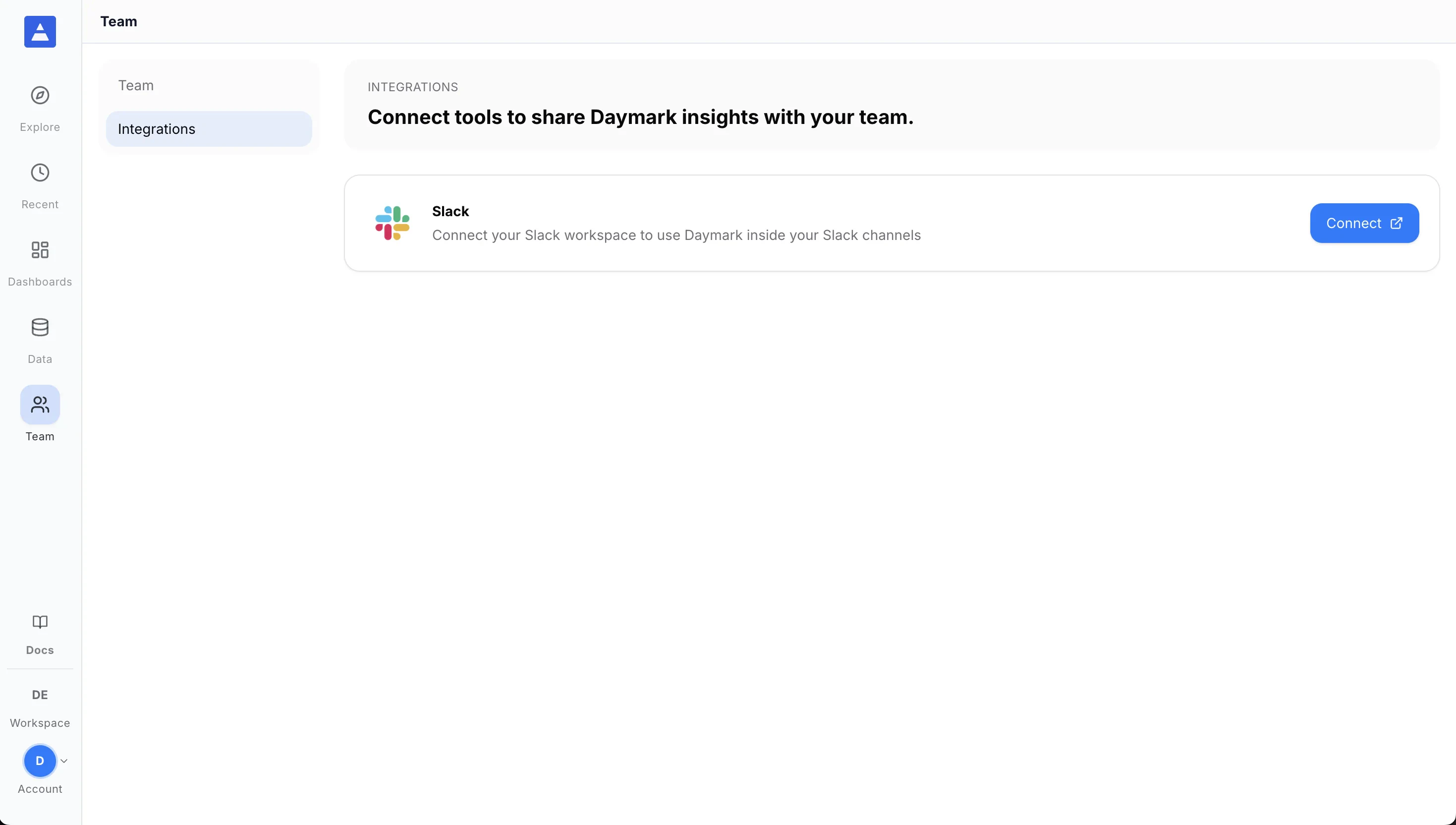
* Open **Team** from the sidebar
* Go to **Integrations**
* In the integrations list, find **Slack**
* Click **Connect** to start the Slack OAuth flow
 ### Step 2: Authorize Daymark
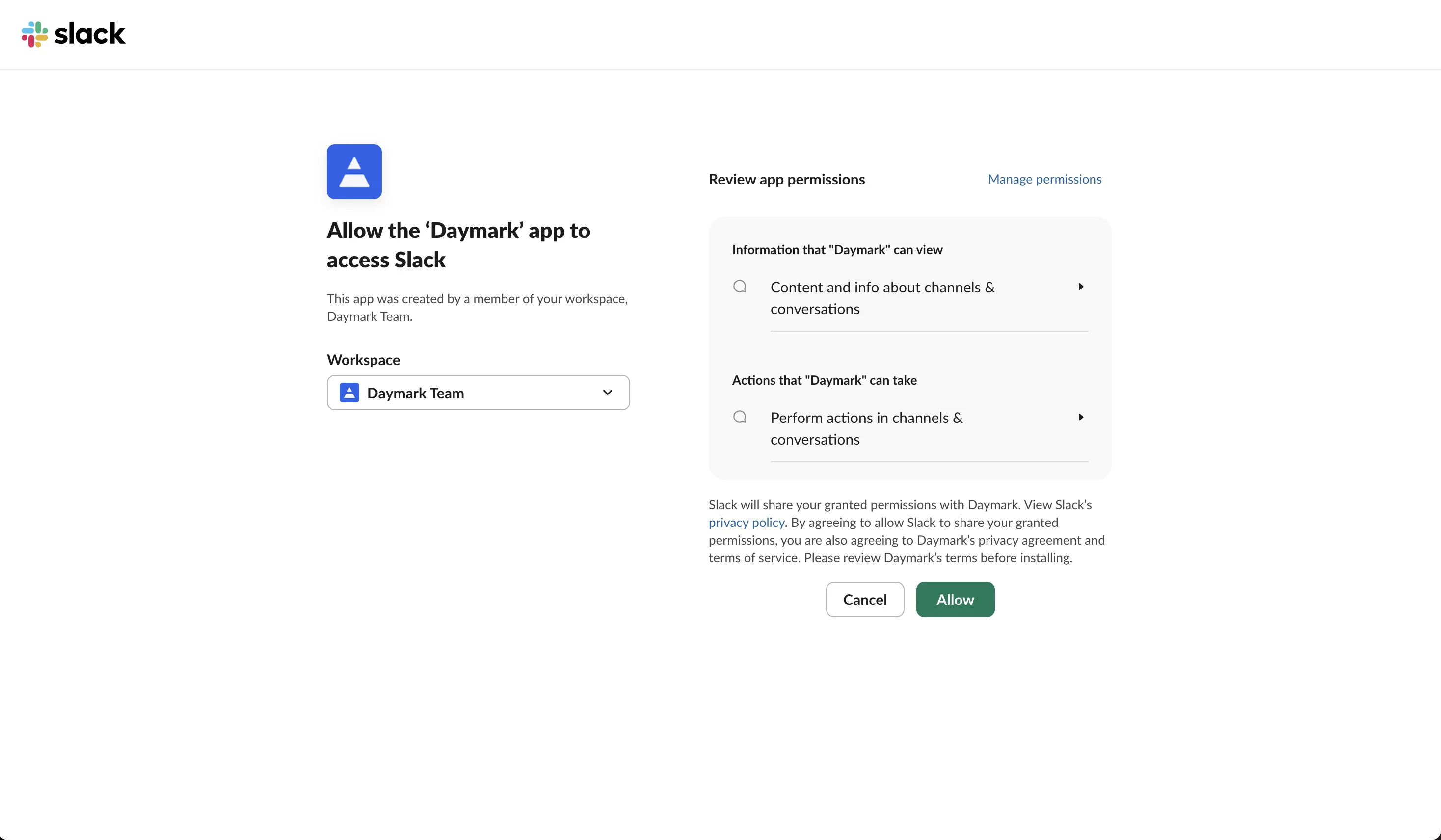
You will be redirected to Slack to authorize the integration:
1. Select your Slack workspace
2. Review the permissions Daymark is requesting
3. Click **Allow** to grant access
Daymark can read recent conversations in channels where it has been invited. When someone in the channel mentions `@Daymark` and asks a data question, Daymark will reply in the same thread with the answer.
Once authorization is complete, the Slack integration status in Daymark will appear as **Connected**.
### Step 2: Authorize Daymark
You will be redirected to Slack to authorize the integration:
1. Select your Slack workspace
2. Review the permissions Daymark is requesting
3. Click **Allow** to grant access
Daymark can read recent conversations in channels where it has been invited. When someone in the channel mentions `@Daymark` and asks a data question, Daymark will reply in the same thread with the answer.
Once authorization is complete, the Slack integration status in Daymark will appear as **Connected**.
 ***
## Use the app in Slack
After the integration shows as connected in Daymark, open your Slack workspace to start using it.
### Step 1: Invite the app to a channel
In any Slack channel where you want to use Daymark, invite the app first:
```text theme={null}
/invite @Daymark
```
### Step 2: Ask a question
In a Slack channel where the app is present, mention `@Daymark` and ask your question:
```text theme={null}
@Daymark What is the monthly revenue trend?
```
Daymark will reply in the same Slack thread with a report link and overview based on your request.
Example questions:
* "What is the monthly revenue trend?"
* "Which products grew the fastest this quarter?"
* "Show pipeline created this month by owner"
While Daymark processes the request:
* `👀` appears while the request is running
* `✅` appears when the response succeeds
* `⚠️` appears if the request fails
Once Daymark is connected and invited to a channel, your team can ask data questions and get answers directly in Slack.
***
## Use the app in Slack
After the integration shows as connected in Daymark, open your Slack workspace to start using it.
### Step 1: Invite the app to a channel
In any Slack channel where you want to use Daymark, invite the app first:
```text theme={null}
/invite @Daymark
```
### Step 2: Ask a question
In a Slack channel where the app is present, mention `@Daymark` and ask your question:
```text theme={null}
@Daymark What is the monthly revenue trend?
```
Daymark will reply in the same Slack thread with a report link and overview based on your request.
Example questions:
* "What is the monthly revenue trend?"
* "Which products grew the fastest this quarter?"
* "Show pipeline created this month by owner"
While Daymark processes the request:
* `👀` appears while the request is running
* `✅` appears when the response succeeds
* `⚠️` appears if the request fails
Once Daymark is connected and invited to a channel, your team can ask data questions and get answers directly in Slack.