> ## Documentation Index
> Fetch the complete documentation index at: https://docs.usedaymark.io/llms.txt
> Use this file to discover all available pages before exploring further.
# Connect Sheet
> Connect a Google Sheet to Daymark with step-by-step visuals
## Overview
This guide walks through connecting a Google Sheet to Daymark using the Explore flow.
It expands on the Google Sheets setup with step-by-step visuals and field selection tips.
***
## Connect a Google Sheet to Daymark
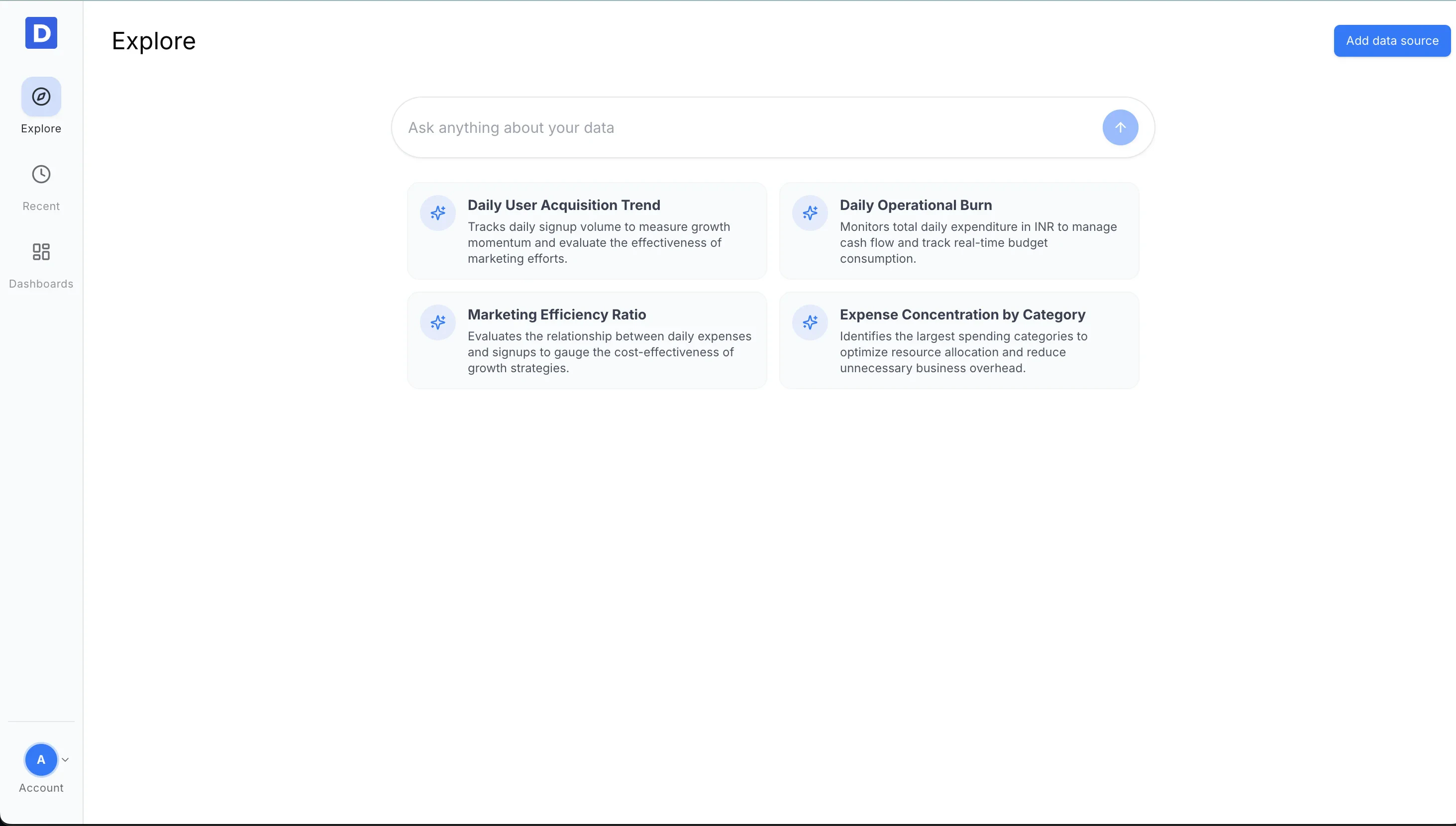
### Open the Explore Page
From your Daymark workspace, open **Explore** to start the connection flow.
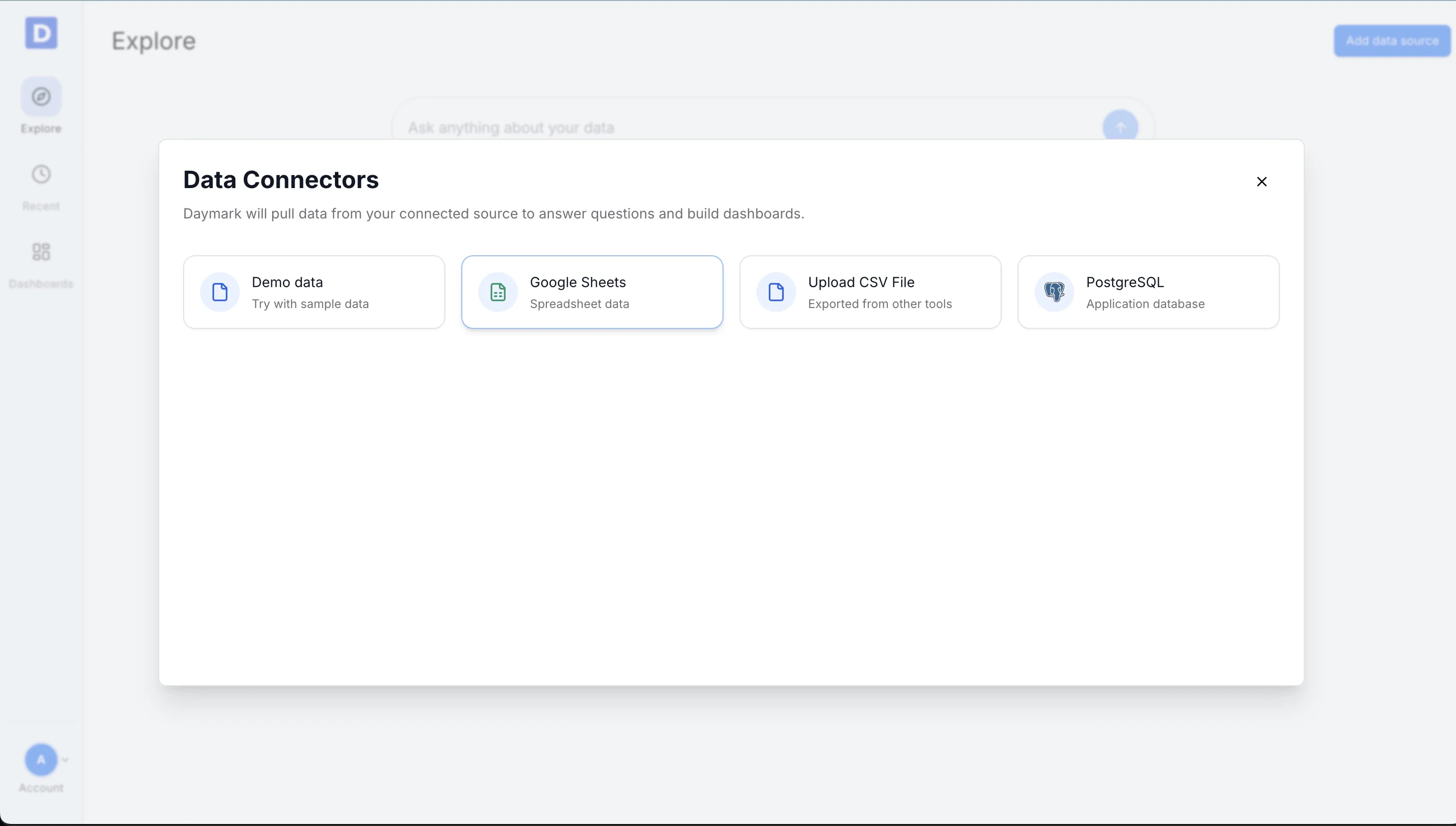
 ### Open Data Connectors
Click **Add data source** to open the list of available connectors.
### Open Data Connectors
Click **Add data source** to open the list of available connectors.
 ### Share the Sheet with Daymark
In Google Sheets, click **Share** and add the Daymark service account as a viewer:
`connector@daymark-473507.iam.gserviceaccount.com`
### Share the Sheet with Daymark
In Google Sheets, click **Share** and add the Daymark service account as a viewer:
`connector@daymark-473507.iam.gserviceaccount.com`
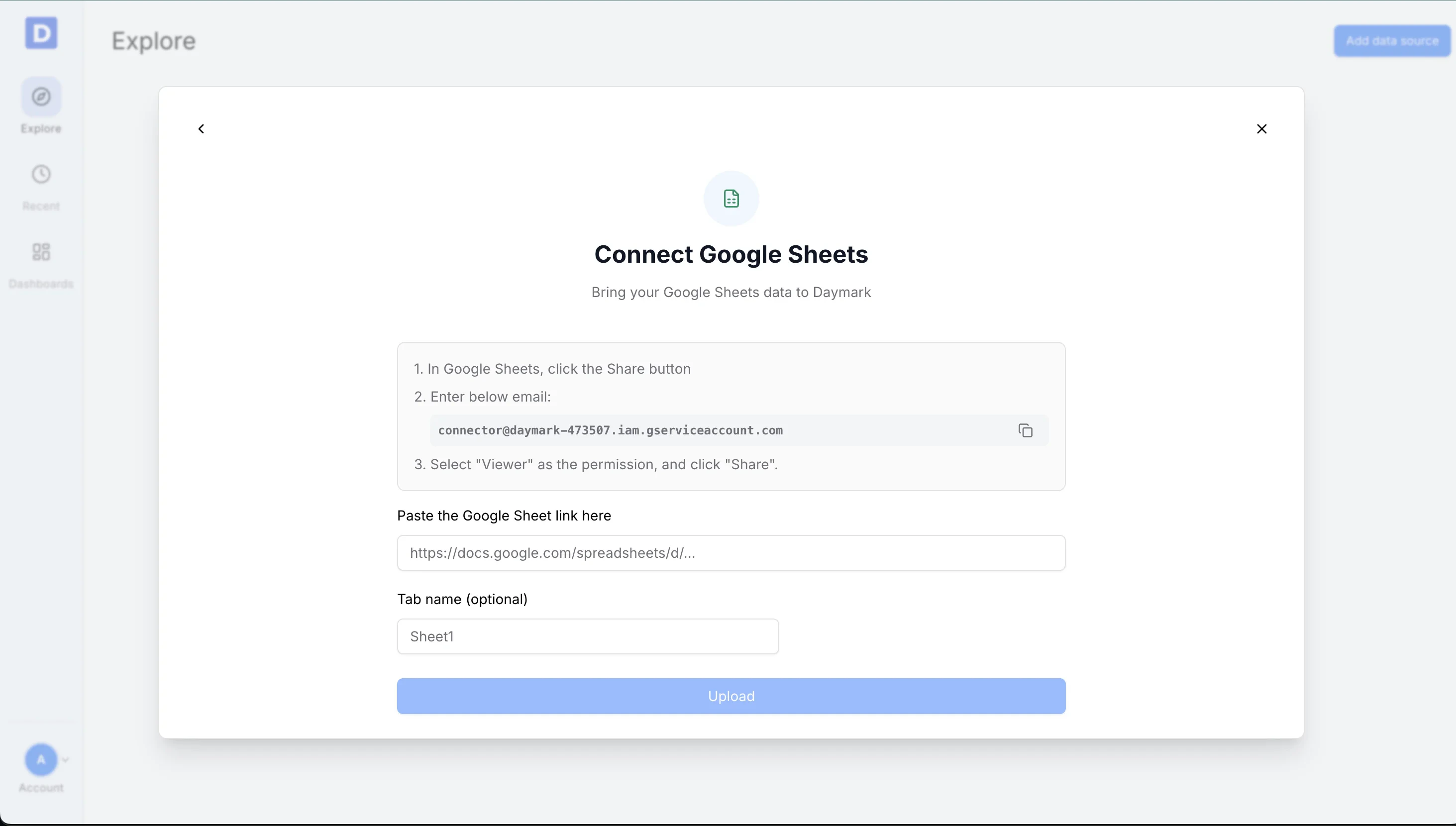 ### Paste the Sheet Link
Back in Daymark:
1. Paste the Google Sheet URL
2. Optionally enter a specific tab name
3. Click **Upload**
### Paste the Sheet Link
Back in Daymark:
1. Paste the Google Sheet URL
2. Optionally enter a specific tab name
3. Click **Upload**
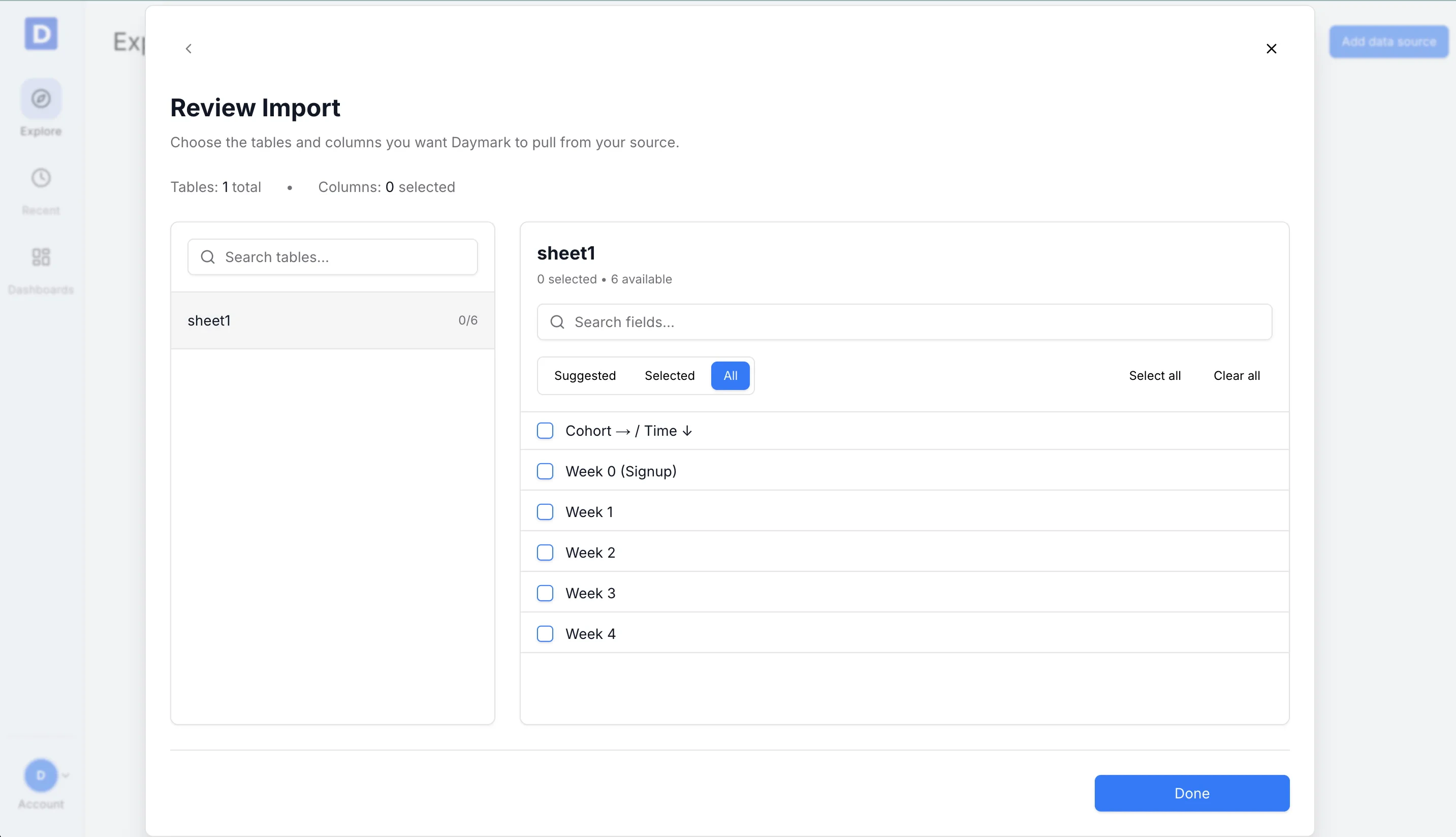
 ### Select Fields for Insights
Choose the columns you want Daymark to use:
* Select **All** to include every column
* Or pick only the fields relevant to your analysis
Click **Done** to import the data.
### Select Fields for Insights
Choose the columns you want Daymark to use:
* Select **All** to include every column
* Or pick only the fields relevant to your analysis
Click **Done** to import the data.
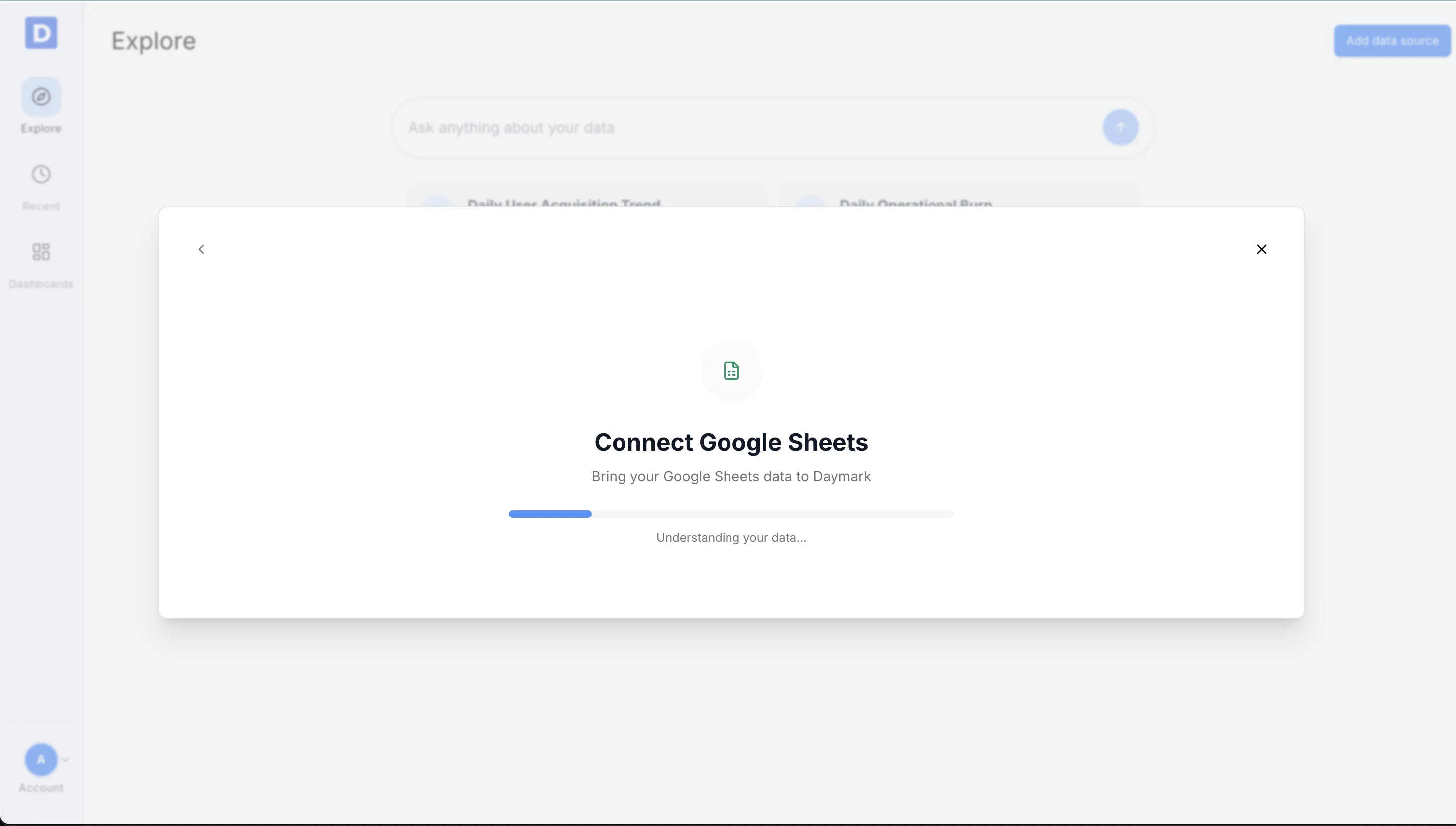
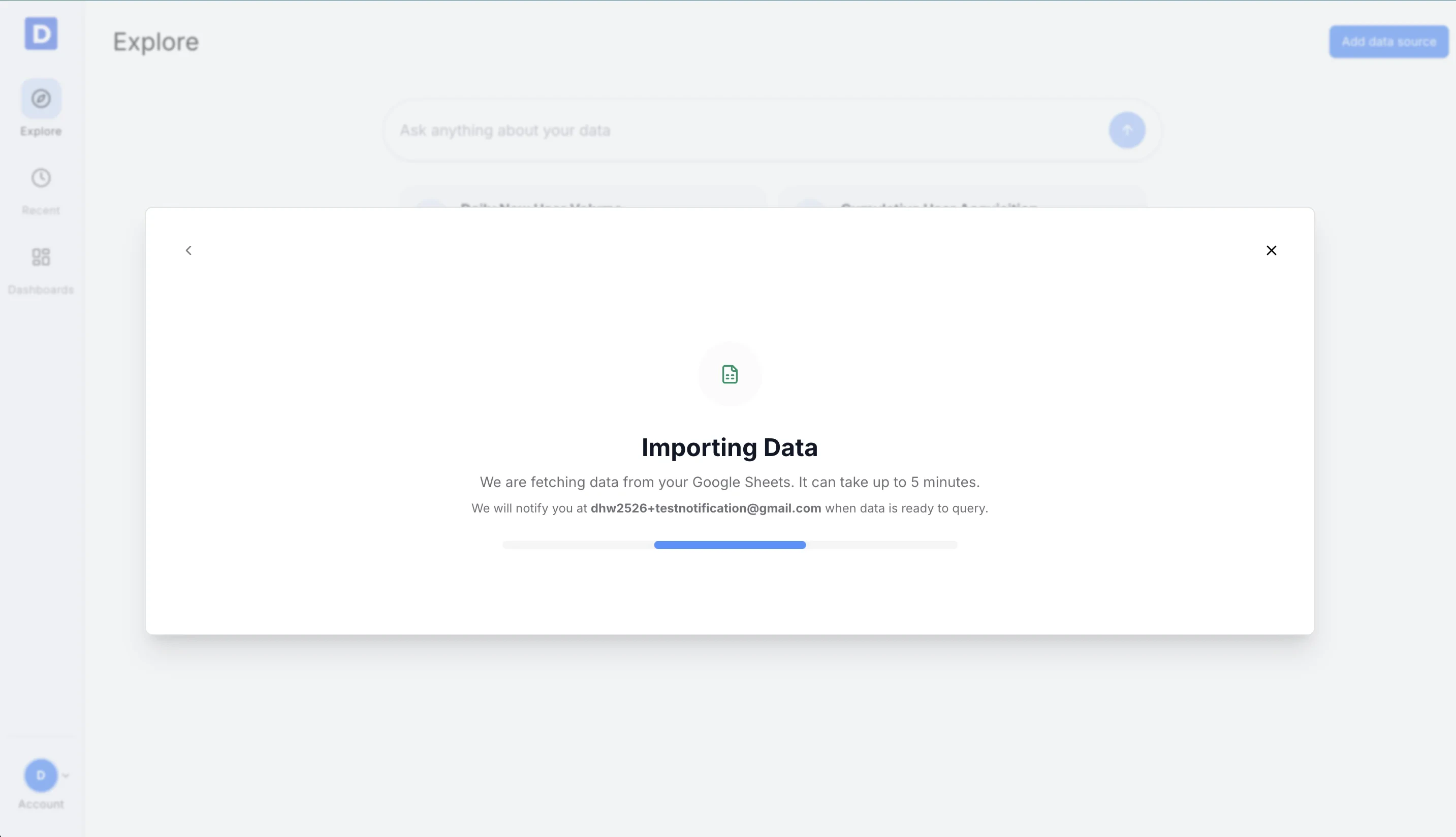
 ### Importing Data
Daymark prepares the sheet data for analysis. Once the import is complete successfully, you can start analyzing the data in Daymark.
### Importing Data
Daymark prepares the sheet data for analysis. Once the import is complete successfully, you can start analyzing the data in Daymark.
 ***
## Connection Complete
Once your data is imported, ask your questions on the Explore page to see trends, patterns, and insights from your sheet data in Daymark.
***
## Connection Complete
Once your data is imported, ask your questions on the Explore page to see trends, patterns, and insights from your sheet data in Daymark.