> ## Documentation Index
> Fetch the complete documentation index at: https://docs.usedaymark.io/llms.txt
> Use this file to discover all available pages before exploring further.
# Connect HubSpot
> Connect HubSpot to Daymark with guided steps
## Overview
Daymark's HubSpot connector brings your HubSpot CRM data into Daymark so you can analyze it alongside other sources—like your product database (PostgreSQL), Google Sheets, and CSVs. This empowers your team to answer cross-source questions, such as connecting product usage to acquisition sources, revenue to acquisition sources, or support outcomes to customer cohorts.
Ask questions in plain English and Daymark automatically returns the right output (charts, tables, and summaries). Save answers into dashboards that can be updated and shared as a single source of truth across marketing, sales, success, and product teams.
Daymark respects HubSpot permissions—users only see data they're authorized to access. The connector is **read-only** for HubSpot and operates within HubSpot API usage limits and guidelines.
Daymark uses synced HubSpot data to power analytics, dashboards, and cross-source questions when you connect additional sources like PostgreSQL, Google Sheets, or CSVs. Daymark does **not** write data back to HubSpot.
***
## Install the app
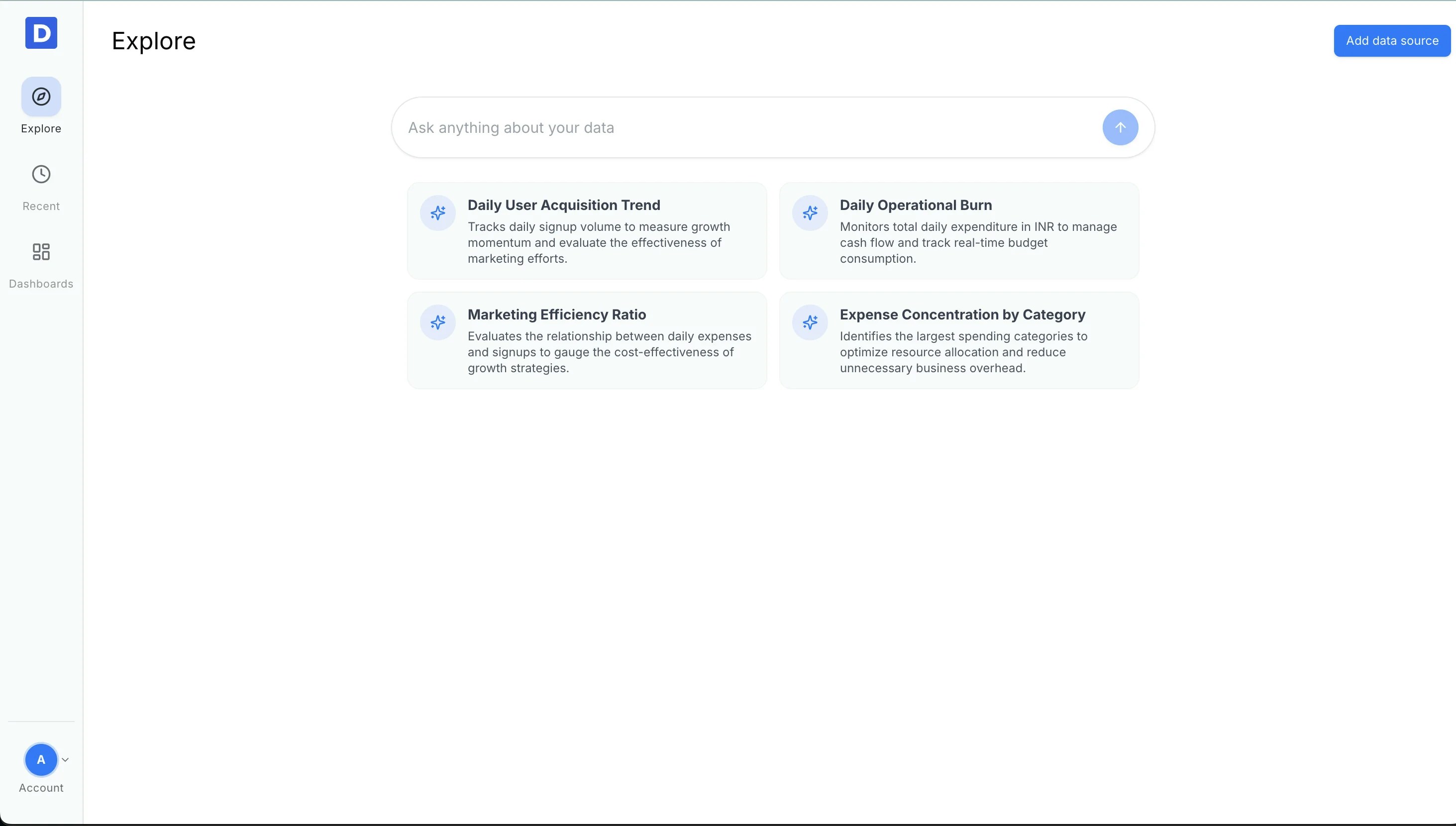
### Open the Explore Page
From your Daymark workspace, go to **Explore** to start the connection.
 ### Choose HubSpot
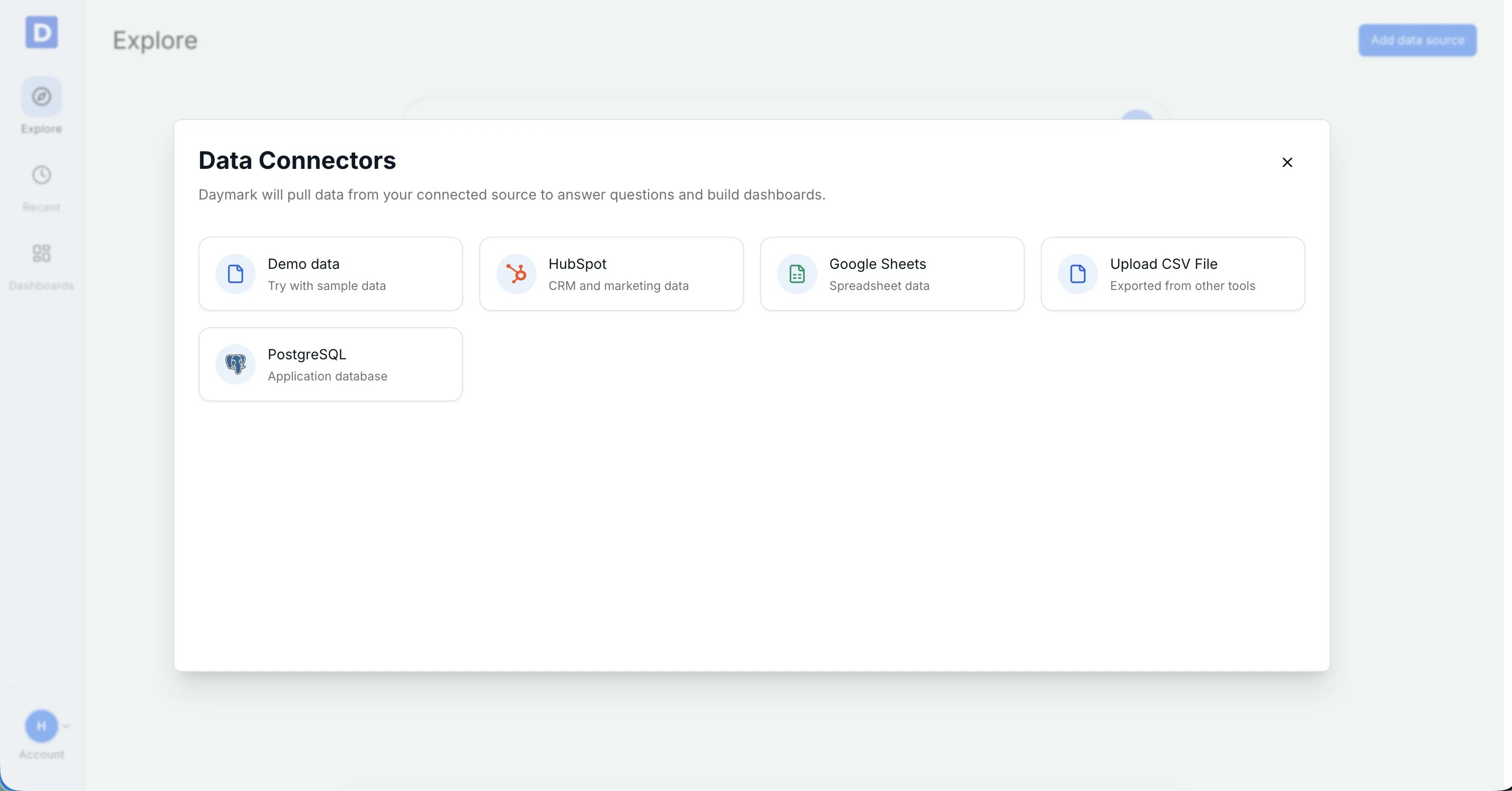
Click **Add data source** and select **HubSpot** from the connector list.
### Choose HubSpot
Click **Add data source** and select **HubSpot** from the connector list.
 ### Connect HubSpot account
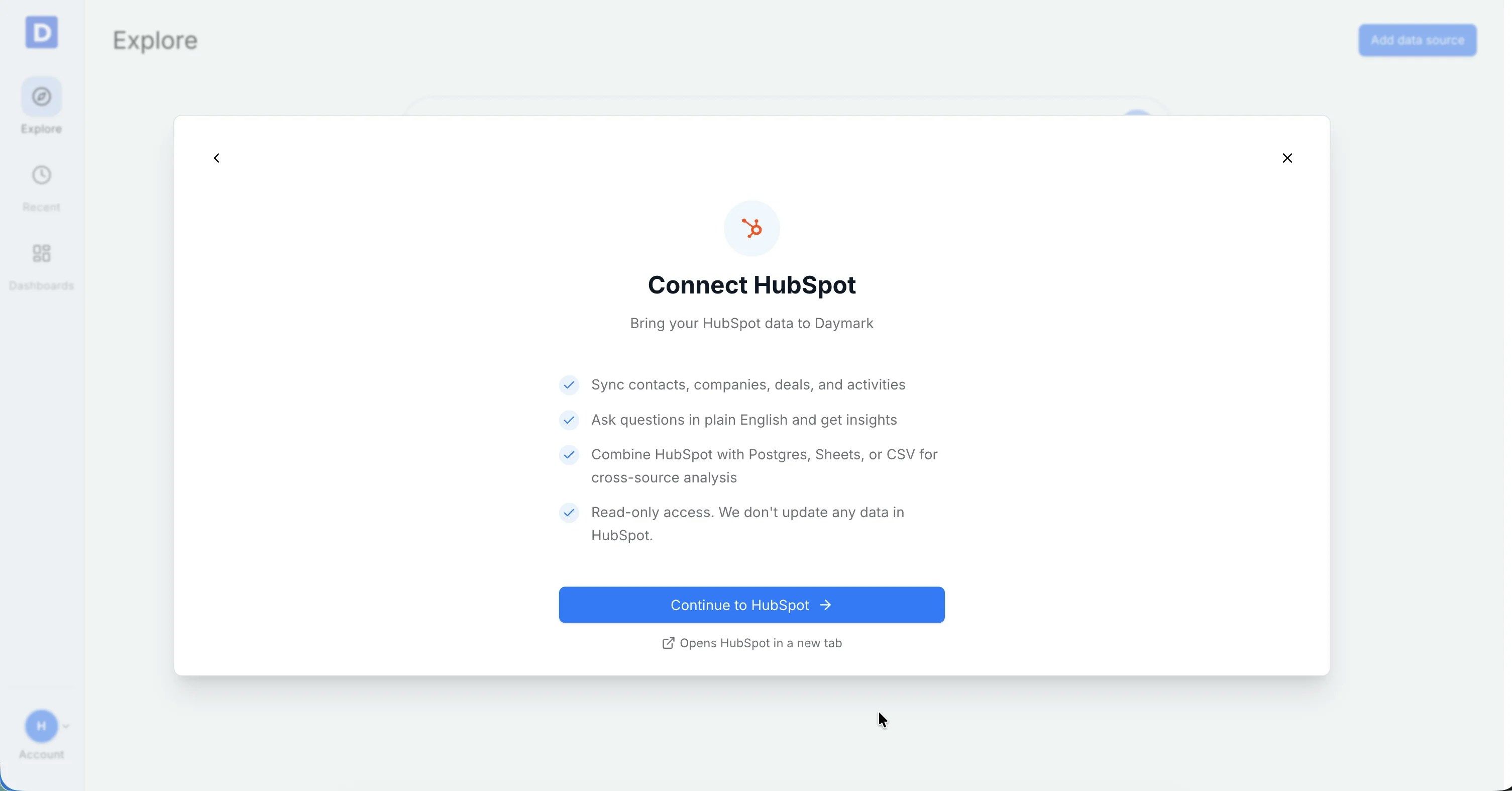
Once you select HubSpot, a connection modal will appear. Follow these steps to authorize Daymark to access your HubSpot data:
1. Click **Continue to HubSpot**. This will open the HubSpot login and authorization page in a new tab.
### Connect HubSpot account
Once you select HubSpot, a connection modal will appear. Follow these steps to authorize Daymark to access your HubSpot data:
1. Click **Continue to HubSpot**. This will open the HubSpot login and authorization page in a new tab.
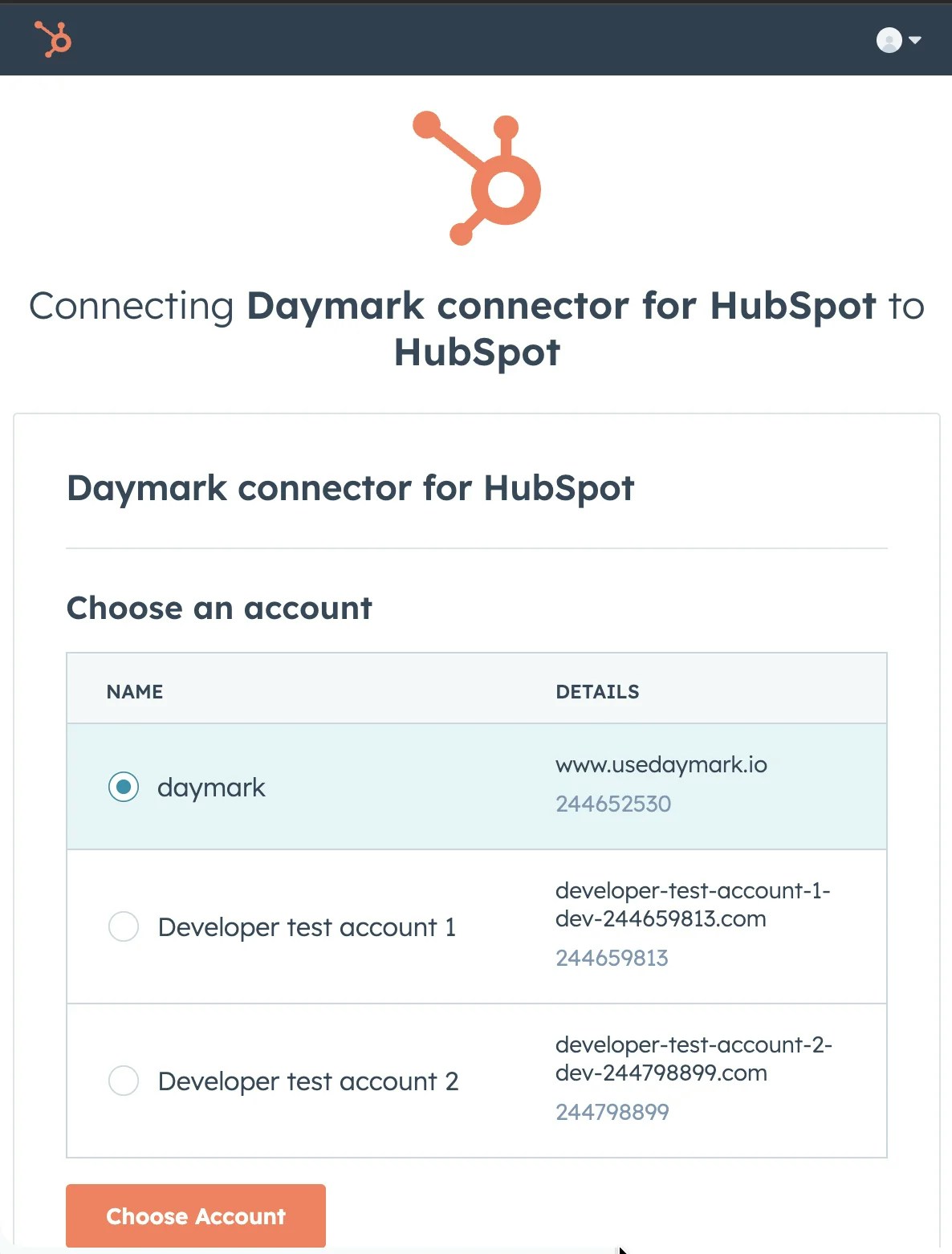
 2. Select the HubSpot account you want to connect.
 3. Review the requested scopes on this screen. Daymark requests access to read contacts, companies, deals, and tickets.
4. Click **Connect app**.
After authorization, you will be automatically redirected back to Daymark to finish selecting your data.
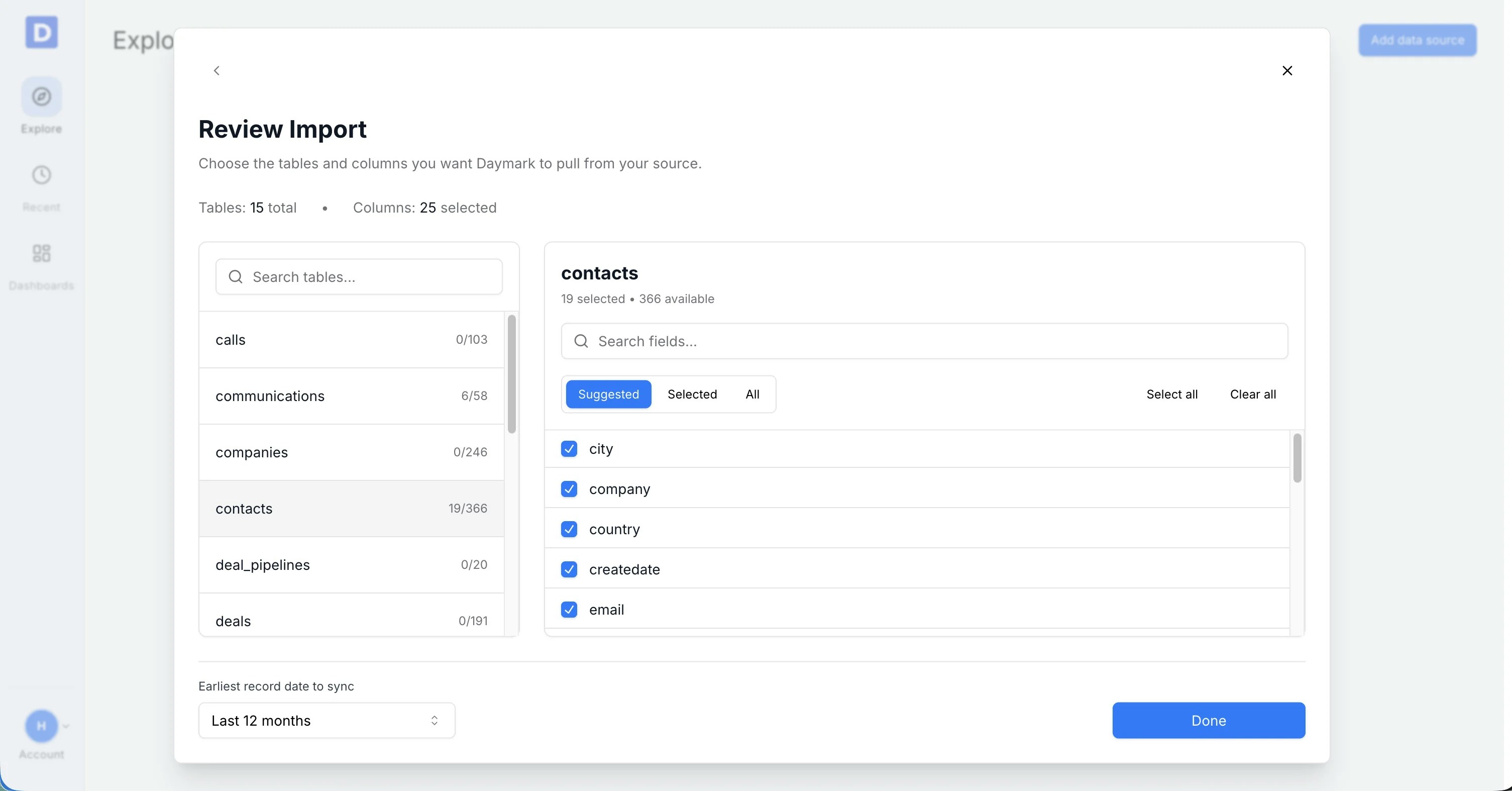
### Select Tables and Fields
Choose the tables (e.g., Contacts, Companies, Deals, Tickets) and columns you want to include:
* Use **Select all** to include every field
* Or choose only the fields relevant to your analysis
Click **Done** to finish.
3. Review the requested scopes on this screen. Daymark requests access to read contacts, companies, deals, and tickets.
4. Click **Connect app**.
After authorization, you will be automatically redirected back to Daymark to finish selecting your data.
### Select Tables and Fields
Choose the tables (e.g., Contacts, Companies, Deals, Tickets) and columns you want to include:
* Use **Select all** to include every field
* Or choose only the fields relevant to your analysis
Click **Done** to finish.
 ### Import Data
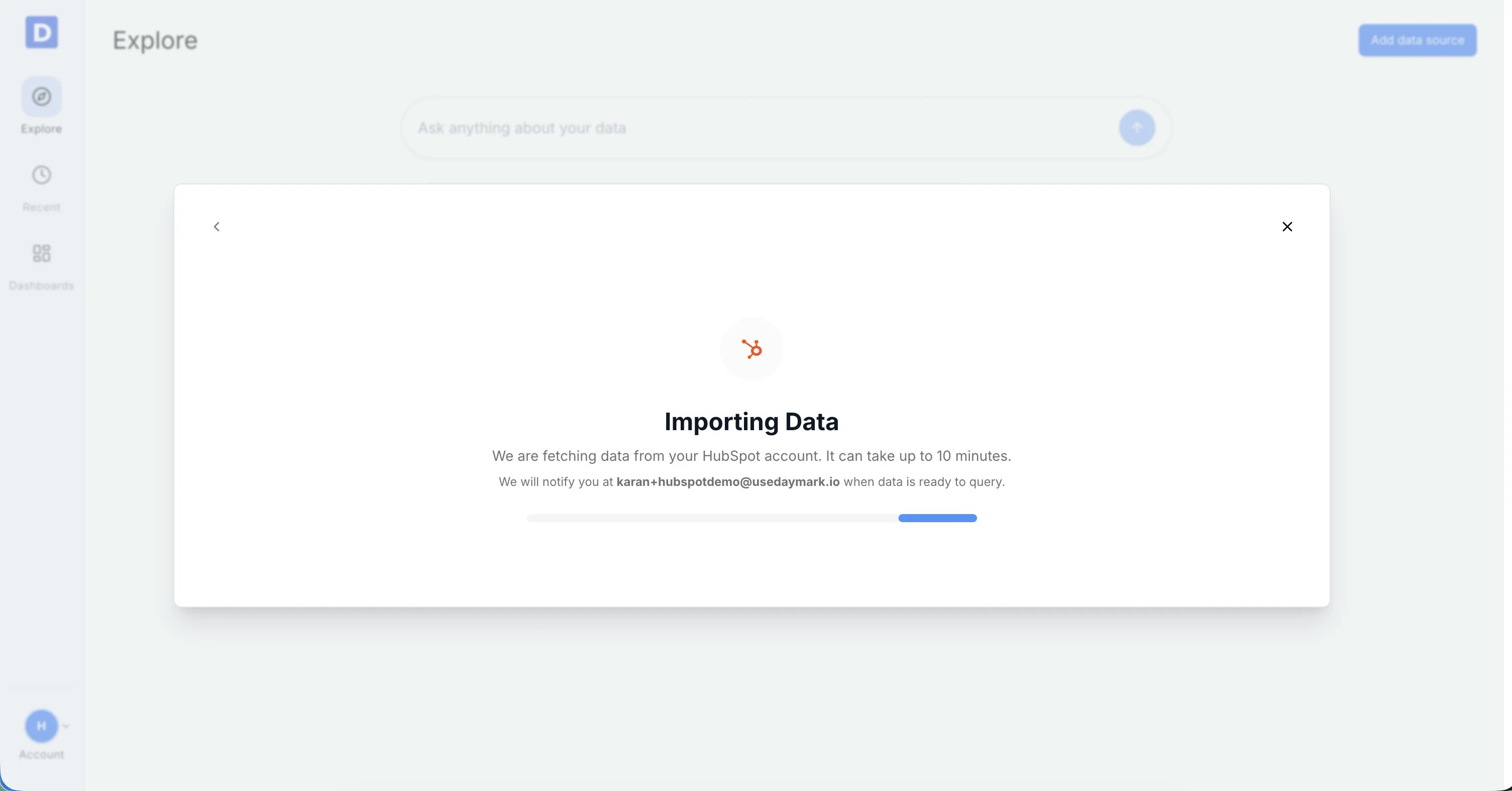
Daymark validates the connection and starts importing your CRM data. Once the import is complete successfully, you can start analyzing the data in Daymark.
### Import Data
Daymark validates the connection and starts importing your CRM data. Once the import is complete successfully, you can start analyzing the data in Daymark.
 ***
## Connection Complete
Once the import completes successfully, ask your questions on the Explore page to see trends, patterns, and insights from your HubSpot data in Daymark.
***
## Use the app
Once connected, you can immediately start asking questions about your HubSpot data in plain English. Daymark will analyze your contacts, companies, deals, and tickets to provide charts, tables, and summaries.
For example, ask questions like:
* "Show me all deals closed this quarter by sales rep"
* "What's the conversion rate from contact to customer by source?"
* "List all open support tickets by priority"
You can also combine HubSpot data with other connected sources for cross-source analysis:
* "Show me product usage by customer segment" (combining HubSpot + PostgreSQL)
* "What's the revenue by marketing campaign?" (combining HubSpot + Google Sheets)
***
## Uninstall the app
To uninstall the Daymark connector from your HubSpot account, follow the instructions in the [HubSpot Knowledge Base article on uninstalling integrations](https://knowledge.hubspot.com/integrations/how-do-i-uninstall-an-integration).
***
## Connection Complete
Once the import completes successfully, ask your questions on the Explore page to see trends, patterns, and insights from your HubSpot data in Daymark.
***
## Use the app
Once connected, you can immediately start asking questions about your HubSpot data in plain English. Daymark will analyze your contacts, companies, deals, and tickets to provide charts, tables, and summaries.
For example, ask questions like:
* "Show me all deals closed this quarter by sales rep"
* "What's the conversion rate from contact to customer by source?"
* "List all open support tickets by priority"
You can also combine HubSpot data with other connected sources for cross-source analysis:
* "Show me product usage by customer segment" (combining HubSpot + PostgreSQL)
* "What's the revenue by marketing campaign?" (combining HubSpot + Google Sheets)
***
## Uninstall the app
To uninstall the Daymark connector from your HubSpot account, follow the instructions in the [HubSpot Knowledge Base article on uninstalling integrations](https://knowledge.hubspot.com/integrations/how-do-i-uninstall-an-integration).