> ## Documentation Index
> Fetch the complete documentation index at: https://docs.usedaymark.io/llms.txt
> Use this file to discover all available pages before exploring further.
# Connect Google Search Console
> Connect a Google Search Console to Daymark with step-by-step visuals
## Overview
Connect Google Search Console to uncover which search queries drive traffic, identify top-performing landing pages, track trends over time, and analyze performance.
You can use this connection to:
* Understand which queries bring visitors to your site
* See top landing pages and performance over time
* Break down results by country, device, and page
You will authenticate with Google, choose the site property you want to analyze, and set the earliest date you want to sync.
***
## Connect Google Search Console in Daymark
### Open the Explore page
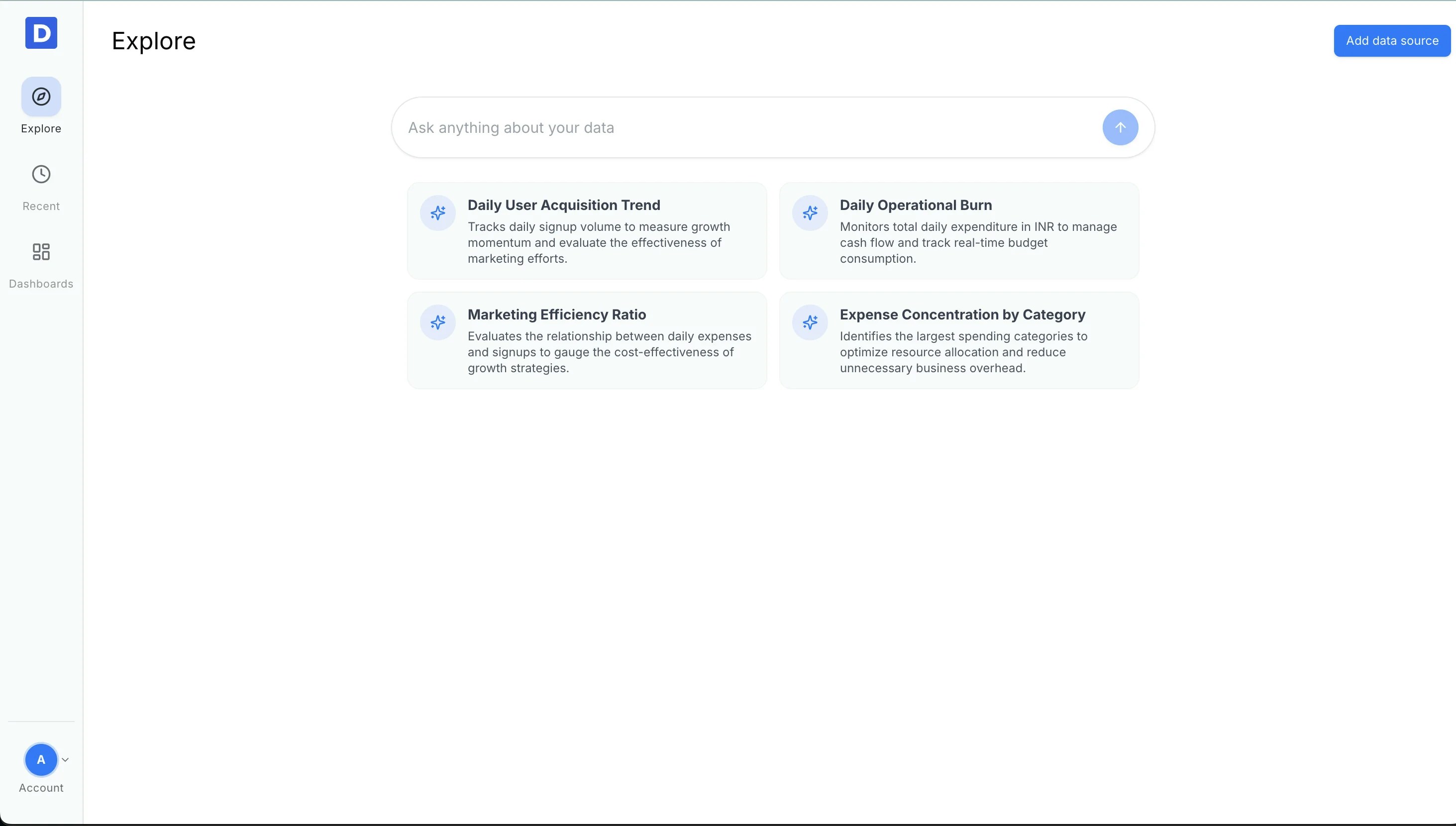
From your Daymark workspace, open **Explore** to start the connection flow.
 ### Open Data Connectors
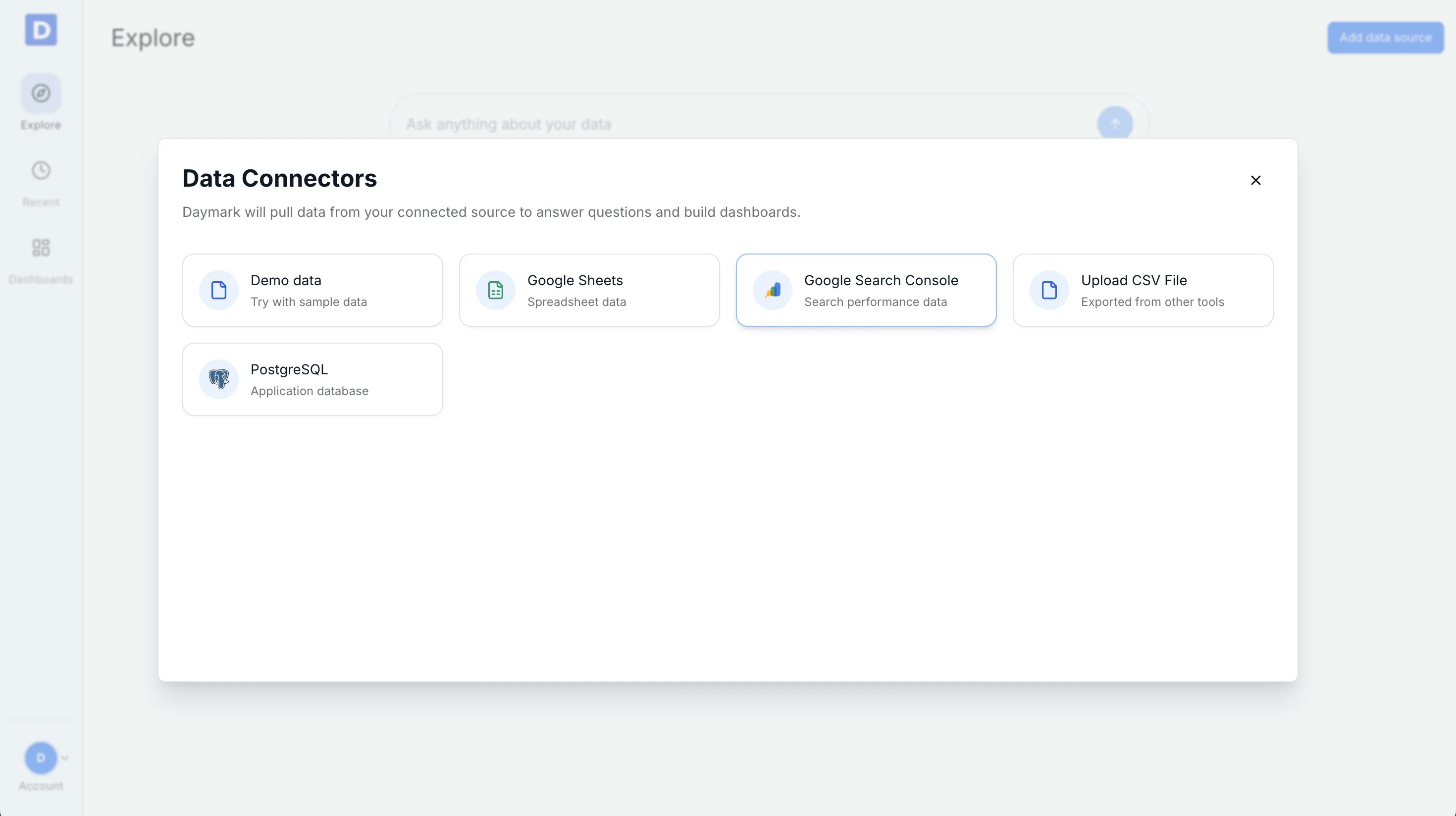
Click **Add data source** to open the connector list, then choose **Google Search Console**.
### Open Data Connectors
Click **Add data source** to open the connector list, then choose **Google Search Console**.
 ### Connect your Google account
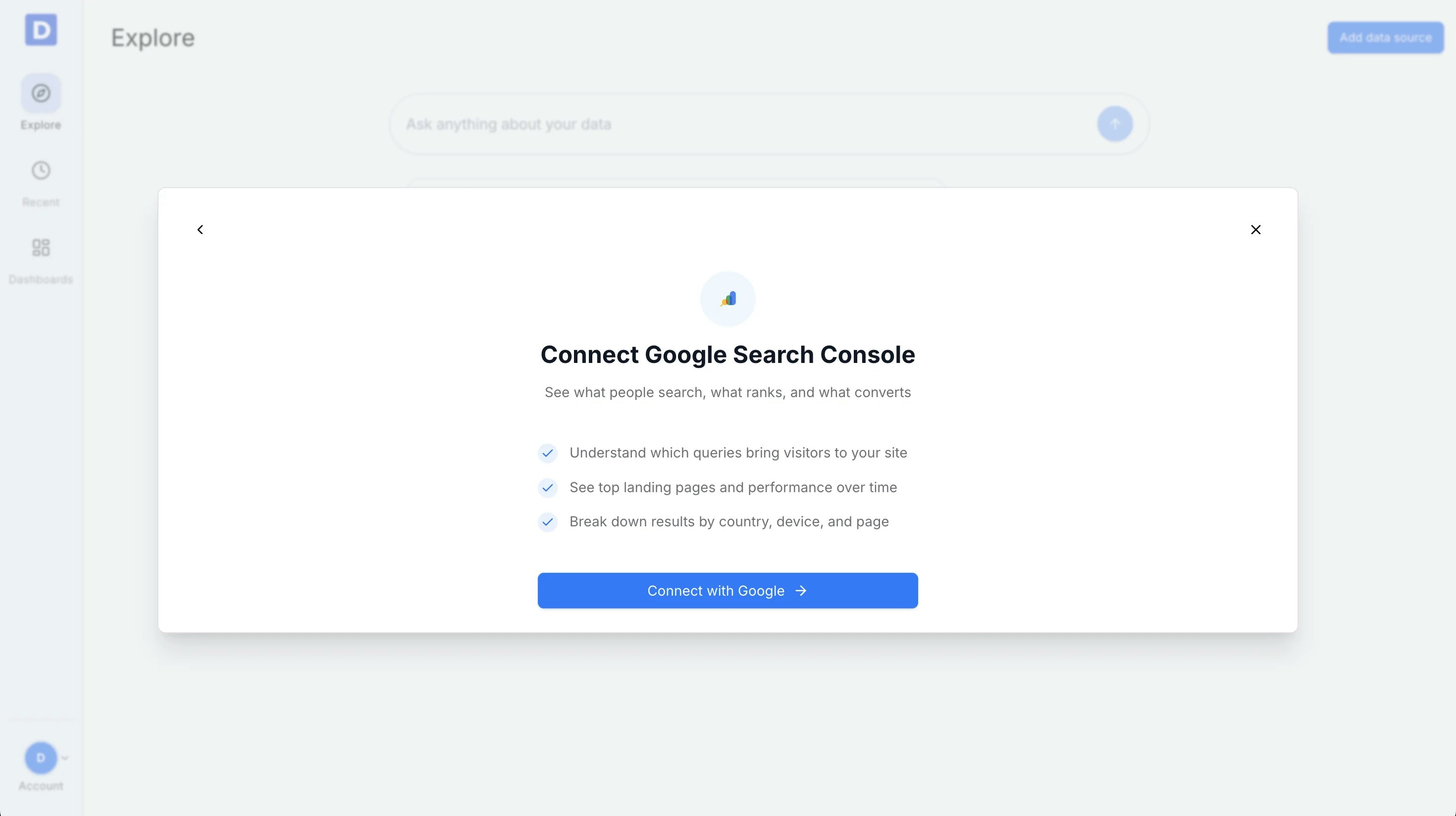
Select **Connect with Google →** and complete the Google sign-in flow.
Daymark only reads data the user has permission to access in Google Search Console and does not modify or write back to the data.
### Connect your Google account
Select **Connect with Google →** and complete the Google sign-in flow.
Daymark only reads data the user has permission to access in Google Search Console and does not modify or write back to the data.
 ### Choose your property and date range
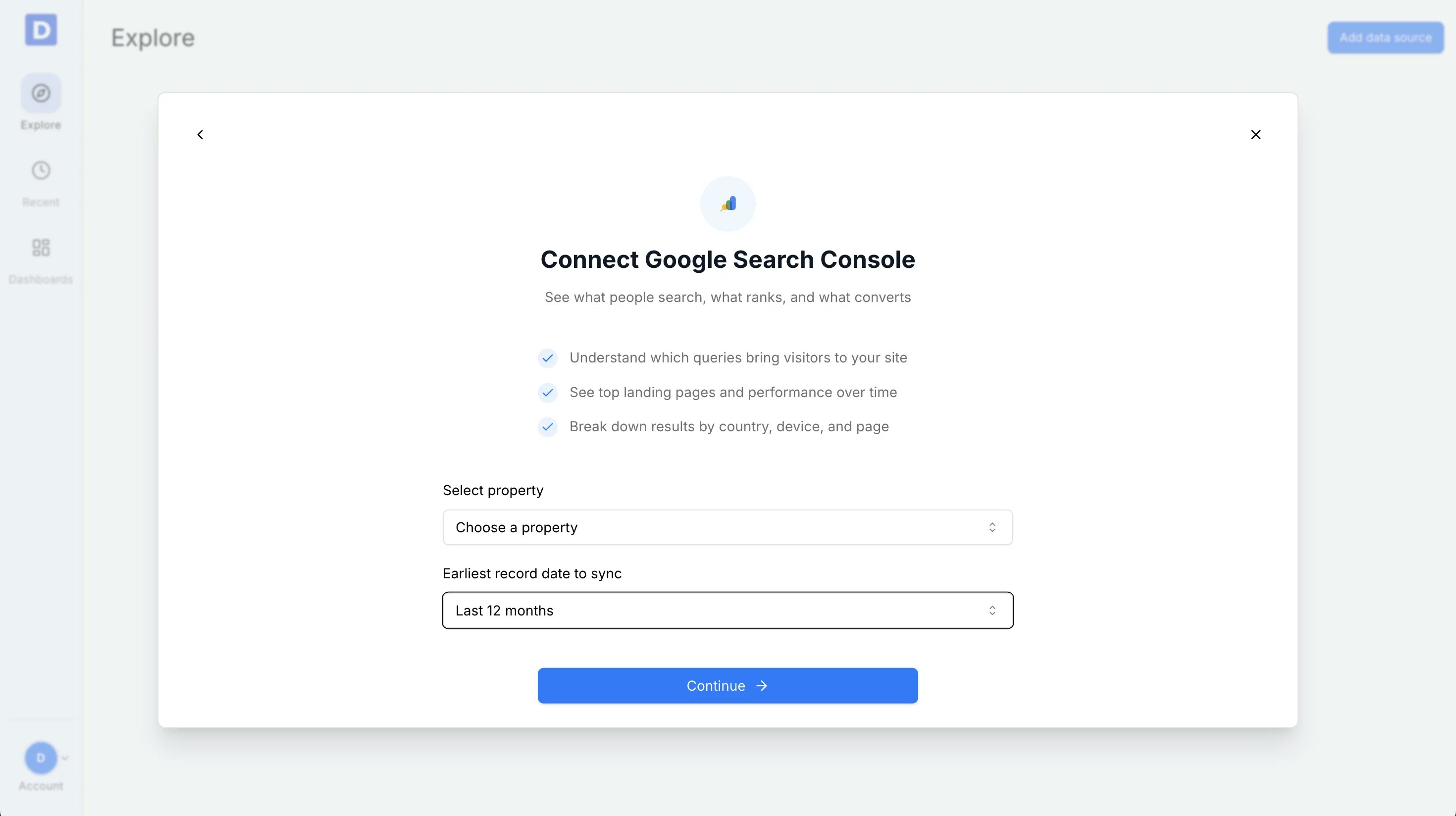
Use the connector form to finish the setup:
* **Select the Search Console property** you want to analyze (e.g., [https://example.com](https://example.com))
* **Choose the date range** Daymark should pull data for (last 30 days, last 90 days, last 12 months, or all time)
After confirming your selections, click **Continue**.
### Choose your property and date range
Use the connector form to finish the setup:
* **Select the Search Console property** you want to analyze (e.g., [https://example.com](https://example.com))
* **Choose the date range** Daymark should pull data for (last 30 days, last 90 days, last 12 months, or all time)
After confirming your selections, click **Continue**.
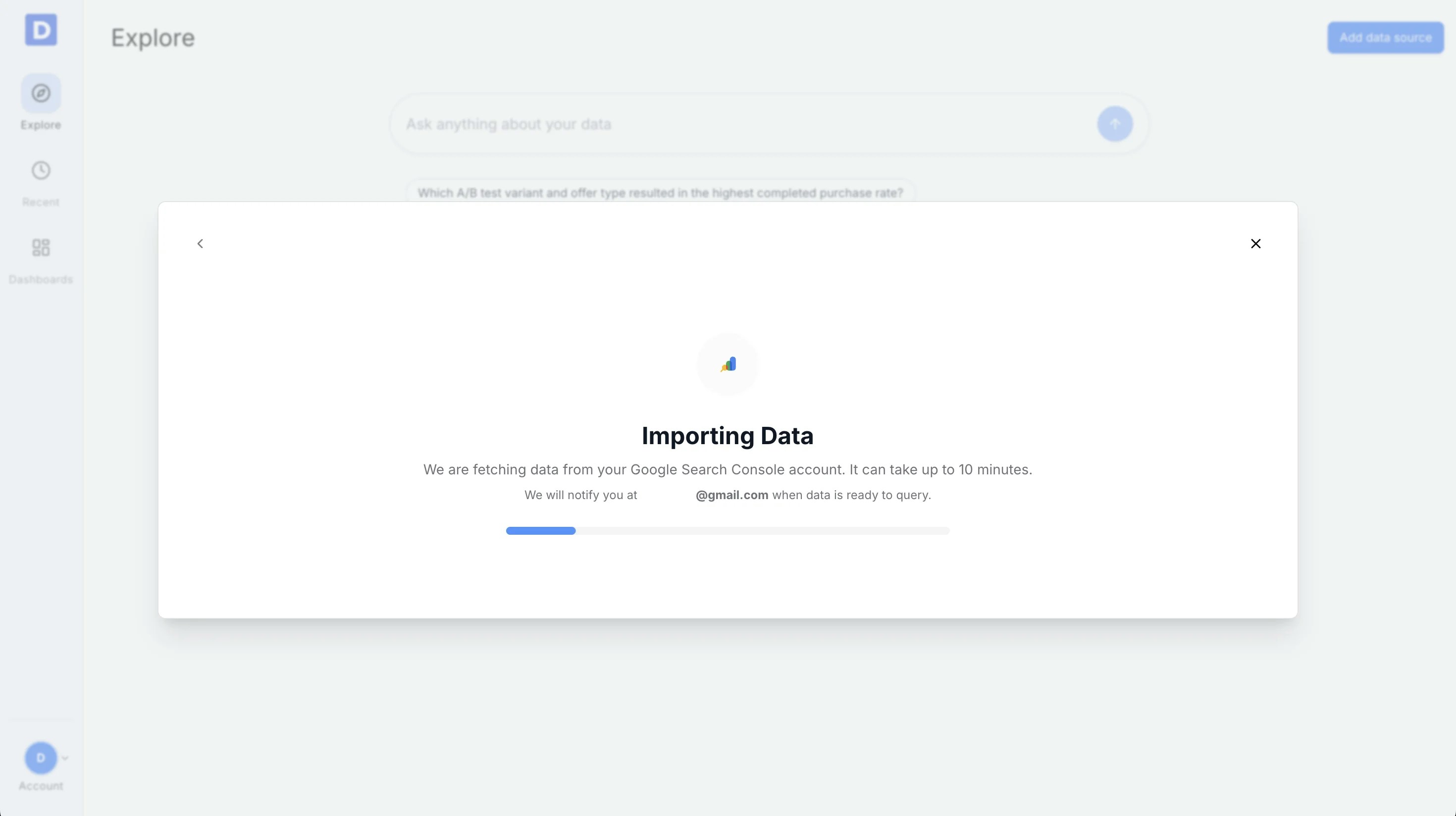
 ### Import Data
Daymark will sync the selected Search Console data and prepare it for querying. When the sync completes, you can start asking questions.
### Import Data
Daymark will sync the selected Search Console data and prepare it for querying. When the sync completes, you can start asking questions.
 ***
## Connection Complete
Once the sync completes successfully, ask your questions on the Explore page to see trends, patterns, and insights from your Search Console data.
***
## Connection Complete
Once the sync completes successfully, ask your questions on the Explore page to see trends, patterns, and insights from your Search Console data.