> ## Documentation Index
> Fetch the complete documentation index at: https://docs.usedaymark.io/llms.txt
> Use this file to discover all available pages before exploring further.
# Connect Google Analytics
> Connect a Google Analytics property to Daymark with step-by-step guidance
## Overview
Connect **Google Analytics** to Daymark to analyze website traffic, user behavior, and conversion performance. This connection lets you:
* Track users, sessions, and page views over time
* Analyze traffic sources, landing pages, and user locations
* Ask natural language questions about your analytics data
You will sign in with Google, select a Google Analytics account and property, and choose how much historical data to sync.
***
## Connect Google Analytics in Daymark
### Open the Explore page
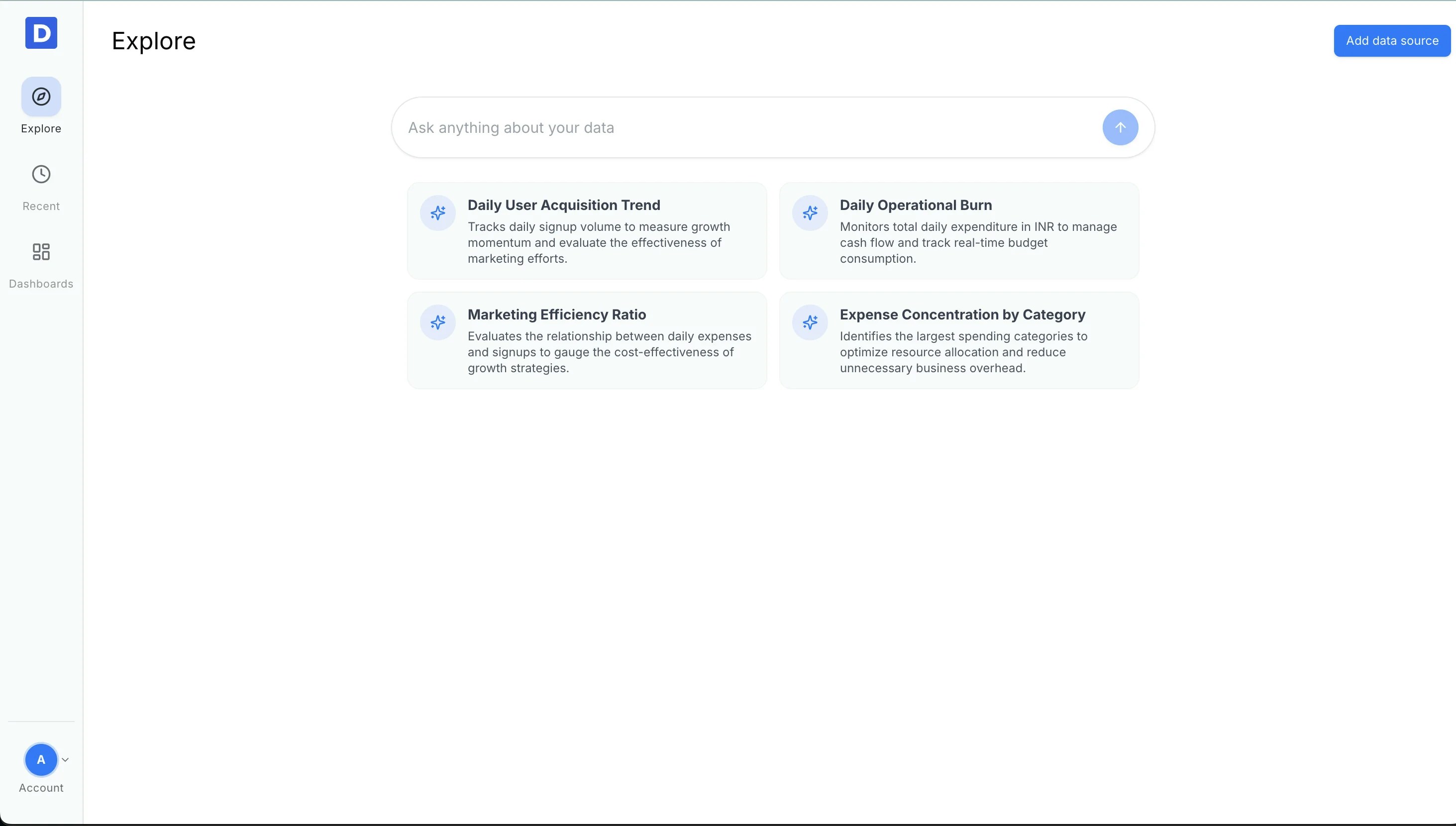
From your Daymark workspace, go to **Explore** to start connecting a new data source.
 ***
### Open Data Connectors
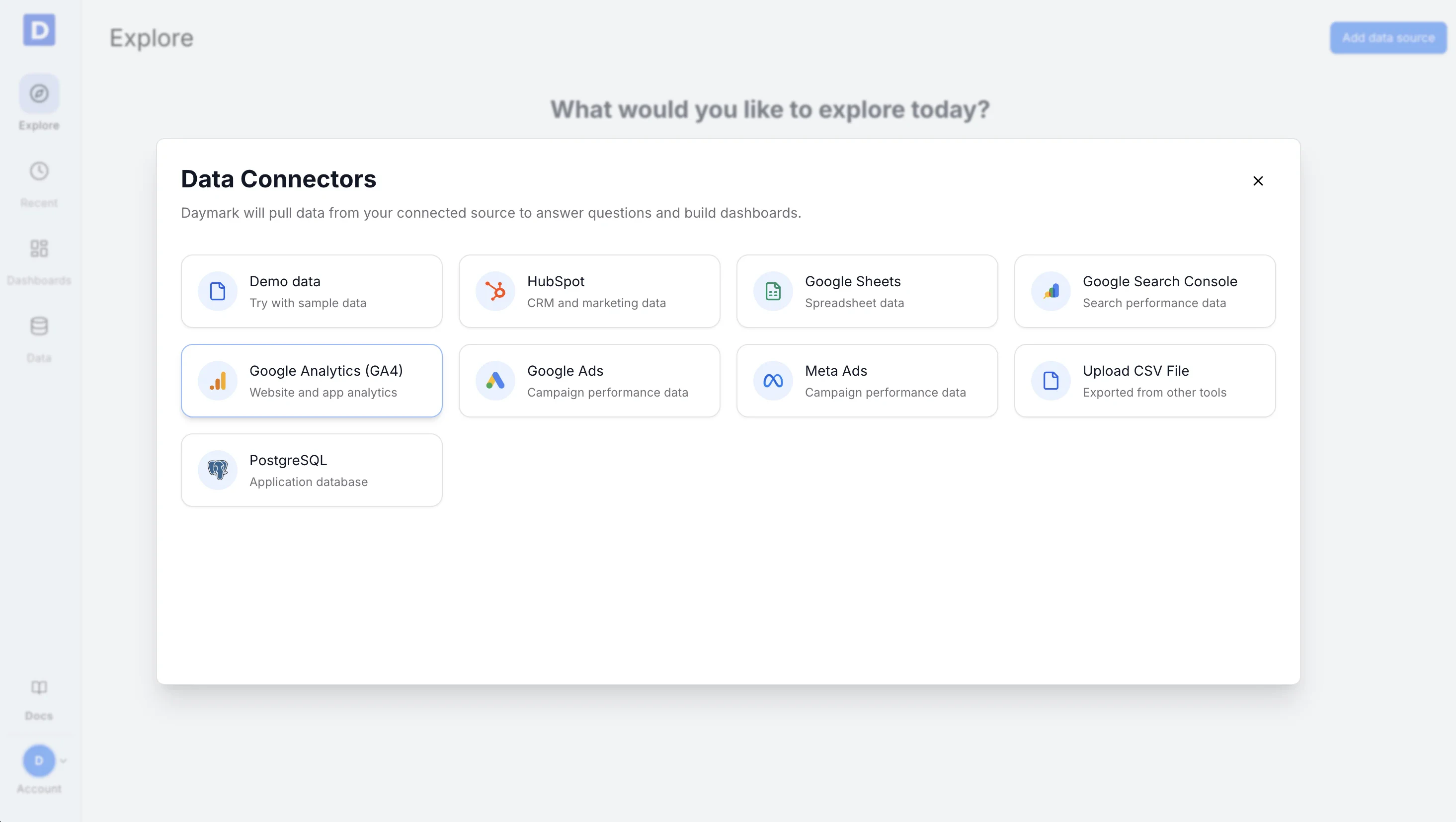
Click **Add data source** to open the list of available connectors. Select **Google Analytics** from the list.
***
### Open Data Connectors
Click **Add data source** to open the list of available connectors. Select **Google Analytics** from the list.
 ***
### Sign in with Google
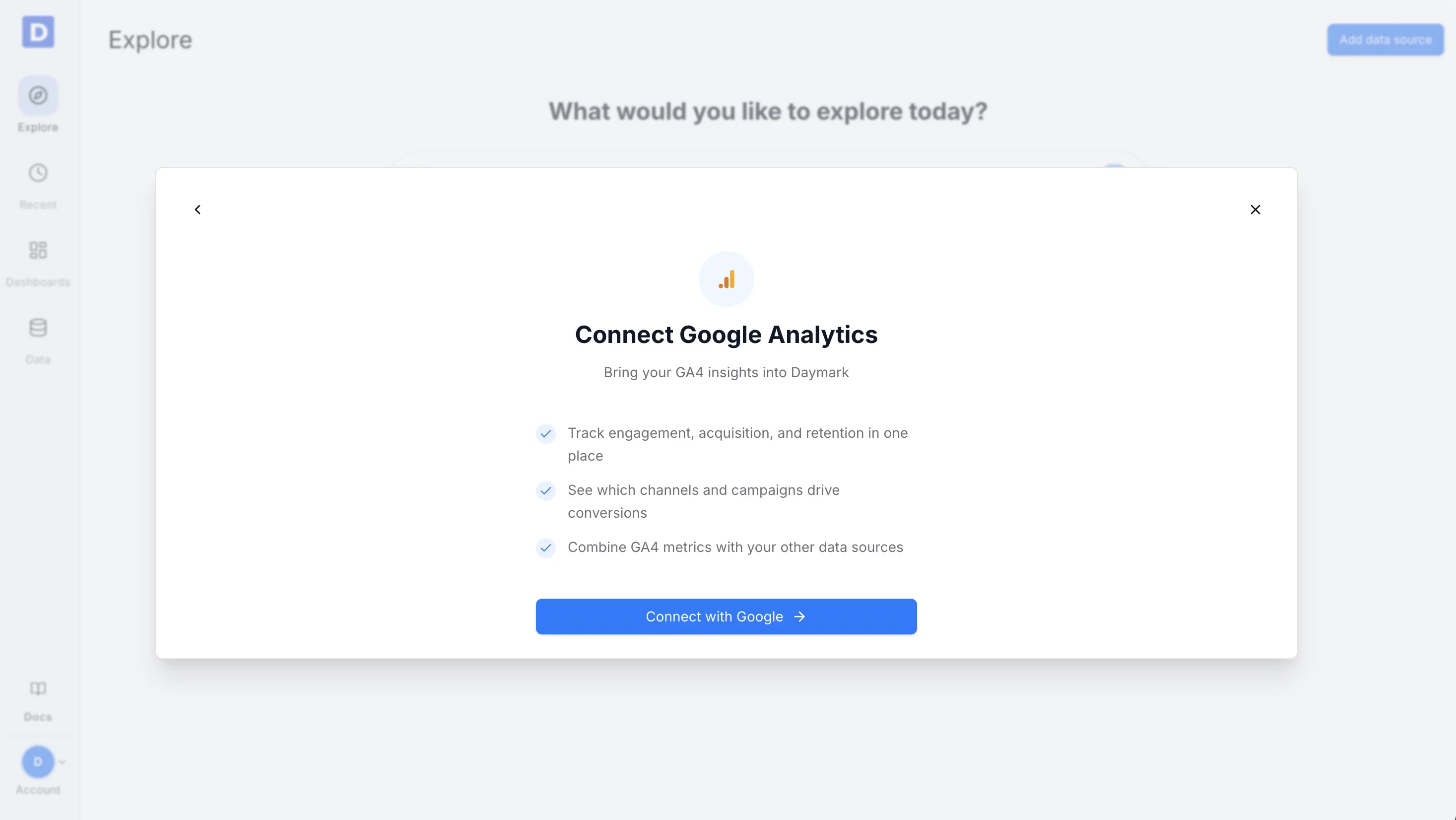
Click **Connect with Google** and complete the Google sign-in flow.
Daymark uses read-only access to retrieve Google Analytics data that the user is authorized to view and does not create, edit, or delete any Analytics resources.
***
### Sign in with Google
Click **Connect with Google** and complete the Google sign-in flow.
Daymark uses read-only access to retrieve Google Analytics data that the user is authorized to view and does not create, edit, or delete any Analytics resources.
 During this step, allow Daymark access to your Google Analytics data. These permissions are required to read property metrics and dimensions.
***
### Select Account, Property, and Settings
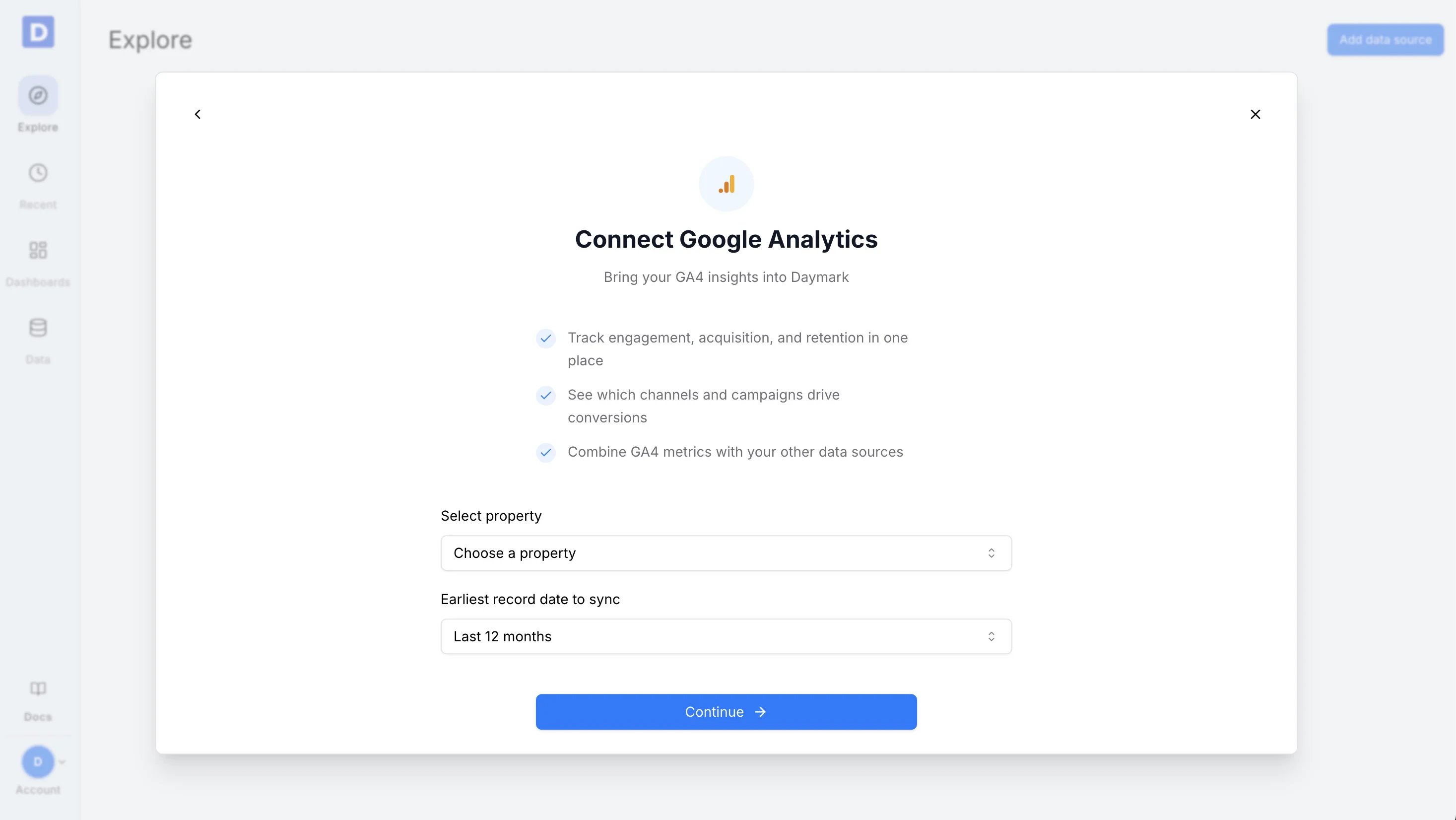
Complete the connector form:
* **Select Google account** that owns or has access to Analytics
* **Choose an Analytics property** you want to connect
* **Select the date range** for data sync
Examples: last 30 days, last 90 days, last 12 months, or all available data
Click **Continue** once the selections are complete.
During this step, allow Daymark access to your Google Analytics data. These permissions are required to read property metrics and dimensions.
***
### Select Account, Property, and Settings
Complete the connector form:
* **Select Google account** that owns or has access to Analytics
* **Choose an Analytics property** you want to connect
* **Select the date range** for data sync
Examples: last 30 days, last 90 days, last 12 months, or all available data
Click **Continue** once the selections are complete.
 ***
### Import Data
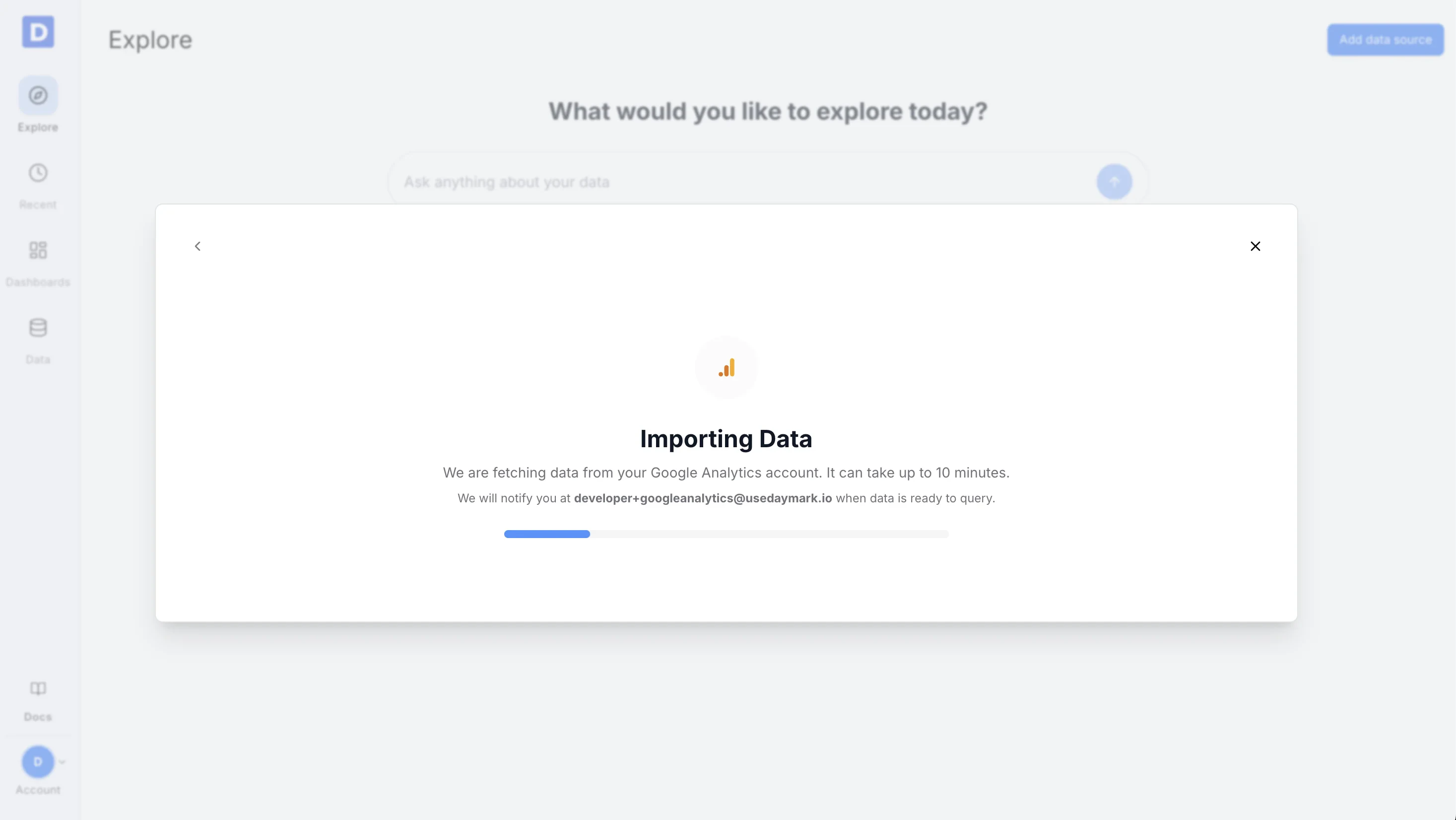
Daymark will start syncing data from Google Analytics. Once complete, your data will be ready for analysis in Explore.
***
### Import Data
Daymark will start syncing data from Google Analytics. Once complete, your data will be ready for analysis in Explore.
 ***
## Connection Complete
After the sync finishes, ask your questions on the Explore page in plain English and turn answers into tables, charts, or dashboards. For example:
* “How many users visited the site last month?”
* “Which pages have the highest bounce rate?”
* “Compare organic vs paid traffic over time”
***
***
## Connection Complete
After the sync finishes, ask your questions on the Explore page in plain English and turn answers into tables, charts, or dashboards. For example:
* “How many users visited the site last month?”
* “Which pages have the highest bounce rate?”
* “Compare organic vs paid traffic over time”
***